How to start a protocol and follow the alerts
Start a protocol on the mare, let GENNO calculate the dates of each step and follow everything through the alerts.
Before you start
- Starting, cancelling and confirming dates is for the veterinarian or administrator. Users with the tasks permission can record a step as done.
- Starting and following work offline. Setting up protocols and seeing the change history require a connection.
- Record the exam first. GENNO's suggestion uses the mare's last assessment. See how to record the reproductive exam.
Start a protocol
- Open the mare, tap the Reproduction tab and then Reproductive status.
- On the Progress tab, under Current protocol, tap Next step / start protocol.
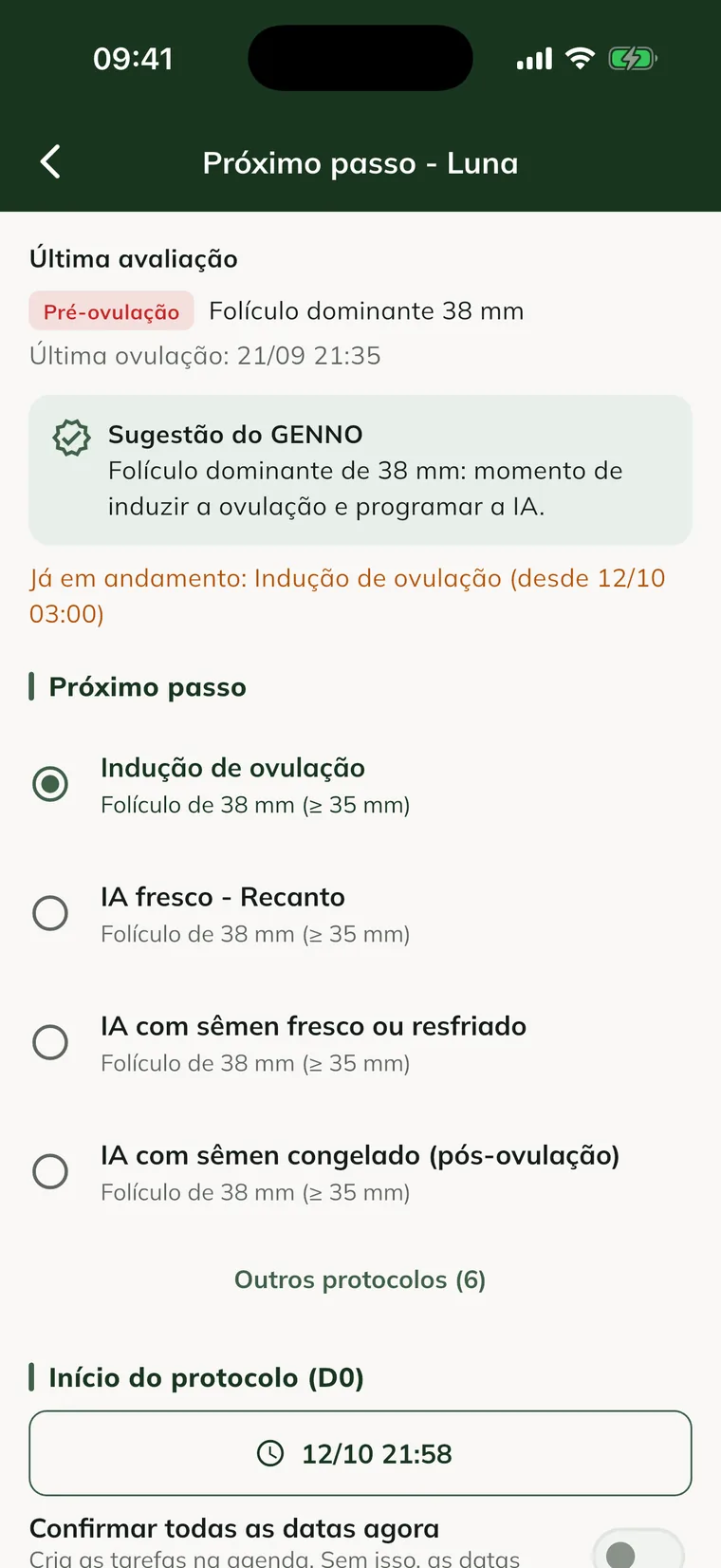
- Read the GENNO suggestion. It uses the last assessment and the dominant follicle.
- Under Next step, choose a recommended protocol. To see the rest, tap Other protocols.
- In Protocol start (D0), tap the date to change the day and time.
- Turn on Confirm all dates now if you want the tasks in the schedule right away. Without it, the dates stay as suggestions.
- Check the Calculated dates list.
- Tap Confirm and Calculate Date. The Protocol and Schedule screen opens.
If the mare already has an active protocol, Already in progress appears with its name.
On the web, open Reproduction, click the mare and, under Protocols, click Next step. The screen is the same.
Confirm or change the dates
Each step shows the status of its date: Waiting (depends on another event), Suggested date, Scheduled, Given or Done, and Skipped.
- In the Date calculated for box, see the date of the next step and the reason for the calculation.
- Tap Keep suggested date to confirm.
- Or tap Change date and choose another day and time.
For another step, tap the three dots next to it (Step actions). Each confirmed date becomes a task in the schedule.
In the app, only confirmed dates appear in the Schedule. On the web, the Schedule also shows suggested dates, with the Suggested date label, for you to confirm.
Record or skip a step
- Tap the step's three dots.
- Tap Record administration (medication) or Record as done.
- Adjust Done on, if it wasn't just now.
- Write the Observation, if you want. E.g.: dose given.
- Tap Record.
To skip, tap Skip step, write the Reason (optional) and confirm. When all steps are finished, the protocol becomes Completed.
When a date changes on its own
GENNO never changes a confirmed date without you. If the actual ovulation comes earlier or later than expected, the steps linked to it are recalculated.
- Steps that are still suggested get the new date.
- Steps already confirmed show the New suggested date box.
- Tap Keep to stay with the confirmed date, or Accept for the new one.
Every change goes into the Change history (clock icon at the top), with who changed it and the reason.
Cancel a protocol
- On the Protocol and Schedule screen, tap the menu at the top.
- Tap Cancel protocol.
- Write the Reason (optional) and confirm with Cancel protocol.
The protocol's pending tasks are also cancelled.
Follow the alerts
In the app, tap the bell on the Today screen or the Alerts box. On the web, click Alerts in the menu.
There are four types of alerts: New suggested date, Overdue step, Confirm date and Concurrent protocols. They open and close on their own, depending on the cause.
- Tap the alert to open the protocol. On the web, click Open protocol.
- Resolve the cause: confirm the date, record the step or decide on the new date.
- If you only want to remove the highlight, tap Mark as seen.
In the app, alerts are grouped under Today, Tomorrow, Next days, No date and Seen. On the web, filter by Active, Unseen or Resolved.
Overdue step and confirm date alerts are generated on the server. In the app, they appear after the sync.
Set up the in-house protocols (web)
- At web.genno.app, click Protocols and the Settings tab.
- Under GENNO catalog, open a protocol and click Duplicate. The catalog isn't edited directly.
- Or click New protocol to start from scratch.
- Fill in Name, Description and Type.
- In each step, fill in Title, Type and Count from: Protocol start (D0), A previous step or An animal event.
- Enter After (hours) and, if there is one, the Window (hours, optional).
- Click Add step for the next one.
- Click Save protocol.
For the protocol to start on its own, choose the event in Start automatically with the event and check Start automatically when the event is recorded. Uncheck Active to remove it from the start list. Editing a protocol doesn't change the ones already in progress.
In the app, the same settings are in More > Protocols > Set up, with internet.
Common problems
Next step / start protocol doesn't appear. Your profile can't start protocols. Ask the administrator for the veterinarian profile.
"The history is available when online." appears. The change history comes from the server. Open it again with internet.
The protocol shows "Waiting to send". It is saved on the phone and hasn't uploaded yet. Sync when you have internet.
My in-house protocol doesn't appear to start. It is inactive. Edit the protocol and check Active.
Next steps

Didn’t this article solve it?
Talk to the GENNO team. Tell us what you were doing and, if you can, send a screenshot.