How to record a clinical visit with a prescription
You record the animal's visit, prescribe and follow each dose, online or offline.
Before you start
- The clinical module must be in the farm's plan. Without it, the Visits tab appears as Module Locked.
- Choose the right property. The prescription uses that property's inventory.
- Medications must be registered in Inventory to appear in the prescription.
- Only users with permission see the New Visit button and the Prescription step.
Open the visit
- Tap the magnifying glass at the top and search for the animal by name.
- Tap the animal to open its record.
- On the Summary tab, tap New Visit.
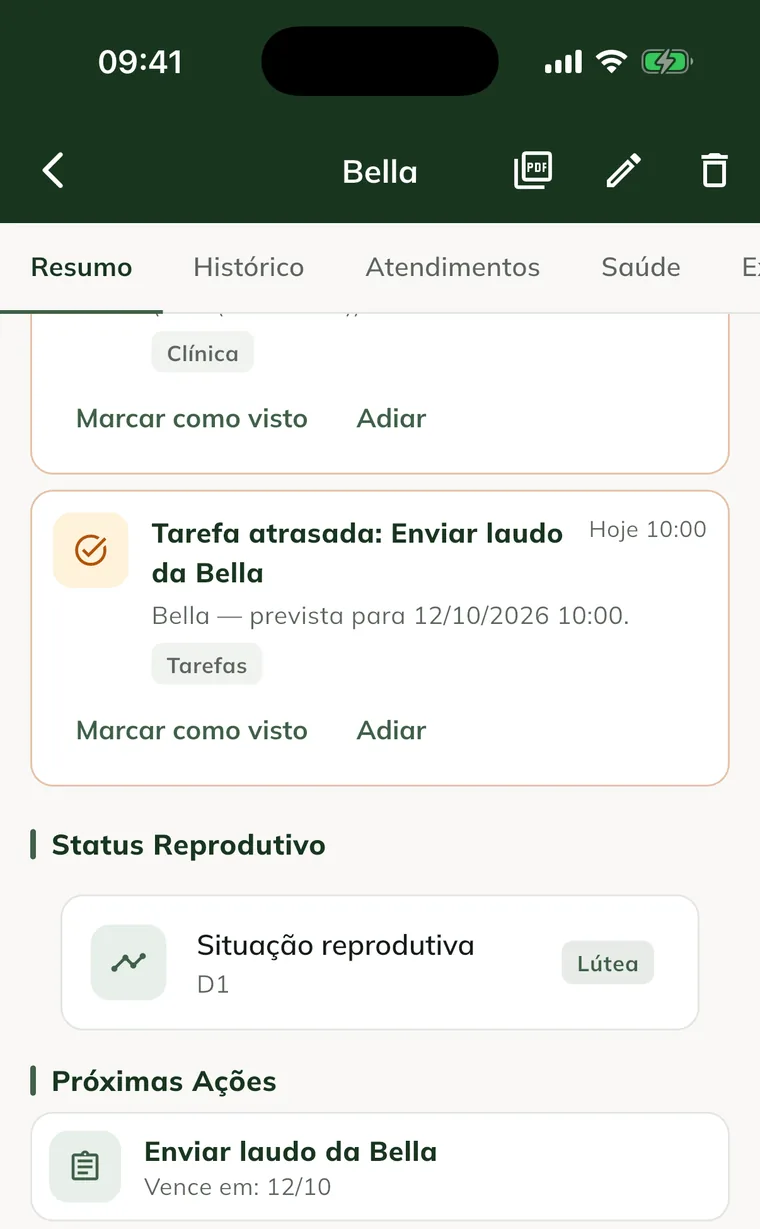
You can also start from the + button in the middle of the bottom bar. Tap New Clinical Visit, then the Animal for the Visit card, choose the animal and tap Next.
The Complete Clinical Visit screen opens in steps. Use Next to move forward and Back to fix the previous step.
Fill in the steps
- In Basic Information, choose the Visit type: Consultation, Vaccine, Dewormer, Exam, Surgery or Treatment.
- Write the Reason for the visit and tap Next.
- In History and Physical Exam, fill in History and Physical Exam.
- In Vital Signs, fill in HR (bpm), RR (breaths/min), Temp. (°C), CRT (s) and Mucous membranes.
- In Diagnosis and Plan, fill in Diagnosis and Clinical Plan.
- In Exams, choose the lab exams, if needed. See how to request exams.
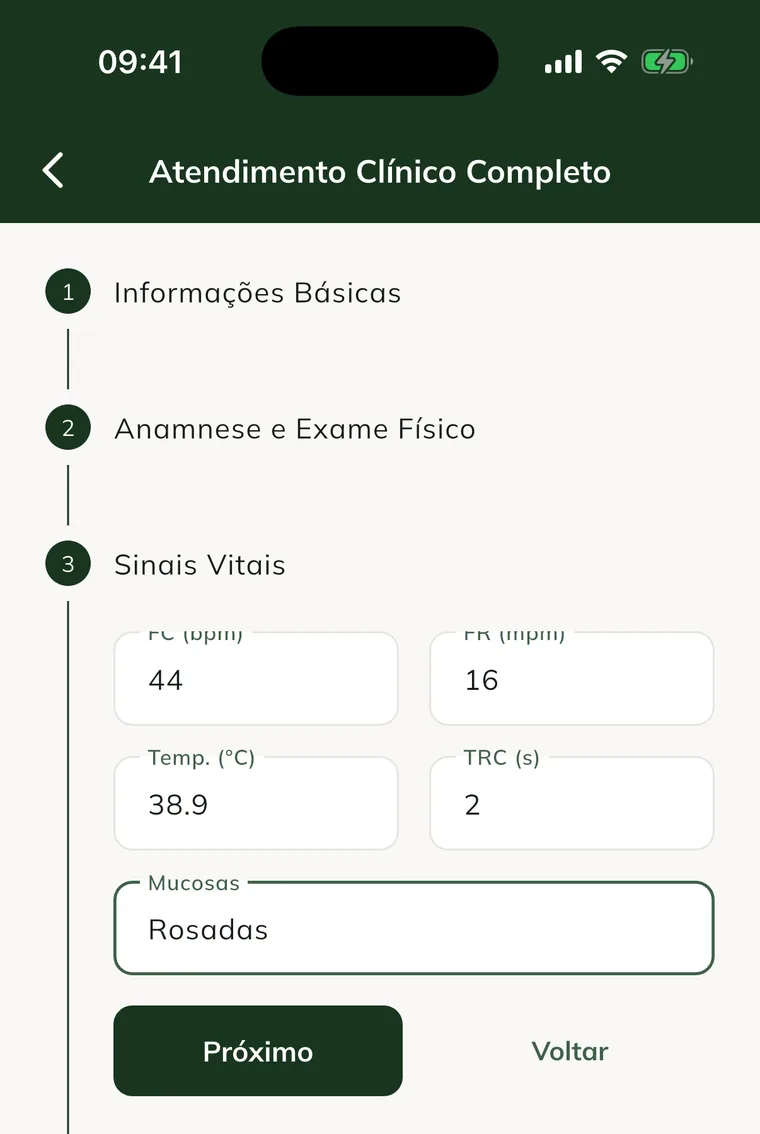
Only the animal is required. Leave blank whatever you didn't assess.
Prescribe the medications
In the Prescription step:
- Tap Add medication.
- In Product, choose the medication from inventory.
- Enter the Dose. The Unit comes filled in with the product's unit; change it if needed.
- Choose the Route: IV, IM, SC, PO, Topical, Intrauterine or Other.
- Enter Times per day (1 to 24) and Days (1 to 365).
- If you want, write the Instructions (optional).
- Tap Add.
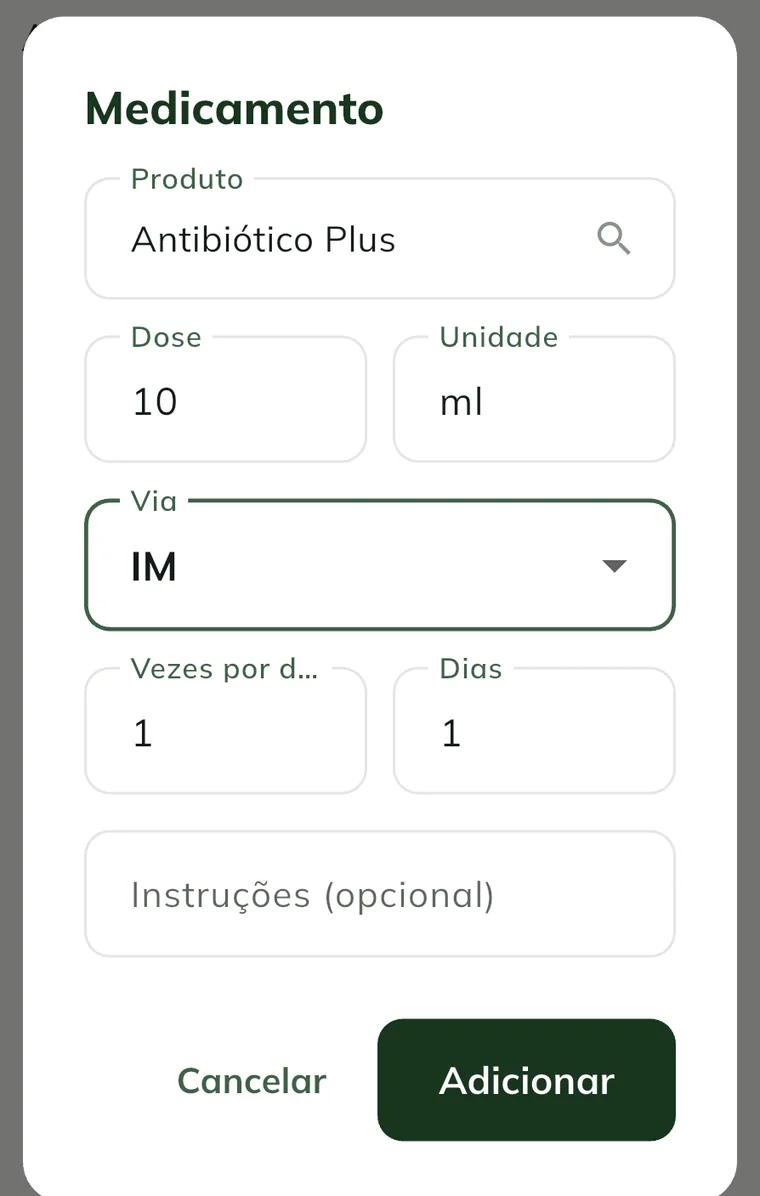
Each medication appears on a card with the dose, route, frequency and total number of doses. To remove an item, tap the trash can (Remove).
Keep Start the treatment now checked. It creates the dose schedule to give and follow. Uncheck it only if you want to record the prescription without starting the treatment.
A prescription saved without starting the treatment can be started later on the web, in Prescriptions › Prescriptions tab › Start treatment. See how to start a treatment.
Finish the visit
- In the Next steps step, schedule the follow-up, a reminder and the notices to the owner. See how to set the next steps.
- Tap Finish Visit.
- Check the message Visit finished successfully!
The visit appears on the Visits tab of the animal record. Tap it to see vital signs, history, diagnosis and plan. The Report / PDF button generates the report for that visit.
For something quick, such as a vaccine or dewormer, use the Health tab and tap New Clinical Record. Choose the Type, write the Description, prescribe if needed and tap Save.
Record the visit on the web
On the web, the visit is simpler, without a prescription:
- At web.genno.app, click Clinical and New visit.
- Choose the Animal, the Date and the Type, and write the Reason / description.
- Fill in History, HR (bpm), RR (breaths/min), Temp. (°C), Diagnosis and Plan.
- Click Save visit.
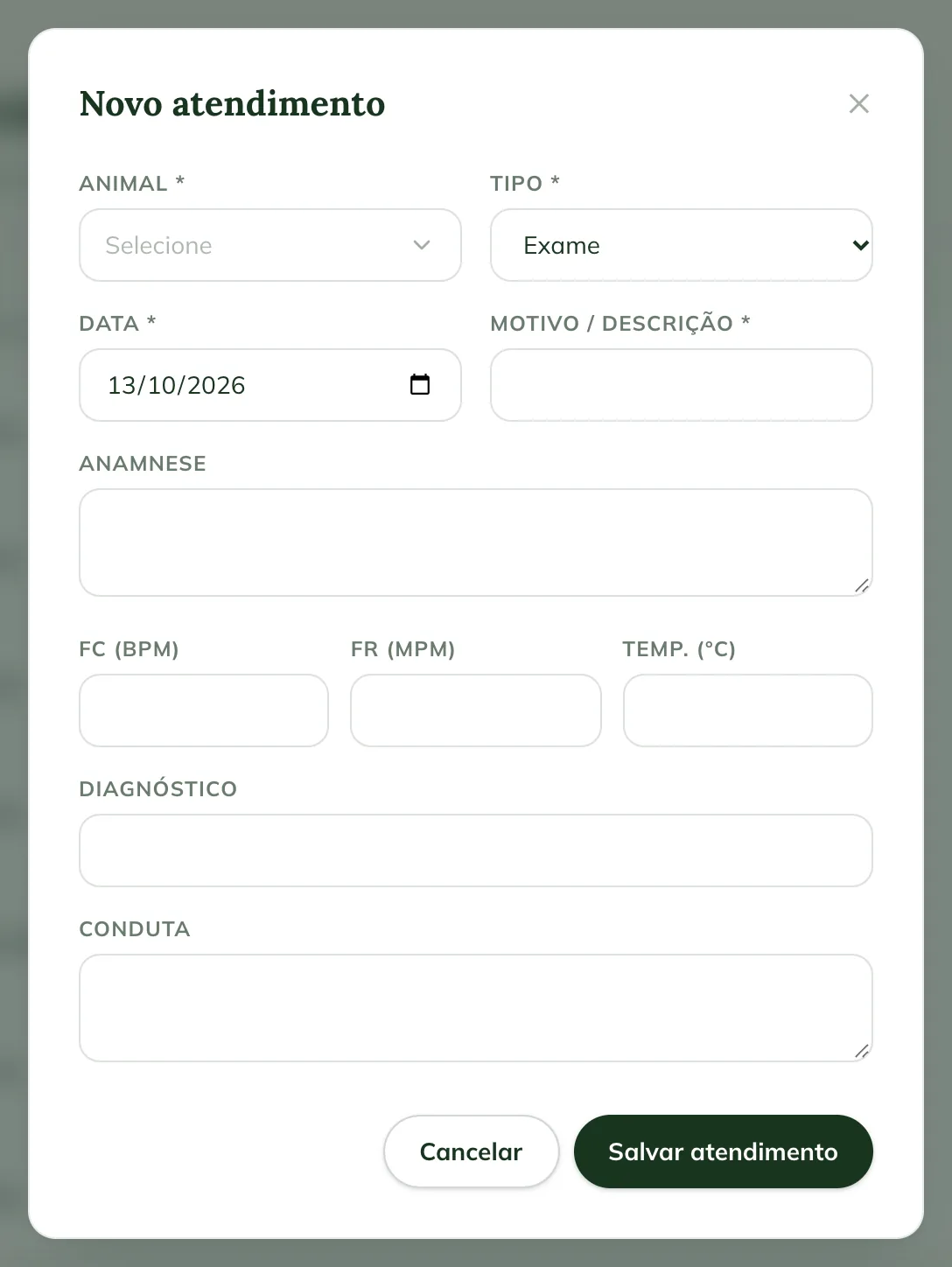
To open a visit already recorded, click See medical record. There you request exams, set the next steps and generate the Report (PDF).
Give the doses
The treatment doses are in two places:
- More › Pending doses: all of the property's doses, under Overdue, Today and Next days.
- Animal record › Treatments tab: tap the treatment to see the doses per medication and the progress of doses given.
To give a dose (the full step by step is in how to give and skip doses):
- Tap the dose.
- In Lot (optional), choose the lot or leave Automatic (expires first).
- If you want, write the Notes (optional).
- Tap Give dose.
- Check the message Dose given.
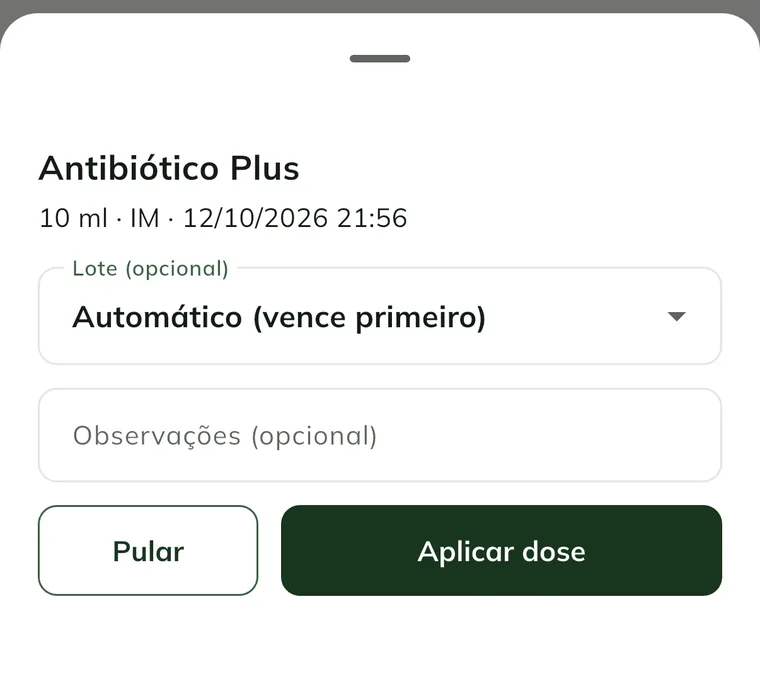
Giving the dose deducts the lot's stock right away, even offline. If the balance doesn't cover the dose, the app blocks it. When the product has a sale price, the usage goes into the visit invoice.
To skip a dose, tap Skip, write the Reason for skipping and tap Confirm. Skipping doesn't touch inventory.
In the treatment menu (three dots at the top), you can Add medication or Cancel treatment. When you cancel, pending doses are cancelled and doses already given stay recorded.
Common problems
The Prescription step is empty or doesn't appear. Your account doesn't have permission to prescribe. Ask the farm administrator to review your role.
"Visit saved, but the prescription failed" appeared. The visit was saved; only the prescription wasn't. If the reason is Select a property to prescribe., switch to the right property and create the treatment from the Treatments tab, in New treatment.
"Cannot convert the dose in ml to the stock unit" appeared. The product is tracked in vials or boxes and the content is missing. In Inventory, edit the product and fill in Content per unit and Content unit.
"Not enough stock of" and the product name appeared. The lot balance doesn't cover the dose. Choose another lot or record the product's stock-in.
"You don't have permission to give doses." appeared. Your role allows you to view, but not give doses. Ask the farm administrator.
The dose turned red with "rejected by the server". Another device may have used the same stock first. The dose goes back to pending. See the reason in More › Sync and give it again.
The product list is empty. There are no medications registered on this property, or the phone hasn't synced yet. Register them in Inventory or sync with internet.
Next steps

Didn’t this article solve it?
Talk to the GENNO team. Tell us what you were doing and, if you can, send a screenshot.