How to customize the visit and history templates
Each visit type (Consultation, Vaccine, Emergency, Surgery...) follows a template: which steps appear, what is required, which fields the physical exam has and which questions the history asks. GENNO comes with a ready-made template for each type. You change what you want, and the app and the web follow the organization's template.
Before you start
- Editing the templates requires the Templates permission (vets and admins have it; staff and interns can only view).
- The templates apply in the app and on the web. The app brings them in the sync and uses what it already has when offline.
- Visits already recorded keep the version of the template they used: changing the template doesn't touch old records or reports.
- GENNO templates are marked under clinical review until GENNO's veterinary team reviews them.
Visit types and button order
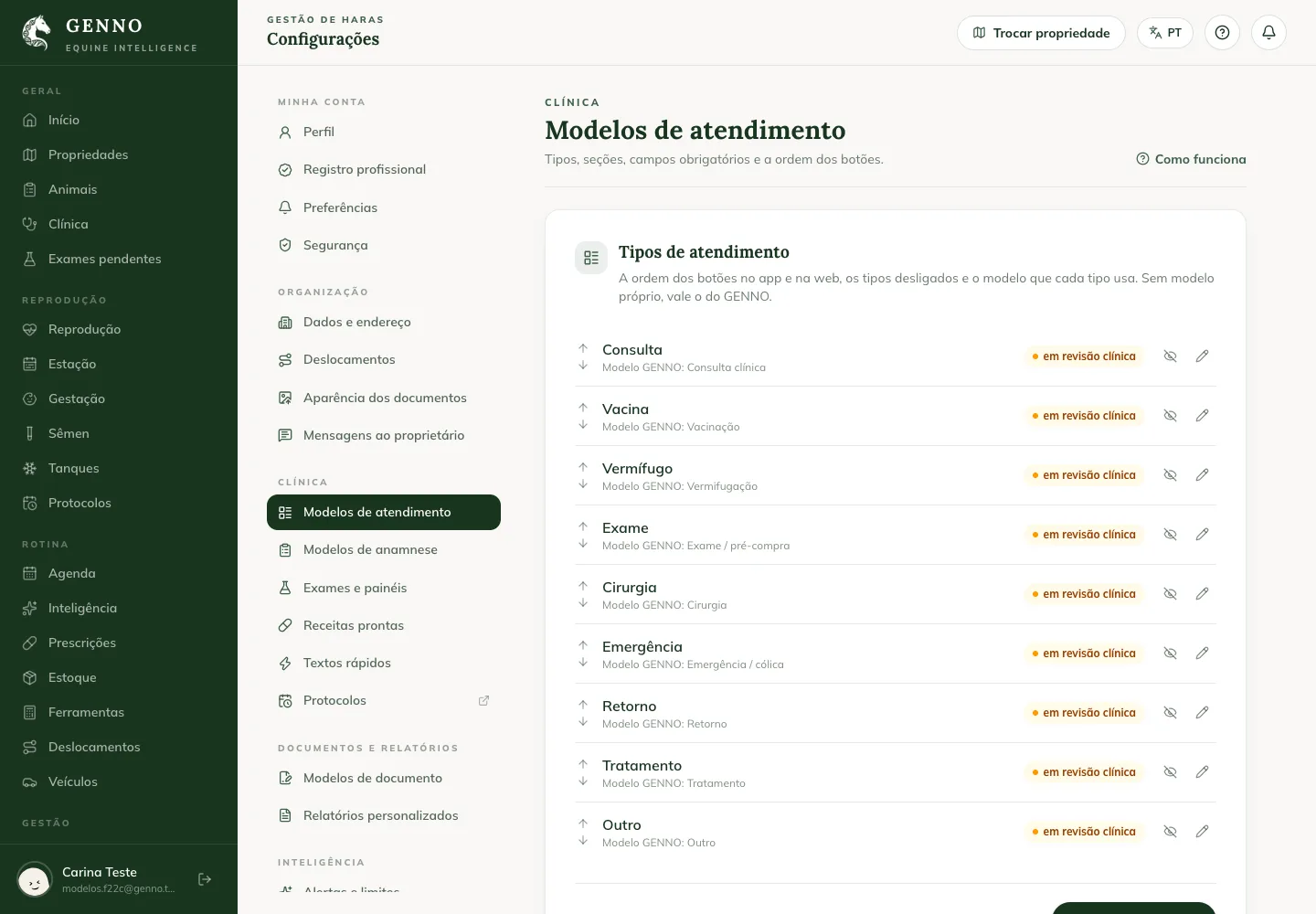
- At web.genno.app, click Settings and, under Clinical, Visit templates.
- Under Visit types, use Move up and Move down to change the order of the buttons in the app and on the web, and Turn off to hide a type the farm doesn't use.
- Click Save the order.
- For a type that doesn't exist, such as Dentistry, click New custom type.
Customize a template
- On the type, click Customize (on your own template, Edit).
- Under Sections, check Shown on the ones included in the visit and Required on the ones that can't be left blank. The Reason for the visit is always shown.
- Under History, choose With questions (template) and the History template, Free text or Choose during the visit.
- Under Physical exam fields, check the fields that are shown and the required ones. To measure something that isn't on the list, click Custom field.
- If you want, check the Exams already selected and the Suggested next steps (for example, a follow-up in 7 days).
- Under Who uses it, leave The whole team or choose Only me for a personal template.
- Click Save.
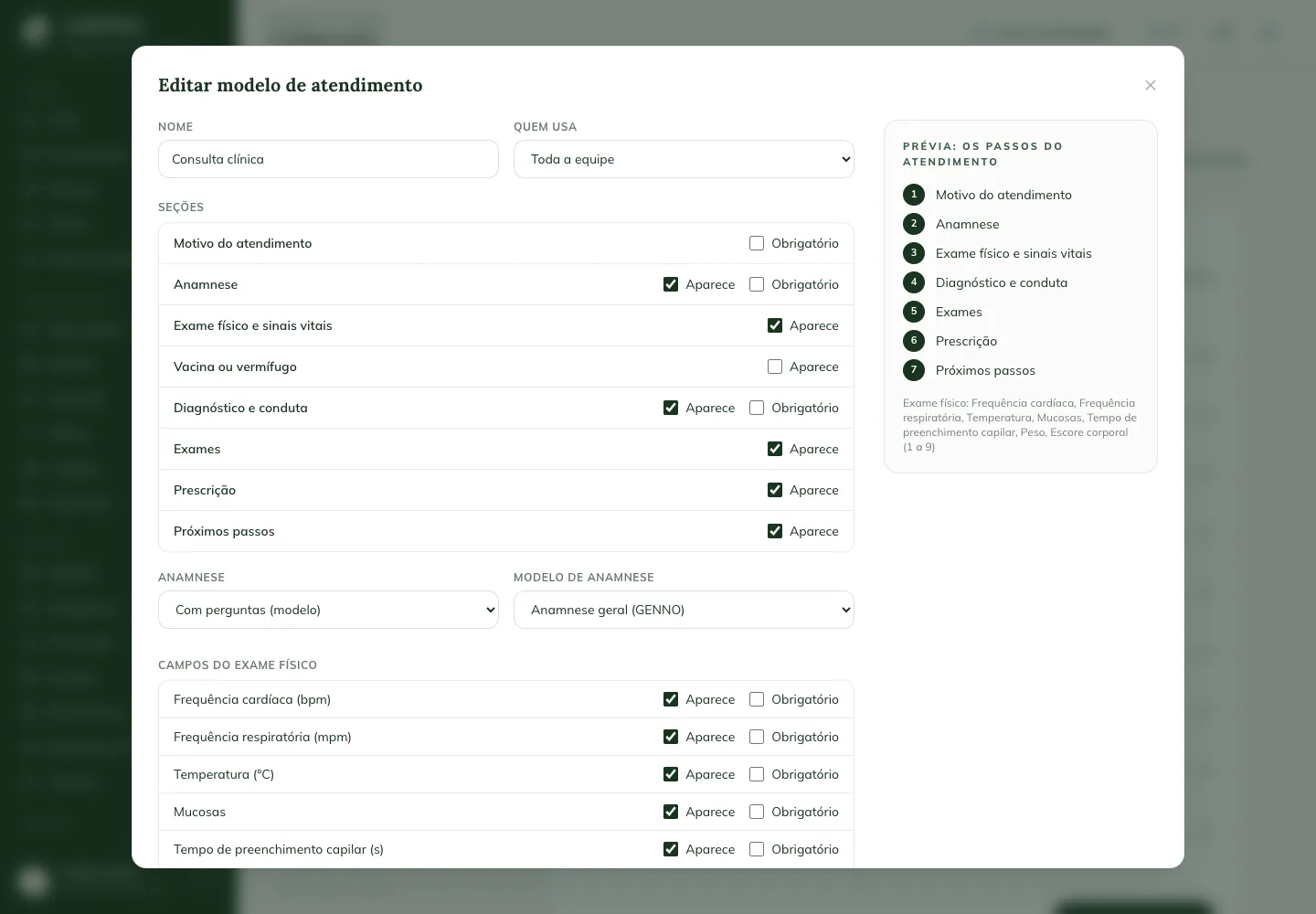
The Preview: the visit steps on the right shows how the visit will look. During the visit, Next only moves on when the step's required fields are filled in.
To go back to the GENNO template, click Restore from the GENNO template. When GENNO releases a new version of a template you customized, the New GENNO version badge appears.
Build a history template
- In Settings › Clinical, click History templates.
- Under GENNO templates, click Use as a starting point (for example, on the colic history), or click New template to start from scratch.
- For each question, write the Question and choose the Type: text, long text, yes or no, single choice, multiple choice, number, date, scale or limb.
- If you want, check Required, Ask for details on "yes" or use Only shown if to show the question only after a given answer.
- Check the Preview: what the vet sees and click Save.
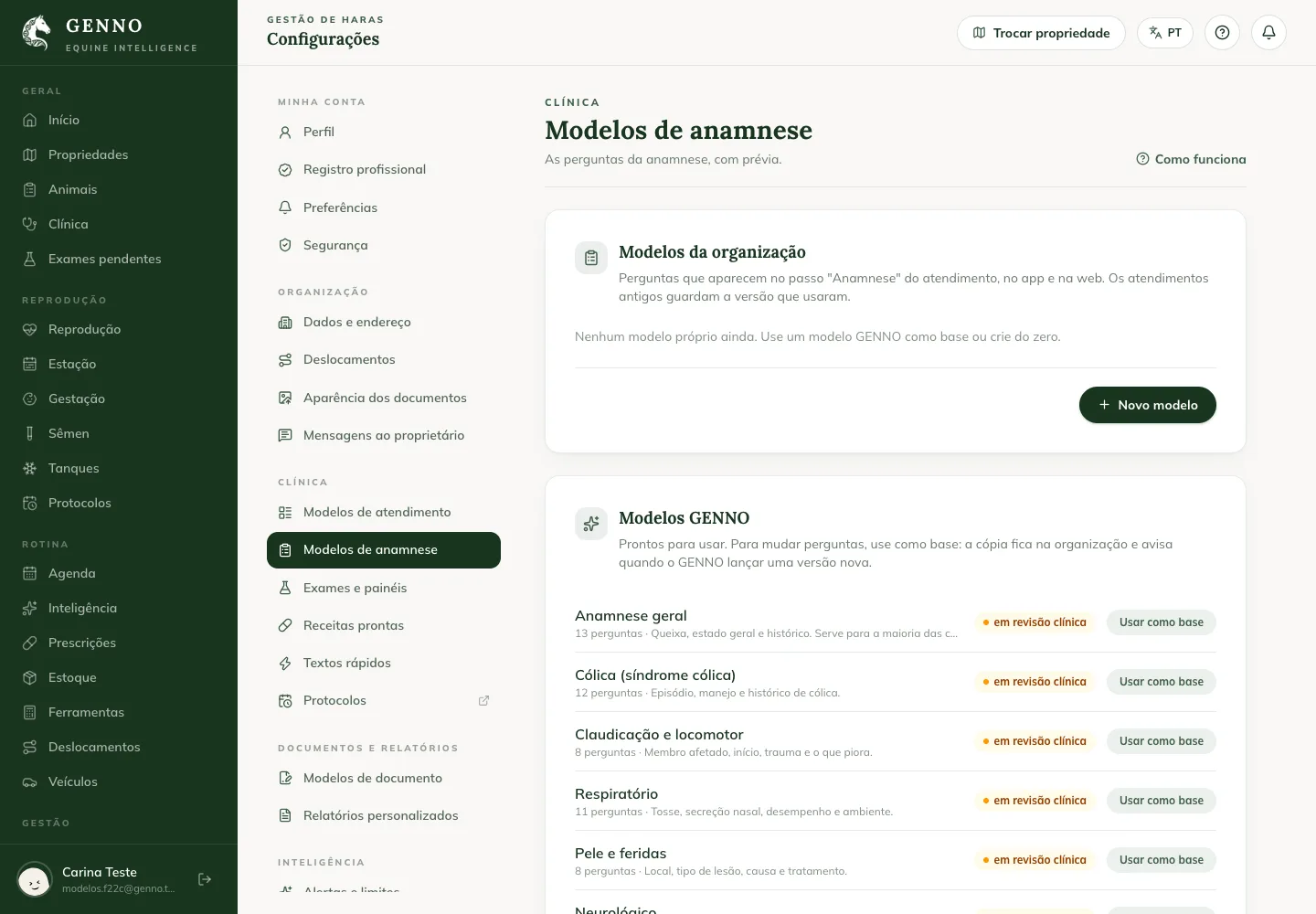
In the record and in the report, the history appears as question and answer pairs, only with what was answered.
Common problems
The app still shows the old steps. The app hasn't synced since the change. With internet, tap sync at the top of the Today screen and open the visit again.
The Customize button doesn't appear. Your profile can only view the templates. Ask the farm's administrator.
Next doesn't move on. A required field in the step is missing. The app and the web show Required under what is missing.
Next steps

Didn’t this article solve it?
Talk to the GENNO team. Tell us what you were doing and, if you can, send a screenshot.