How to generate and sign a PDF report
You'll get the visit or exam report straight out of GENNO, signed and ready for the owner, without retyping anything.
Before you start
Register your professional license once. Without it, GENNO won't let you sign.
- In the app, tap More > Reports and the pen icon Professional registration and signature. You can also open it from your profile, in Professional details.
- Fill in Title (e.g.: Veterinarian) and License (CRMV) (e.g.: CRMV-RJ 12345).
- Draw your signature in the box. Use Clear to start over.
- Tap Save.
On the web, the same is in Profile > Professional registration and signature > Save record.
Saving the professional registration requires internet. Without a connection, the app shows No connection: open again when online.
Only administrators and veterinarians sign reports.
When you save with Sign now, the signature is a simple electronic signature: it identifies who signed and the document gets a verification code. From the document menu, you can upgrade to an Advanced or Qualified signature (with a cloud digital certificate). See the types of electronic signature.
Generate the report in the app
- Open the source record:
- Visit: open the animal, go to the Visits tab and tap Report / PDF on the visit.
- Reproductive exam: open the mare's reproduction (in More › Reproduction, tap the mare; or on her record, Reproduction tab, Reproductive status card), go to the Exams tab, open the exam and tap Report.
- The report appears on screen with the record's data.
- Tap the Generate PDF icon to see the preview. There you can zoom, print and share.
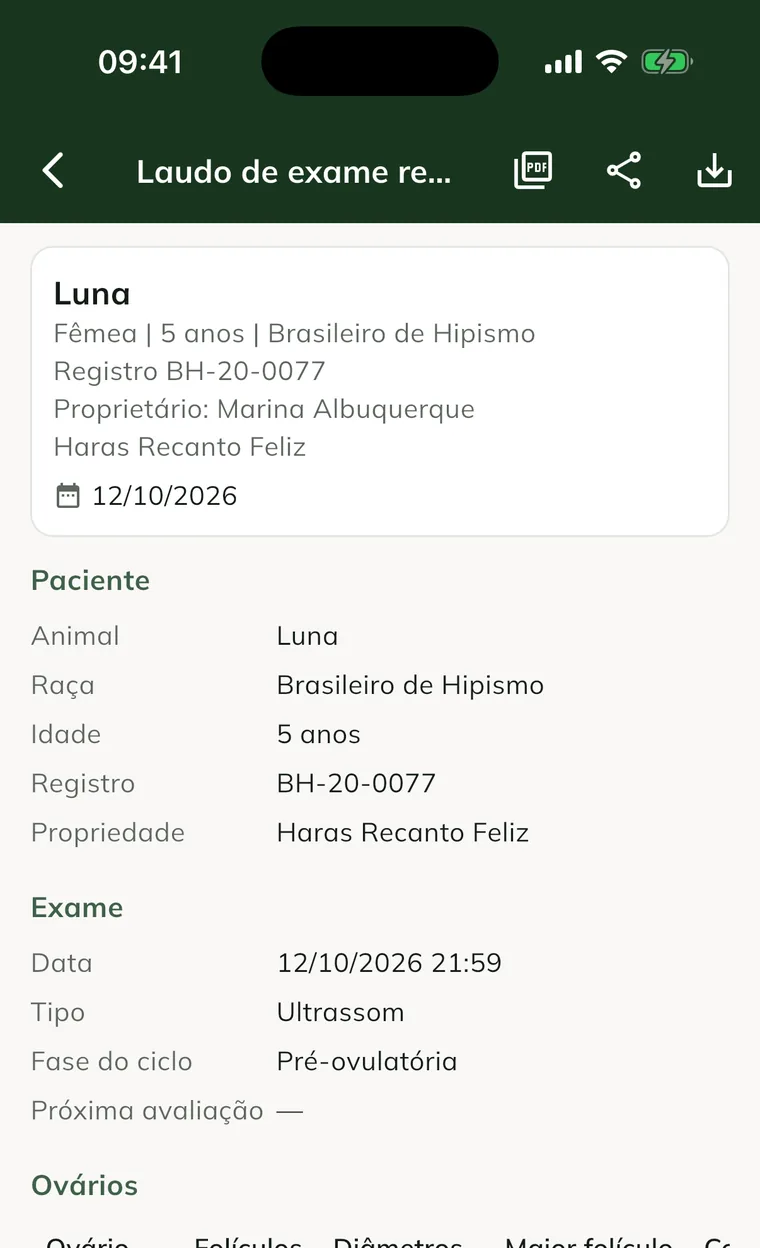
You can also find all reports in More > Reports.
Offline, the report is built from the data on the device. The notice Generated on the device, offline appears.
Save and sign
- On the report screen, tap the Save document icon.
- Check the Title.
- Turn on Sign now.
- Keep Share with the owner on if the report should appear in the owner's portal.
- Tap Save. Document saved and signed. or Document signed and shared with the owner. appears.
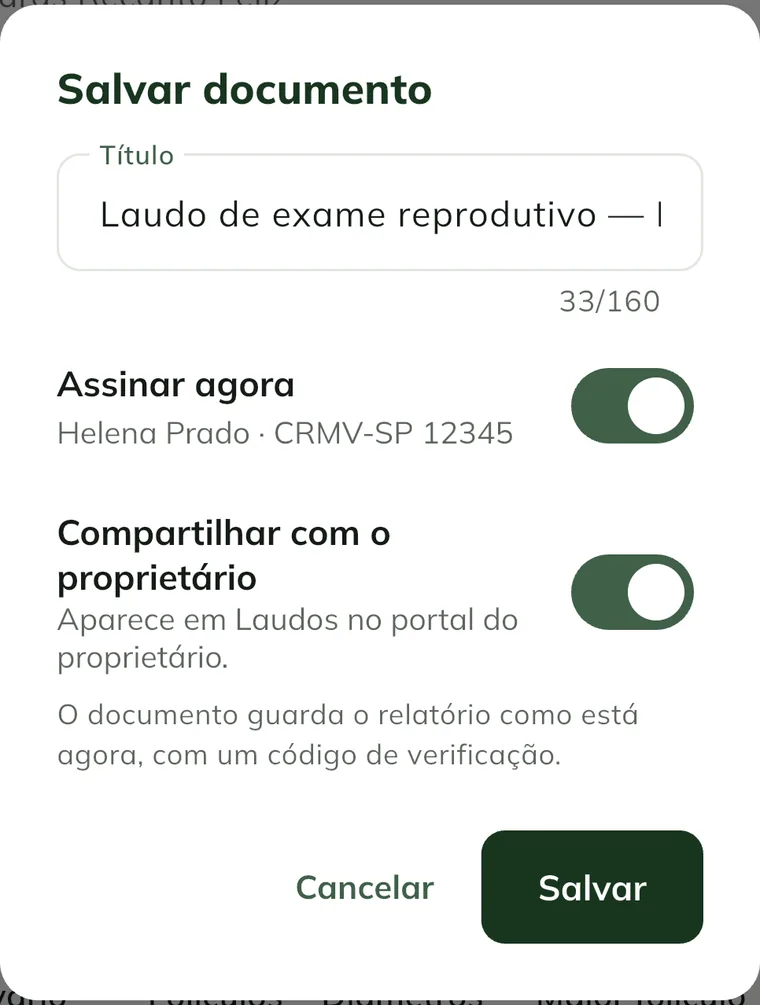
The saved document keeps the report exactly as it is now. It gets an 8-character verification code. The signed PDF comes out with the code and a QR code in the footer.
All of this works offline. The document goes to the server on the next sync, with the same code.
Sign later
If you saved without signing, the document stays as a Draft.
- Tap More > Documents > Reports tab.
- Open the document.
- Tap the menu in the corner of the screen and Sign.
- Choose whether to Share with the owner and tap Sign.
Generate and sign on the web
- Open Clinical, go into the visit and click Report (PDF). For other reports, use Reports, choose the type and click Generate report.
- Use PDF preview, Print or Download PDF.
- Click Save document, check Sign now and, if you want, Share with the owner.
- Click Save. The document opens in Documents.
To sign a draft, open Documents, go into the document and click Sign.
Share with the owner
You have two ways:
- Through the portal. With Share with the owner on, the report appears under Reports in the owner's portal. On the web, the document list shows the In the portal badge.
- From the phone. On the report or document screen, tap Share and send the PDF via WhatsApp or email.
To remove it from the portal, open the document and tap Stop sharing.
Only signed reports linked to an animal, a property or a client go to the portal.
How the owner verifies the report
Whoever receives the PDF scans the QR code or types the code at web.genno.app/verify. The page shows who issued it, who signed it and its status:
- Valid: signed, with content identical to the original.
- Voided: the document was voided.
- Replaced: there is a new version, with a link to it.
- Content does not match: the stored content doesn't match the content at issue.
Inside GENNO, use Verify code in Documents.
Correct a signed report
A signed report can't be edited. You have two options, in the document menu (app) or in the buttons at the top (web):
- New version: GENNO builds the report again with the record's current data. The old one appears as Replaced.
- Void: enter the Reason and tap Void. The document stays in the history, marked as voided.
The new version starts unsigned, in the app and on the web. Open the new document and sign it again.
Common problems
"Add your professional registration in the profile to sign." appeared. Fill in the License (CRMV) and the signature, as in "Before you start".
The Sign now option doesn't appear. Only administrators and veterinarians sign. Ask the farm administrator to check your role.
"Sign the document before sharing it with the owner." appeared. Sign it first. Then tap Share with the owner.
"Link the document to an animal, property or client to share it." appeared. The portal only receives documents linked to an animal, a property or a client. Generate the report from the animal's record.
The verification says "Document not found". Check the code. Unsigned drafts can't be verified.
"Document not found (it may already have been synced under another number)." appeared. The document was synced. Go back to Documents and open it again from the list.
A report says it requires an internet connection. Some reports only come out with internet, such as the property report, the client statement and the invoice PDF. Visit and exam reports come out offline.
Next steps

Didn’t this article solve it?
Talk to the GENNO team. Tell us what you were doing and, if you can, send a screenshot.