How to set the visit's next steps
When you close the visit, you already schedule what comes next: the follow-up visit, a reminder for yourself and the notices to the owner.
Before you start
- Owner notices go out through the portal, email and WhatsApp, depending on what the owner agrees to receive.
- To notify the owner, the animal must have a registered owner. Without one, notices stay with the team only.
- In the app, next steps are saved with the visit, even offline.
During the visit (app)
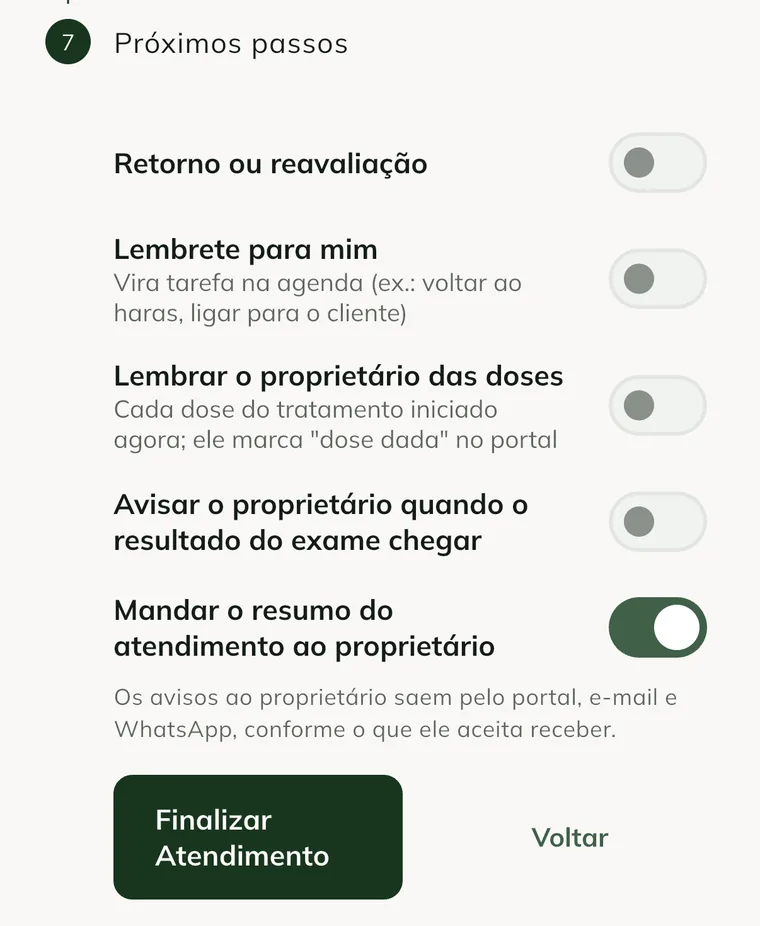
In the last step of the visit, Next steps:
- Turn on Follow-up visit or reassessment to schedule the return to the animal.
- In In how many days, enter the deadline.
- In Who is notified, choose Owner, Me (veterinarian) or Both.
- In Reason (optional), write the reason.
- In When to notify, choose Now, on finishing or After N days.
- Turn on Reminder for me to create a task in your schedule. E.g.: go back to the farm, call the client.
- Turn on Remind the owner of the doses to notify each dose of the treatment started now. The owner marks "dose given" in the portal.
- Turn on Notify the owner when the test result arrives, if you requested tests.
- Keep Send the visit summary to the owner on, if you want them to receive the summary.
- Tap Finish Visit.
In the medical record (web)
- In Clinical, click See medical record on the visit.
- Under Next steps, click Add.
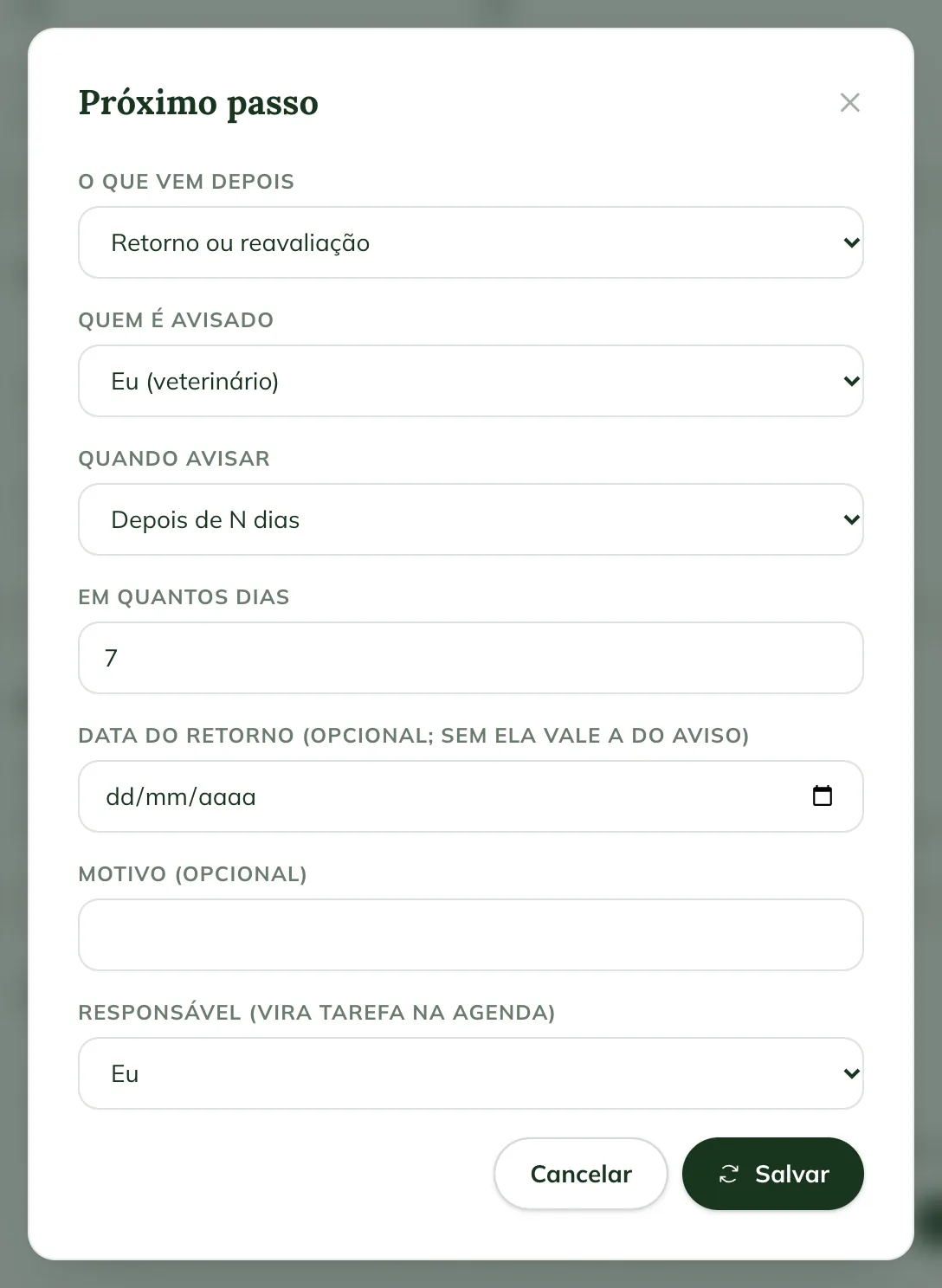
- In What comes next, choose Medication, Follow-up visit or reassessment, Reminder or Wait for test result.
- Choose Who is notified and When to notify: Now, on finishing, After N days or On a date.
- Fill in In how many days or the Notice date. For a follow-up visit, the Follow-up date is optional.
- In Responsible (becomes a task in the schedule), choose who takes care of it.
- In Other animals (optional), add animals with the same next step.
- Click Save.
Each next step shows its status: Scheduled, Sent, Completed or Cancelled.
See what the owner was notified about
In the web medical record, the Owner notices section lists each notice (summary, follow-up, reminder, dose, test result) and the channel: Portal, Push, Email, Automatic WhatsApp or Vet's WhatsApp. Next to it, the sending status, such as sent, no portal account or turned off by the owner.
To send it from your own WhatsApp, click Send via WhatsApp.
Common problems
"The animal has no registered owner: notices stay with the team only." appears. Link the animal to the client on the client record, in Link animal. See how to register clients.
The notice shows "no portal account". The owner doesn't have portal access yet. See how to invite the owner.
The notice shows "turned off by the owner". The owner chose not to receive through that channel. They change this in the portal, in Notices.
"Enter in how many days." or "Enter the date." appeared. Fill in the deadline or the date, according to the When to notify you chose.
Next steps

Didn’t this article solve it?
Talk to the GENNO team. Tell us what you were doing and, if you can, send a screenshot.