How to give and skip the doses of a treatment
Each dose given is recorded with its lot, deducts from inventory and, when the product has a sale price, goes into the invoice.
Before you start
- Giving doses is for veterinarians, administrators and staff, by default. Prescribing and cancelling the treatment is only for those who prescribe.
- The treatment must be started. See how to start a treatment.
- In the app, giving and skipping work offline.
See the day's doses
In the app, doses are in two places:
- More › Pending doses: all of the property's doses, under Overdue, Today and Next days.
- Animal record › Treatments tab: tap the treatment to see the doses for each medication.
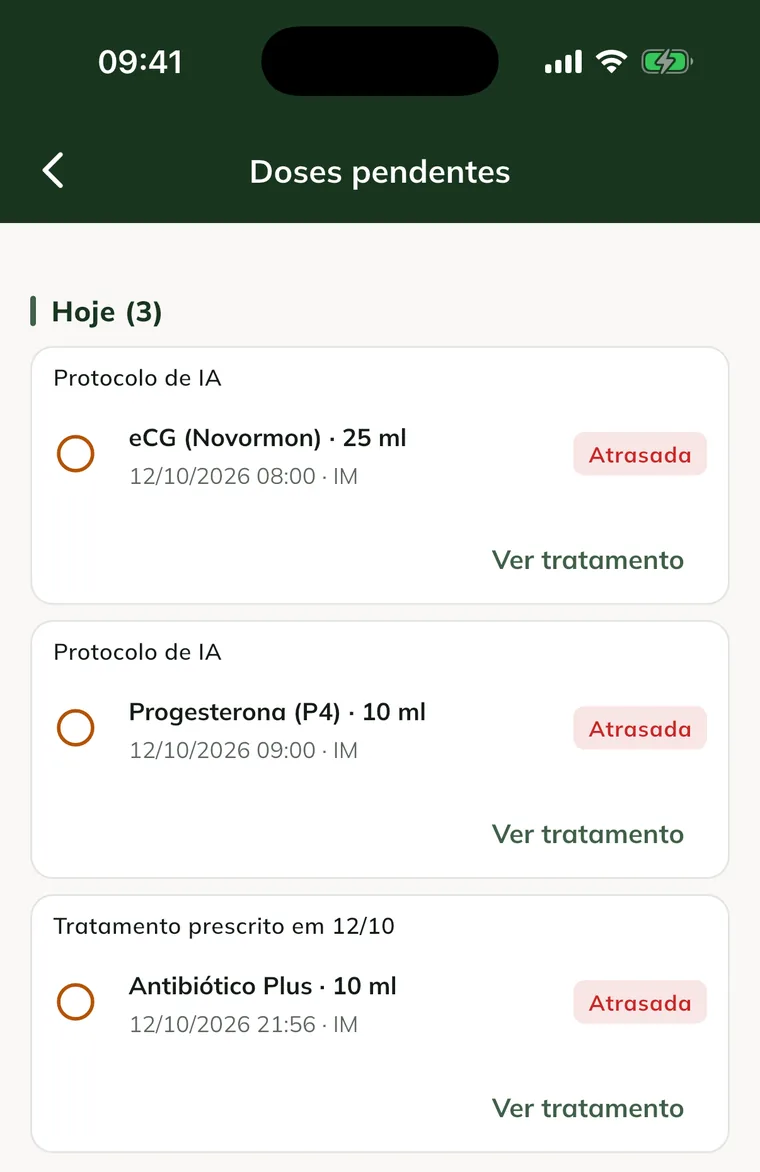
Give the dose in the app
- Tap the dose.
- In Lot (optional), leave Automatic (expires first) or choose the lot.
- If you want, write the Notes (optional).
- Tap Give dose.
- Check the message Dose given.
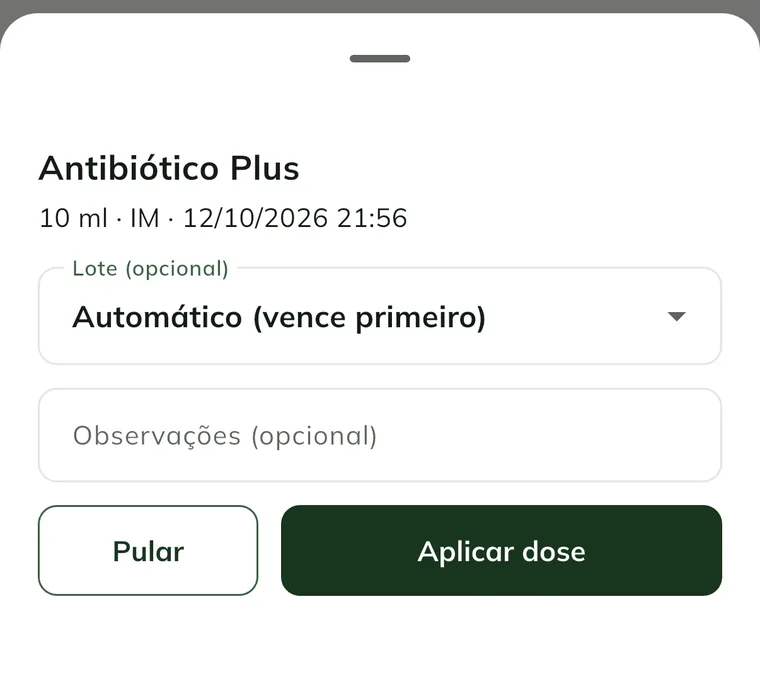
Right away, the lot's stock is deducted and the cost of the dose is recorded, even offline. If the balance doesn't cover the dose, giving it is blocked.
Skip a dose
- Tap the dose and Skip.
- Write the Reason for skipping.
- Tap Confirm. Dose skipped. appears.
Skipping doesn't touch inventory.
Follow and adjust the treatment
On the treatment screen, you see the progress (given, skipped) and each dose with its status, such as Overdue.
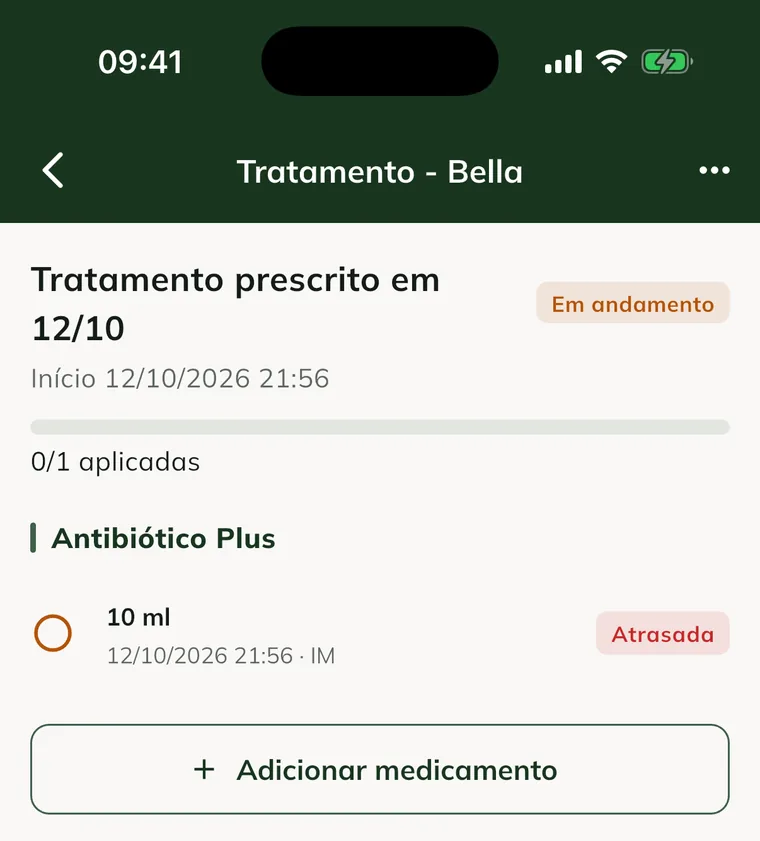
In the treatment menu (three dots at the top):
- Add medication: adds another medication to the same treatment.
- Cancel treatment: doses still pending are cancelled. Doses already given stay recorded.
When all doses are finished, the treatment becomes Completed.
On the web
- At web.genno.app, click Prescriptions, in the Routine menu.
- On the Treatments tab, filter by In progress, Completed, Cancelled or All.
- Click Doses on the treatment's row.
- On the pending dose, click Apply / skip.
- Choose the Lot (optional), write the Notes and click Give dose or Skip.
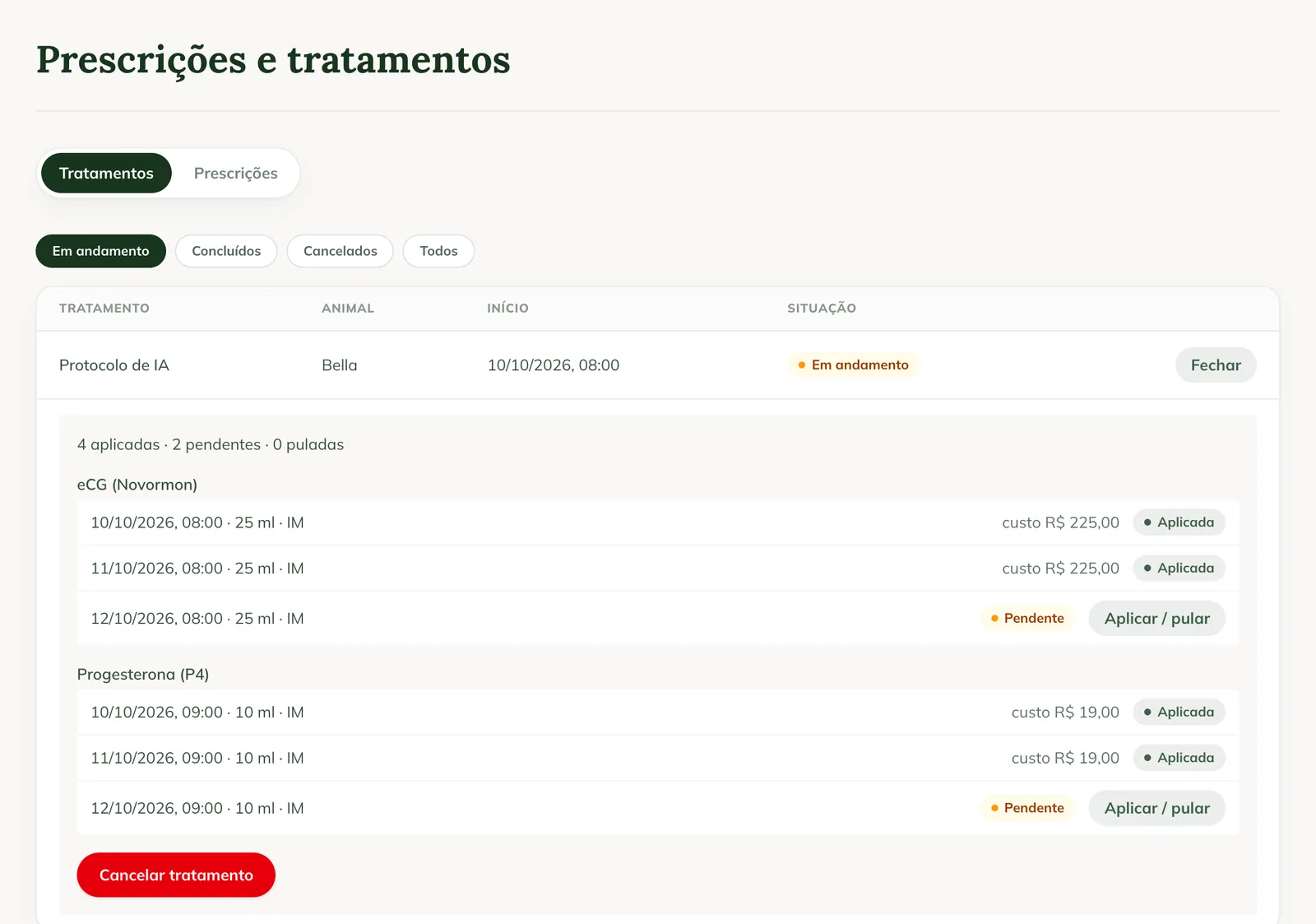
A dose the owner marked in the portal appears with the Given by the owner label.
Give the dose in the app right away, next to the animal. That way the time is right and the right lot comes out of inventory.
Common problems
"You don't have permission to give doses." appeared. Your profile can't give doses. Ask the administrator.
Giving the dose was blocked for lack of balance. The product ran out on this property. Record the product's stock-in and give the dose again. See how to record stock-in.
The dose appears as "waiting to send". It was saved on the phone and hasn't uploaded yet. Sync when you have internet.
The dose appears as "rejected by the server". Another device changed the same treatment or the same inventory. See how to use the app offline to resolve it.
Next steps

Didn’t this article solve it?
Talk to the GENNO team. Tell us what you were doing and, if you can, send a screenshot.