How to verify that a GENNO report is genuine
Every report and document saved in GENNO has an 8-character verification code. With it, anyone can check whether the document is genuine, without needing an account.
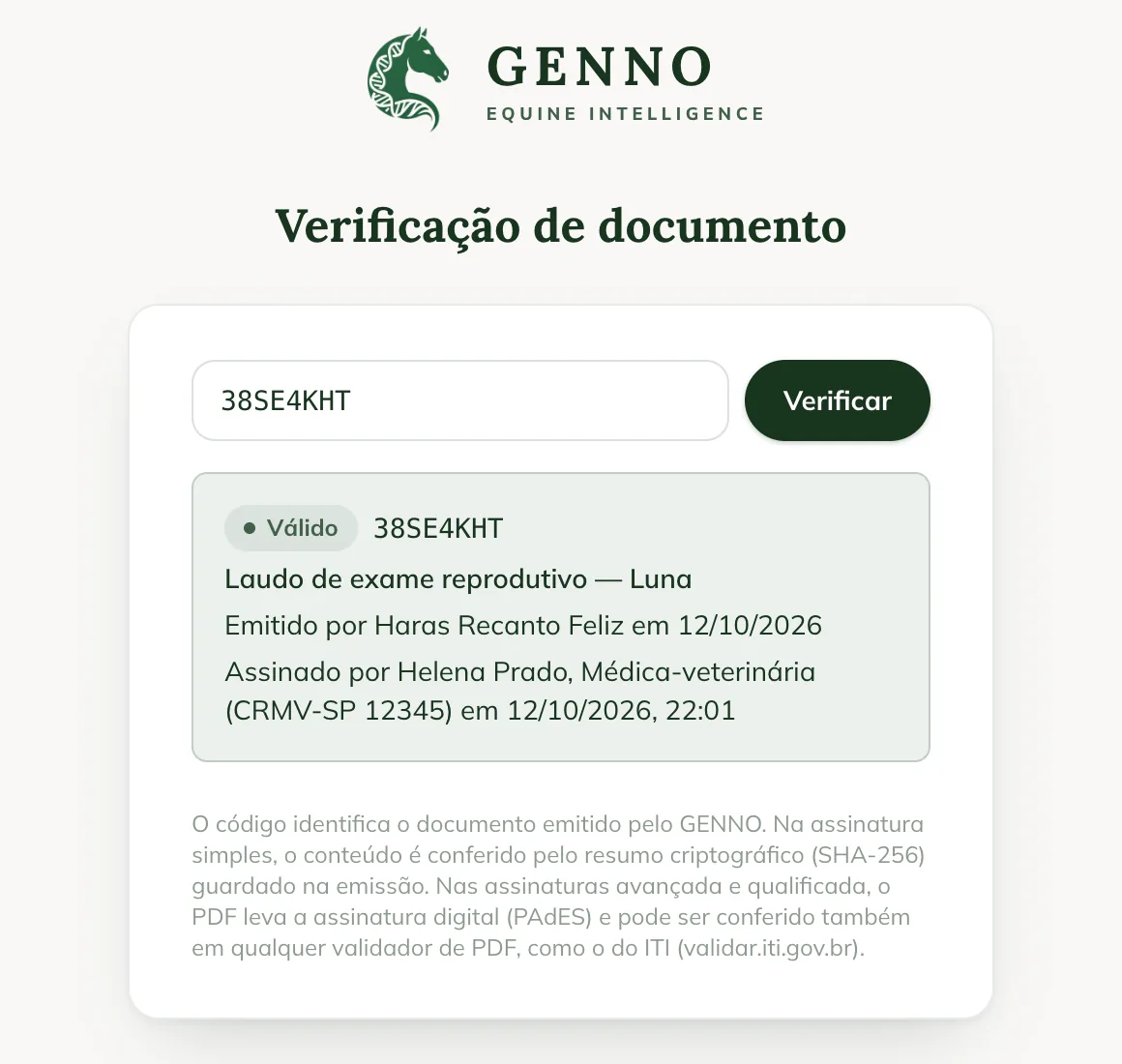
Verify with the code
- Open web.genno.app/verify.
- Type the verification code, found in the PDF footer, and click Verify.
- Check the result:
- Valid: the document exists and its content matches what was issued.
- Voided or Replaced: the document was voided or replaced by a new version. The link leads to the new version.
- Content does not match: the stored content doesn't match the summary recorded at issue.
- See the title, who issued it, the date and, under Signatures, who signed and when.
Check the PDF you received
For documents with an advanced or qualified signature, the page shows the summary of the signed PDF. In Check a PDF you received, choose the file. The file never leaves your device. The file is identical to the signed PDF. or The file is different from the signed PDF. appears.
These PDFs can also be checked in any PDF validator, such as the one from ITI, Brazil's National Institute of Information Technology (validar.iti.gov.br).
Inside GENNO
GENNO users can also check in Documents › Verify code, on the web and in the app. In the Owner portal, the report code is a link to this page.
Common problems
"Document not found" appeared. Check the code, letter by letter. It has 8 characters.
The document appears as Voided. The farm voided the document. Ask the sender for the valid version.
"The file is different from the signed PDF." appeared. The PDF was changed after signing, or it's a different file. Ask the signer for the original PDF.
Next steps

Didn’t this article solve it?
Talk to the GENNO team. Tell us what you were doing and, if you can, send a screenshot.