How to open and follow a ticket
WebNeeds internet
A ticket keeps the conversation with the GENNO team in one place, with the status of each request.
Before you start
- Anyone on the team can open a ticket.
- Tickets are opened on the web. They work even with the subscription blocked, so you can sort out billing.
- First, look in this help center's search: the answer may already be in a tutorial.
Open the ticket
- At web.genno.app, click Support in the menu.
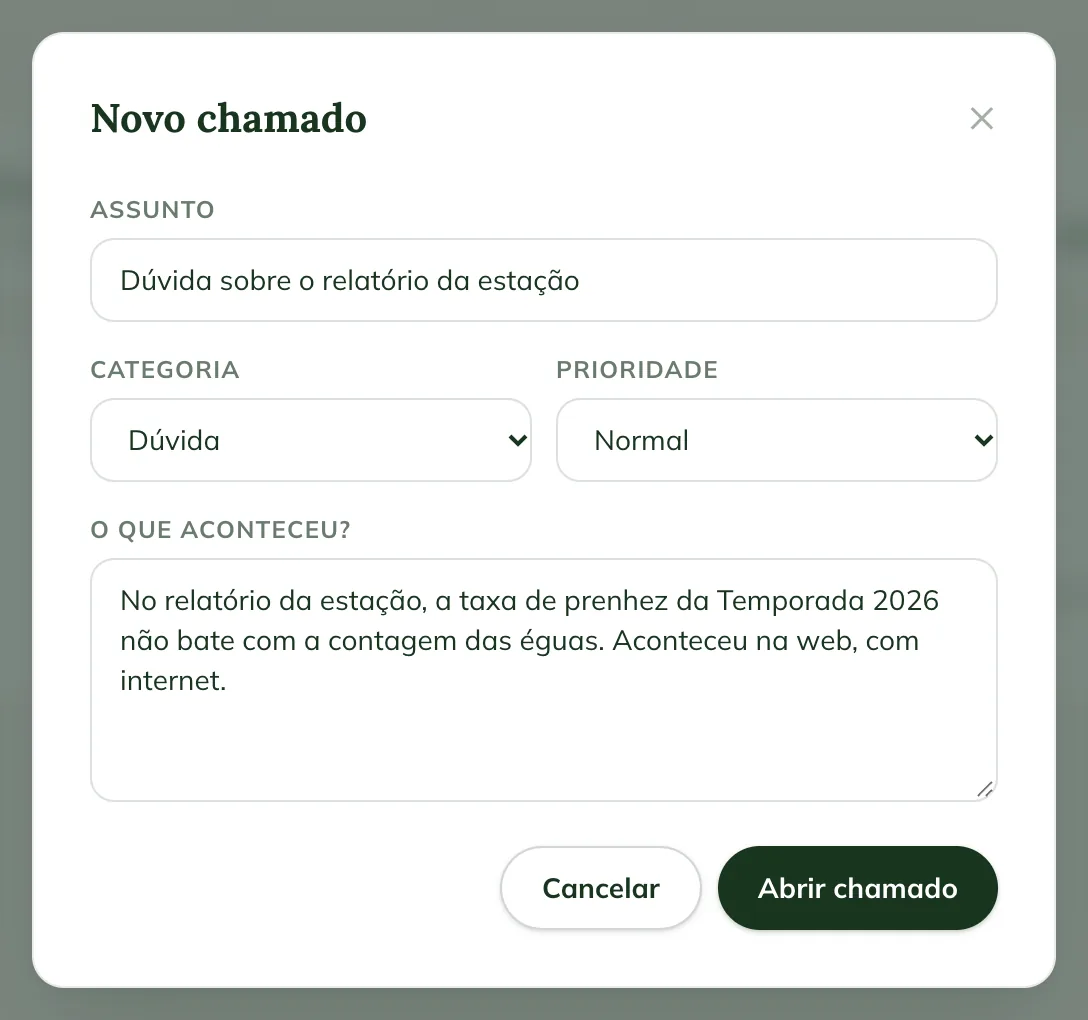
- Click New ticket.
- Fill in the Subject, short and clear.
- In Category, choose Question, Problem, Billing / subscription, Suggestion or Other.
- In Priority, choose Low, Normal, High or Urgent.
- In What happened?, tell us what you were doing, what you expected and what appeared. Say whether it was in the app or on the web, and whether you had internet.
- Click Open ticket.
See what to send so we can solve it faster.
Follow up
The Support page lists the tickets, with Subject, Status, Category, Opened by and the last message.
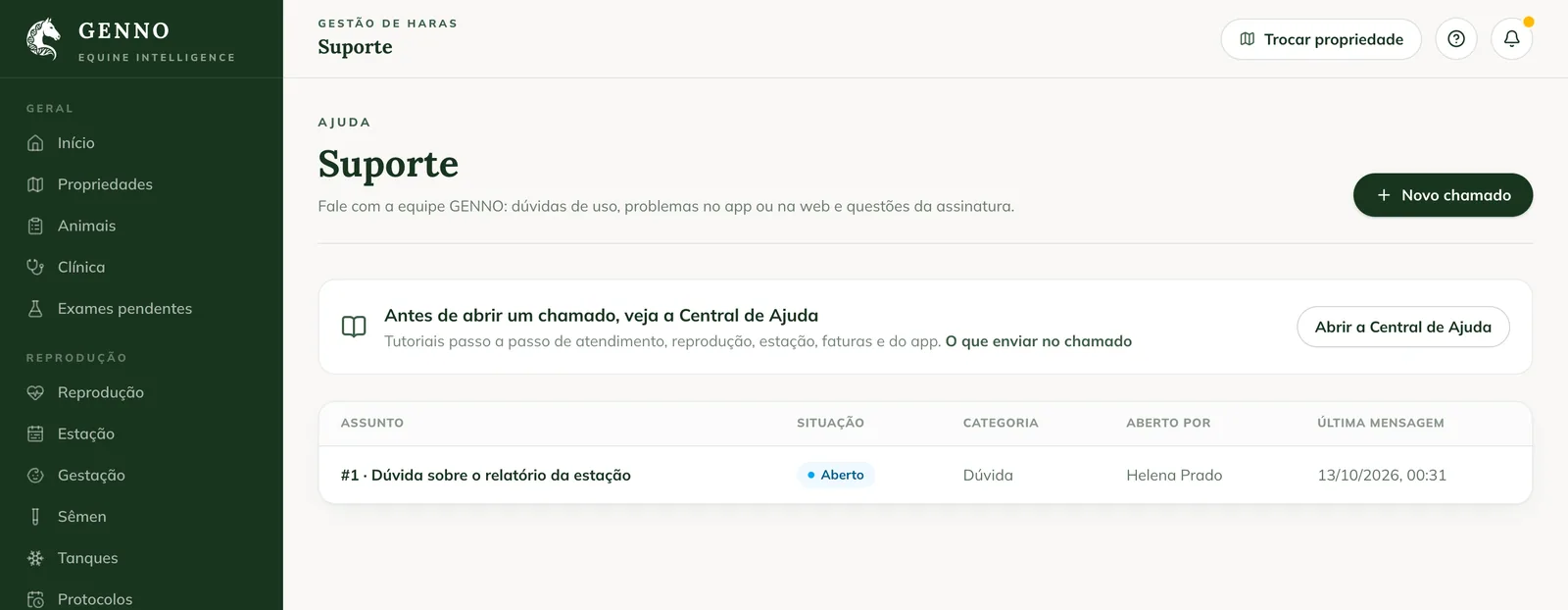
The statuses are:
- Open: the team hasn't looked at it yet.
- In progress: the team is working on it.
- Waiting for you: the team needs a reply from you.
- Resolved and Closed: it's finished.
Reply and close
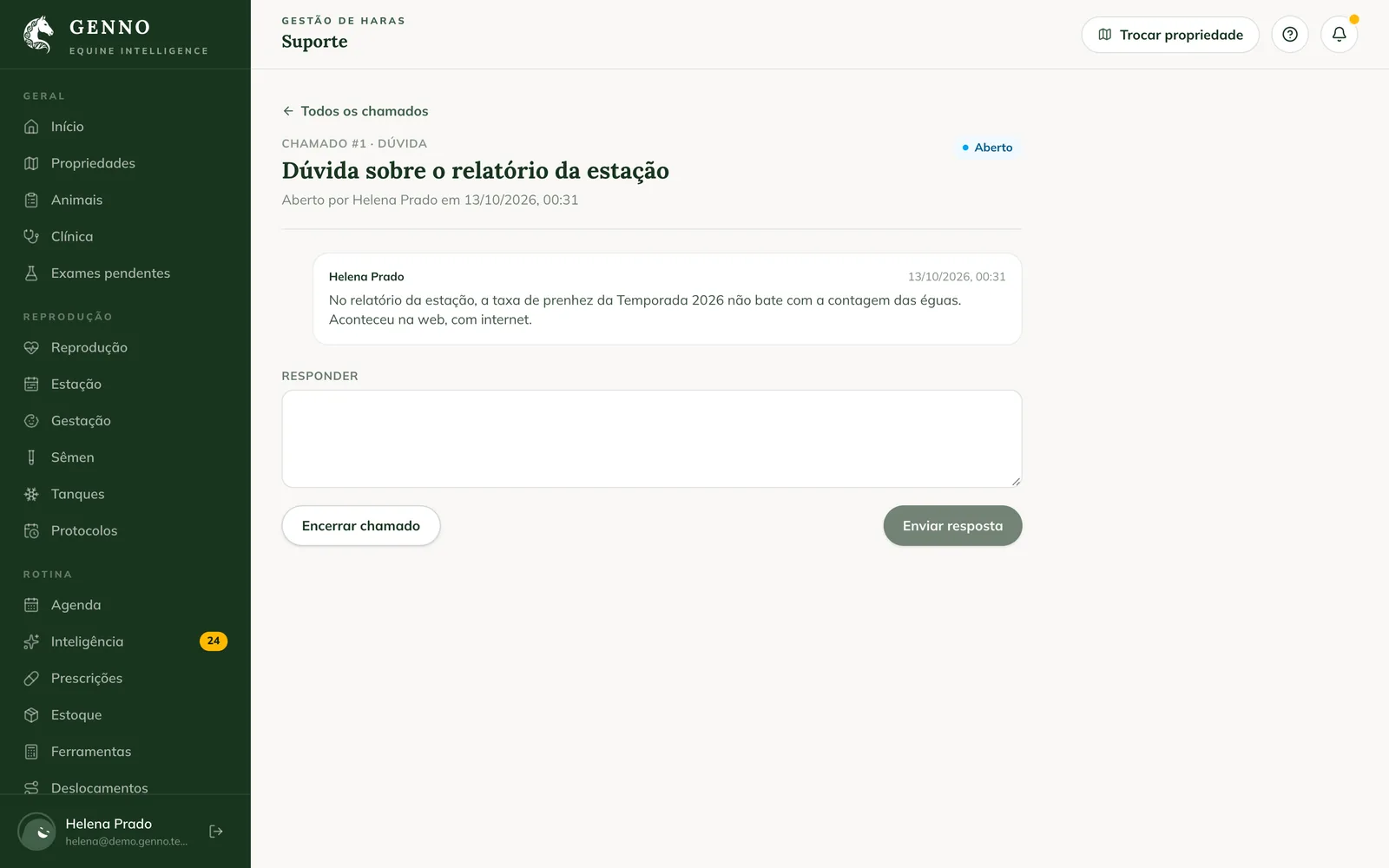
- Click the ticket.
- Read the messages. The team's messages appear as GENNO team.
- Write in Reply and click Send reply.
- If it's already solved, click Close ticket.
You can't reply to a closed ticket: open a new one.
Common problems
The Open ticket button stays grey. Fill in the Subject and What happened?.
It's urgent and has stopped work in the field. Use the support WhatsApp. See the support channels.
Next steps

Didn’t this article solve it?
Talk to the GENNO team. Tell us what you were doing and, if you can, send a screenshot.