How to record field trips and costs
You'll know how much each day in the field cost and how much goes to each property you visited.
Before you start
- In the app, open More and tap Field Trip. On the web, click Trips in the side menu, under Routine.
- Register the coordinates of the properties and the organization's base. Without them, the estimated km is incomplete.
- In the app, field trips work offline. Registering the vehicle needs a connection.
Register the vehicle and the cost per km
- In the app, open More, tap My Vehicles and the add button. On the web, click Vehicles and New vehicle.
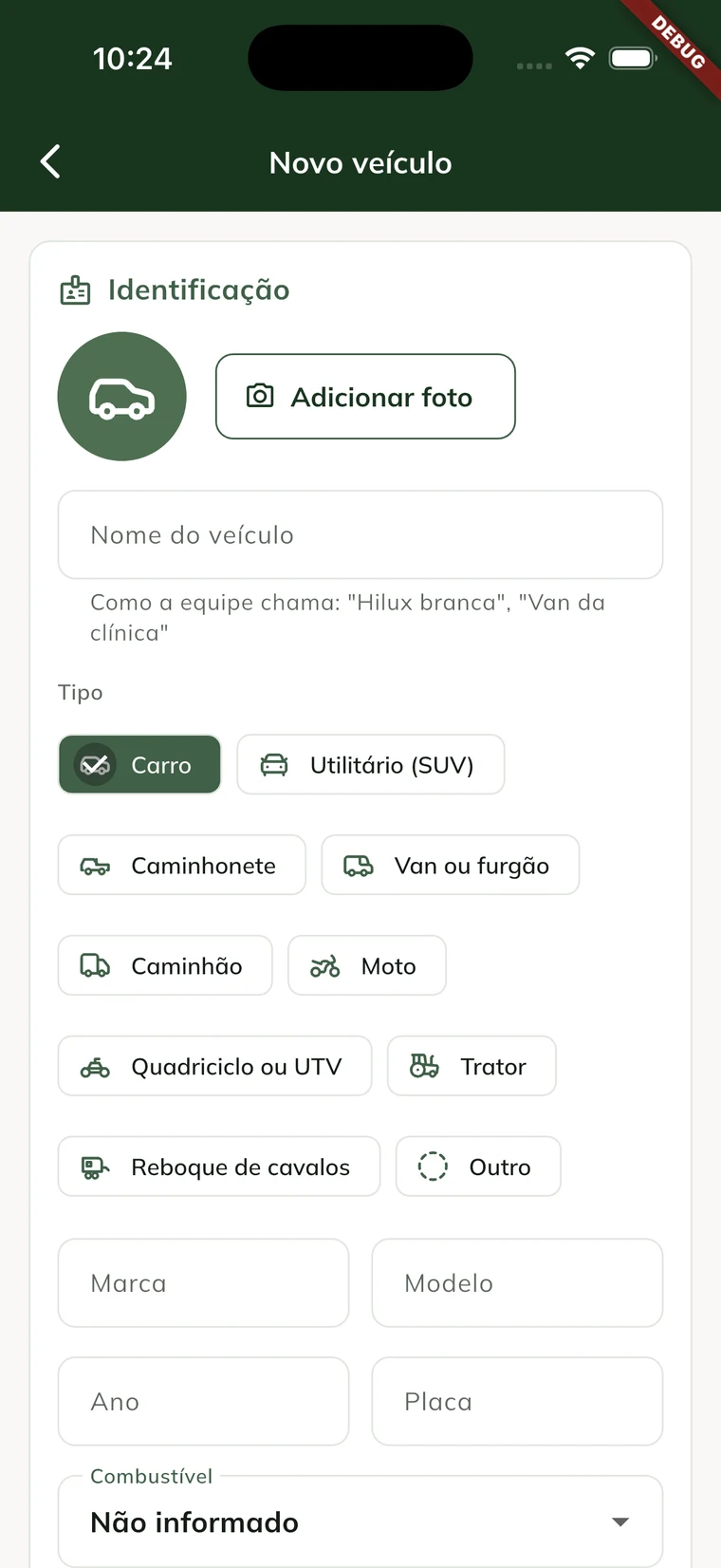
- Under Identification, fill in the Vehicle name and choose the Type (car, SUV, pickup, van, truck, motorcycle, quad, tractor, horse trailer or other). If you like, enter brand, model, year, Plate, fuel and the Current odometer (km), and tap Add photo to use a photo of the vehicle.
- Under Appearance, choose the Icon and the Color that identify the vehicle in the list and in trips. Without a choice, the type's icon in the GENNO color applies. With a photo, it shows instead of the icon.
- Under Annual costs, enter the Km driven per year and what the vehicle costs per year: insurance, taxes and registration, maintenance, depreciation and others. In Annual depreciation, tap Calculate to estimate it from the purchase value divided by the years of use.
- Under Fuel, fill in the Price per liter and the Consumption (km per liter).
- Under Wear, fill in the set of tires and the oil change with their life in km.
- The Cost per km summary at the bottom shows where the value comes from: annual costs ÷ km per year, fuel ÷ consumption, tires ÷ life and oil ÷ interval. Tap Save vehicle.
On the web, the New vehicle window has the same three parts as tabs: Identification, Appearance and Costs, with the same cost per km summary below. Click Save.
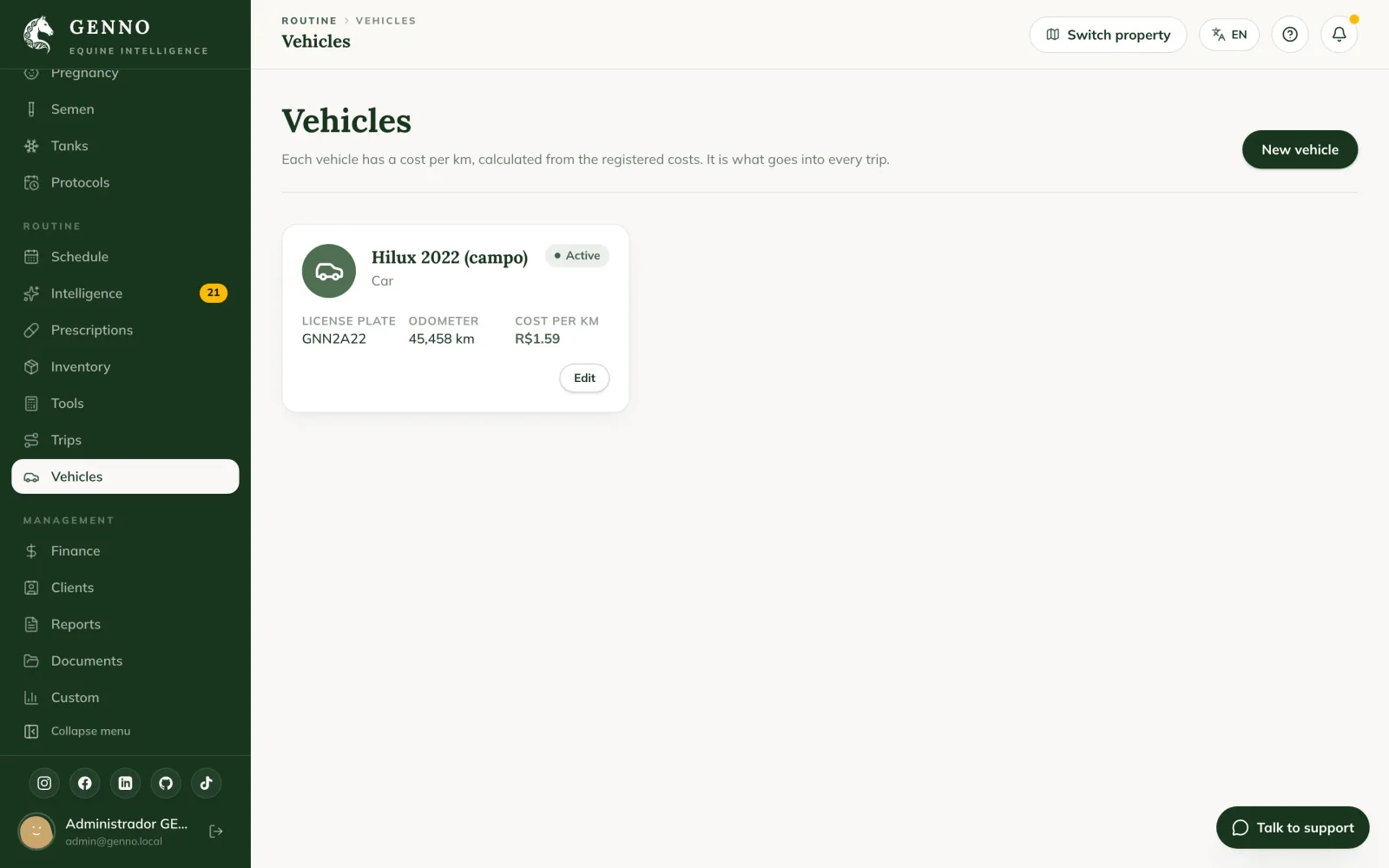
The list shows the icon (or the photo), the type, the plate, the odometer and each vehicle's Cost per km. Turn off Active to remove the vehicle from new trips. The vehicle's icon appears when choosing the route's vehicle, in the trips list and in the summary by vehicle.
Register the locations
- Open the property and fill in Location (latitude, longitude). See how to register a property.
- Fill in the base you leave from. In the app, it is in Organization (Parent Account), in the Base location (latitude, longitude) field. On the web, it is in Settings › Organization › Trips, on the Trip base card.
Use the format "-22.9706, -46.9958". You can copy the coordinates from Google Maps.
Build the day's route
- On the Field Trip screen, choose the day with the arrows.
- Tap Build route from the schedule. To build it from scratch, tap New trip.
- Choose the Date and the Vehicle.
- Check the Visits that came from the schedule.
- Tap Add visit to include an extra stop, with Property, Time (optional) and Reason.
- Use Move up and Move down to change the order, or tap Optimize.
- Tap Save route.
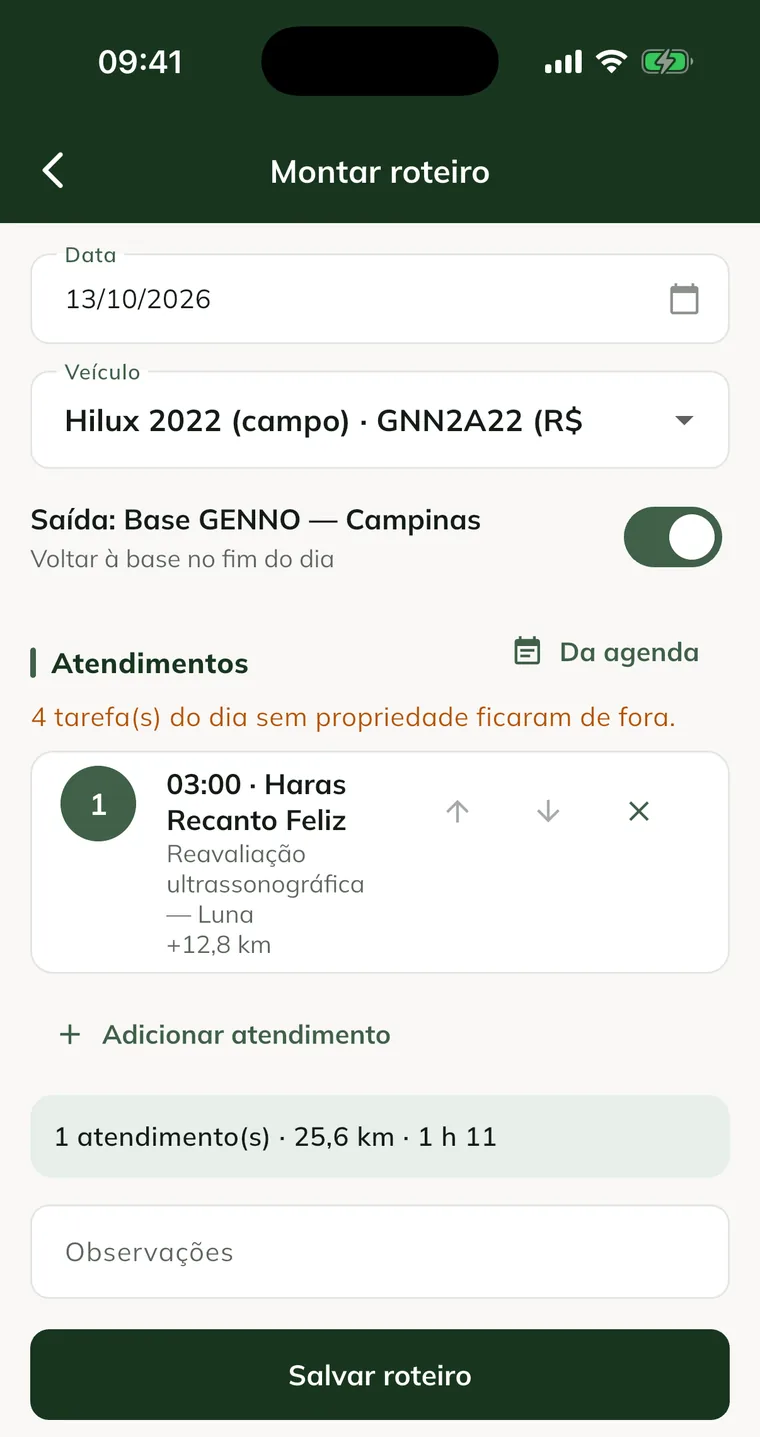
GENNO shows the visits, the estimated km and time. The screen explains the calculation: estimated km is the straight line × 1.3; time is 60 km/h plus 45 min per visit.
Start the route and record the visits
- Tap Start Route.
- Enter the Starting odometer and tap Start. The field is optional.
- Open the Visits tab.
- When you arrive, tap I'm here.
- When you finish, tap Complete. If you don't do the visit, tap Skip.
On the Map tab, tap See on Google Maps to open the route with the stops.
Add the costs
- On the Visits tab, under Costs, tap Add cost.
- Choose the type: Fuel, Toll, Parking, Meals, Lodging or Others.
- Enter the Amount. For fuel, enter Liters and Price per liter.
- When refueling, turn on Full tank if you filled the tank.
- Tap Add.
The vehicle's cost per km already includes fuel. That's why refueling is informational only. With two full tanks, the app calculates the vehicle's real consumption.
Finish the trip
- Tap Finish trip.
- Enter the Ending odometer. Without a starting odometer, enter the Km driven.
- Tap Finish.
If you leave it empty, the estimated km applies. The ending odometer updates the vehicle and becomes the default for the next start.
Understand the cost and the split
The Trip total adds up:
- Vehicle: km driven × the vehicle's cost per km.
- Tolls, parking, meals, lodging and other costs.
Under Split by property, the total is divided equally among the properties with a completed visit. A skipped visit gets no share.
See the history and the summary
- On the Field Trip screen, tap the Trip history icon to see previous days.
- Tap the Mileage and costs icon to see the summary.
- Choose This month, 30 days or 90 days.
The summary shows km driven, total cost, By vehicle and By month. The Cost per property (split) appears for users with access to finance.
Common problems
"Without the organization's base, the first leg and the return are not in the estimated km." appears. Register the base in Organization (Parent Account) in the app or in Settings › Trips on the web.
A visit appears with "no location". The property has no coordinates. Fill in Location (latitude, longitude) in its registration.
"Coordinates in the format "-22.9706, -46.9958"" appears. Type latitude and longitude separated by a comma, with a dot for decimals.
"Ending odometer (...) lower than the starting one (...)" appears. Check the number typed. The ending one must be greater than or equal to the starting one.
The trip calculator says "Cost per km is zero: register the vehicle costs." Open the vehicle in My Vehicles, fill in the costs under Annual costs and tap Save vehicle.
I can't edit the route. Only a planned trip can be changed. Once you start the route, the route doesn't change.
Next steps

Didn’t this article solve it?
Talk to the GENNO team. Tell us what you were doing and, if you can, send a screenshot.