How to switch property in the app and on the web
Each property has its own animals, schedule, inventory and alerts. Switching property changes what you see and where records are stored.
Before you start
- To work offline, the property must have been synced at least once on the phone.
- Veterinarians, interns and administrators have access to all of the organization's properties.
In the app
- On any main screen (Today, Animals, Schedule or More), tap the three-line icon in the top left corner.
- In the side menu, tap Switch Property.
- On the Select the Property screen, tap the farm's card.
- If the list is long, use Search property....
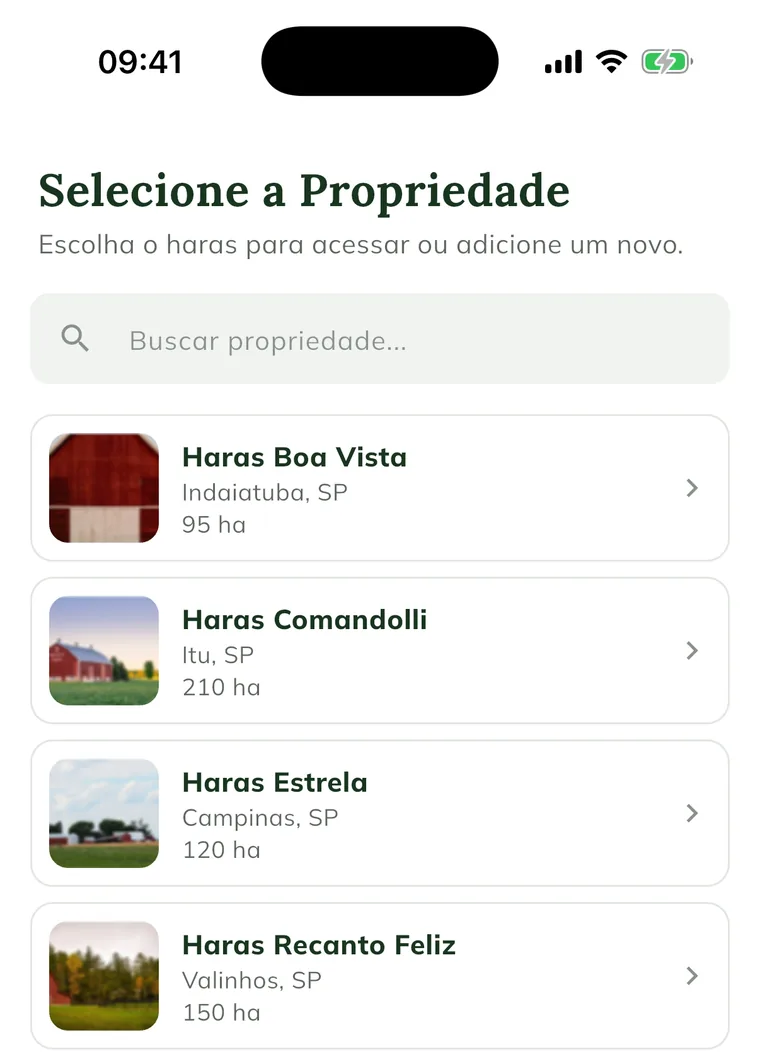
The app returns to the Today screen, already on the chosen property.
On the web
- At the top of the screen, click Switch property.

- On the Which farm today? screen, click Enter this farm on the property card.
- The property you are already on shows Continue here. To go back without switching, click Back to the dashboard.
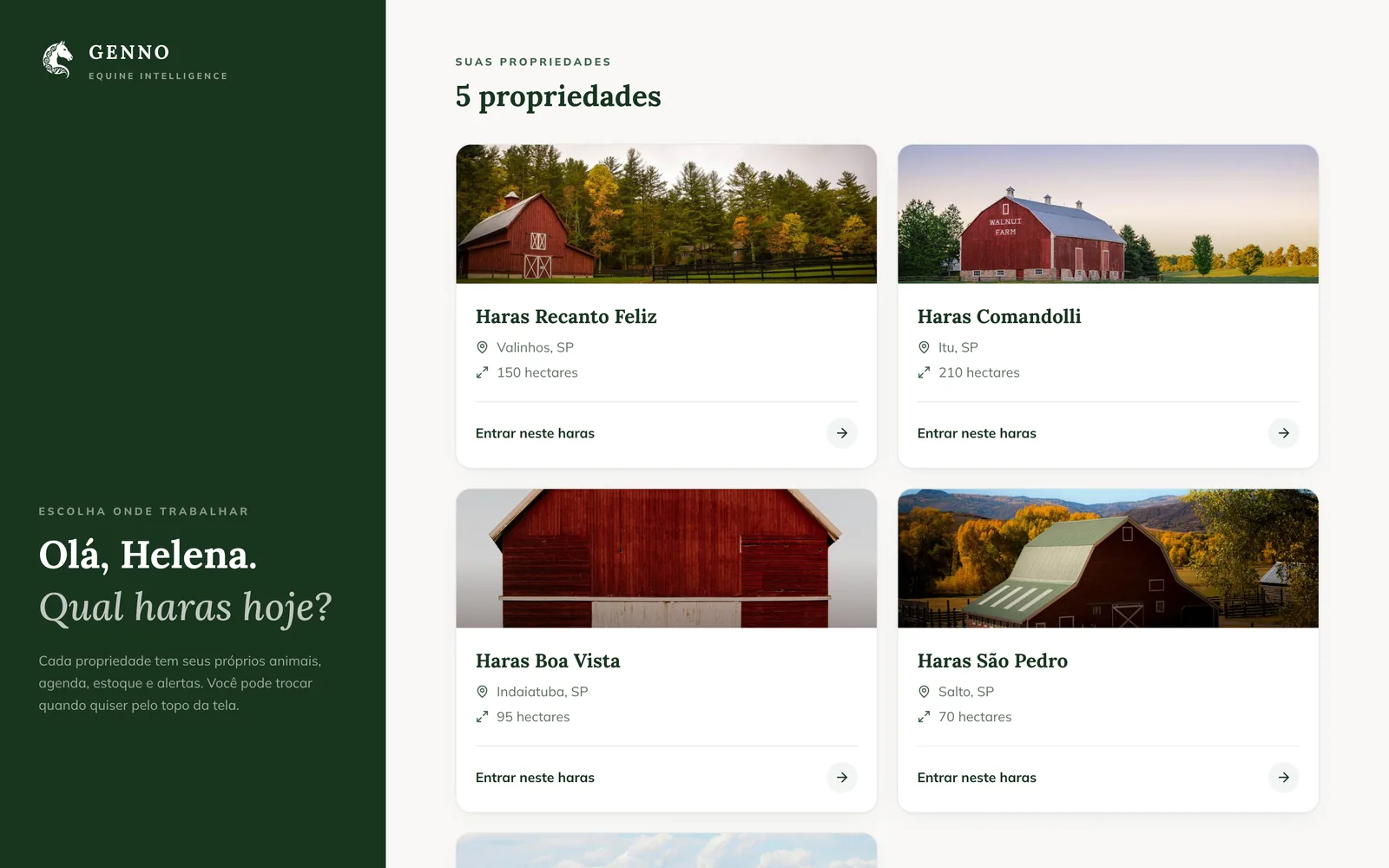
The Switch property button appears on wide screens. On a phone, use the app.
Common problems
"Select a property to see..." appears in a menu. No property is selected. Switch property as shown above and open the menu again.
The list shows "No property found." In the app, properties appear when the sync finishes. Check the internet and wait. If it stays empty, ask the administrator to register the property.
I can't find an animal I know exists. It may be on another property. Switch property and search again.
Next steps

Didn’t this article solve it?
Talk to the GENNO team. Tell us what you were doing and, if you can, send a screenshot.