How to sign in for the first time and sync GENNO
You sign in to the app, choose the farm and keep the data on your phone, ready for the field.
Before you start
- Have the app installed on your phone.
- Have your email and password at hand.
- Use Wi-Fi or a good 4G connection. The first sync needs internet.
- The farm must have its subscription paid and the initial setup completed at web.genno.app. This is done by the person in charge of the farm.
Sign in to the app
- Open GENNO.
- In Email, type your account email.
- In Password, type your password.
- Tap Sign in.
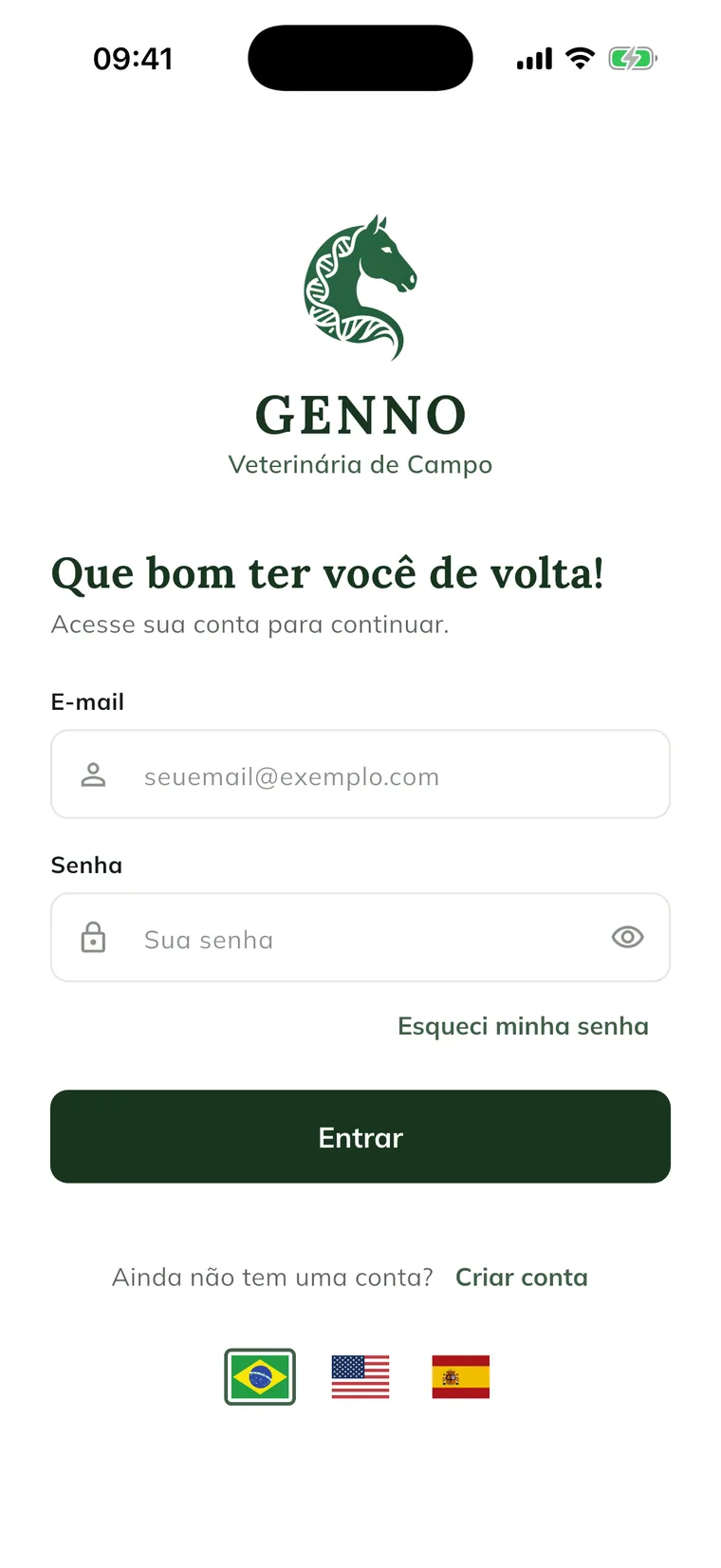
To check what you typed, tap the eye icon in the Password field (Show password). The flags at the bottom change the app language.
Forgot your password?
- On the login screen, tap Forgot my password.
- Type your Email.
- Tap Send.
- Follow the instructions that arrive in your email. If they don't arrive, contact support.
Choose the property
After signing in, the Select the Property screen opens.
- Tap the card of the farm where you are going to work.
- If the list is long, use the Search property... field to find it by name or address.
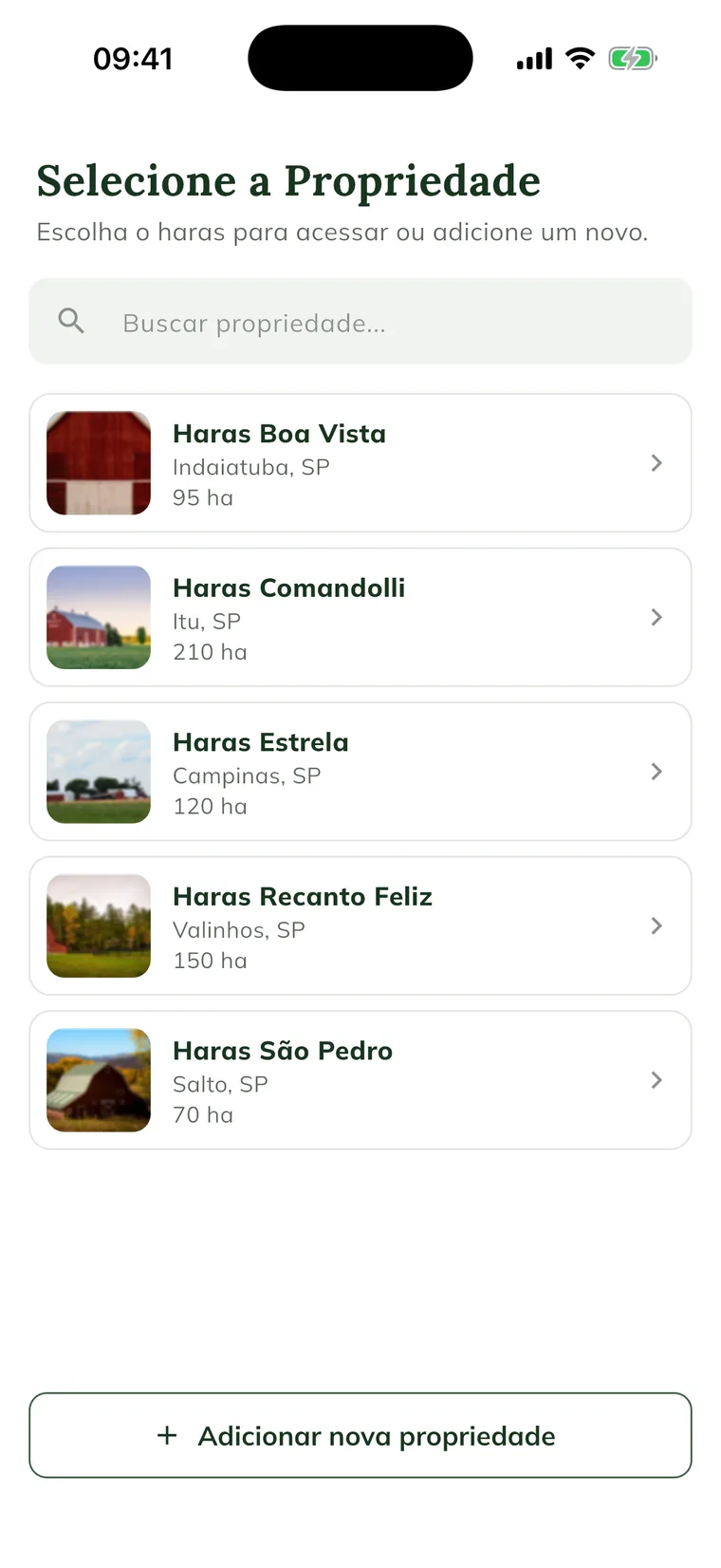
Users with permission also see the Add new property button.
To change farms later, tap the three-line icon in the top left corner and Switch Property. See how to switch property.
Follow the first sync
GENNO syncs on its own when the Today screen opens, when the internet comes back and when you return to the app. You don't need to press anything, but you can.
- On the Today screen, look at the top of the screen.
- While syncing, a circle spins next to the magnifying glass.
- Wait for the circle to disappear and the sync icon (two arrows in a circle) to return.
- To sync again right away, tap that icon.
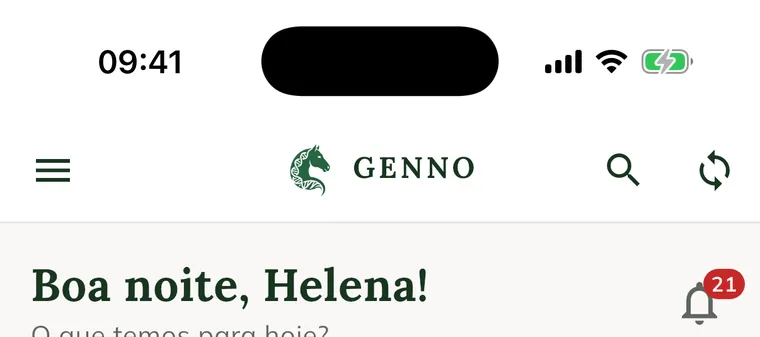
The sync brings the farm data to your phone: properties, animals, visits, reproductive events, tasks, vehicles, standard protocols and the medicine catalog. After that, the app works offline.
Do the first sign-in and the first sync where there is Wi-Fi or good 4G. After that, you can head out to the pasture.
See the sync status
- Tap More in the bottom bar.
- In the Account section, look at the Sync card.
- Read the line below the title: All synced, or how many changes are waiting to send and how many need attention.
- Tap the card to open the Sync screen with the details.
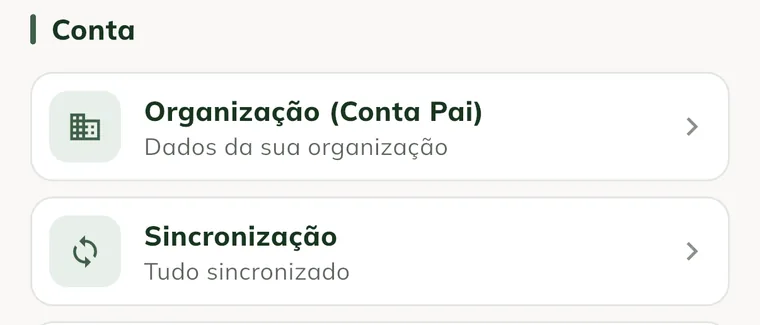
When everything is fine, the screen shows All synced and No pending changes on this device. You can also reach it through Settings › Sync.
This screen shows what the phone still needs to send. To understand the queue and what to do with each item, see how to use the app offline.
Common problems
"Sign-in failed. Check your credentials." appeared. Check the email and password. If you don't remember the password, use Forgot my password.
"Payment pending" appeared. The subscription payment hasn't been confirmed yet. Tap Open the web app, complete the payment at web.genno.app and sign in to the app again.
"Setup pending" appeared. The farm's initial setup (first property and preferences) still needs to be completed. Tap Open the web app, finish the setup and sign in to the app again.
"This account belongs to the owner portal. Access it on the web: web.genno.app" appeared. Owner accounts don't sign in to the app. Access the portal in the browser, at web.genno.app/portal. See what the owner sees in the portal.
The screen shows "No property found." Properties appear when the sync finishes. Check the internet and wait a moment. If it stays empty, ask the person in charge of the farm to register the property.
"Could not request recovery. Check the email." appeared. Check that you typed the same email as your account and try again.
"Select a property to see..." appeared in a menu. No farm is selected. Open the side menu, tap Switch Property and choose one.
The Terms of Use window appears. Read and accept to continue. See how to accept the terms.
Next steps

Didn’t this article solve it?
Talk to the GENNO team. Tell us what you were doing and, if you can, send a screenshot.