How to create the farm account and subscribe to GENNO
You create the account for your farm or clinic, choose the plan and pay for the subscription. After that, you can sign in on the web to set up GENNO.
Before you start
- Whoever creates the account becomes the organization's administrator. They set up GENNO and invite the team.
- The plans, prices and what each one includes are at genno.app/planos. The price varies by country.
- In Brazil, Europe and the United States, you subscribe on the website. In other countries, the contract is arranged with a consultant.
- Have an email address you use at hand. It will be your login.
Choose the plan
- Open genno.app/planos.
- Check the country under Prices for. The Europe price applies to European countries.
- Choose the plan and tap Subscribe now.
The Create your GENNO account page opens. In the Your plan box, you can still change the plan and choose Monthly or Annual. The total appears right below.
If you are already in the app and don't have an account, tap Create account on the login screen. The link opens the same plans page.
Fill in the registration
- In Your name, type your name.
- In Email, type the email that will be your login.
- In Phone / WhatsApp, enter a contact number. It is optional.
- In Farm or clinic name, type the organization's name. It appears on documents and reports and you can change it later.
- In Password, create a password with at least 10 characters. Avoid common passwords.
- Check I have read and accept the terms of use and the privacy policy. Both texts open in another tab.
- Tap Continue to payment.
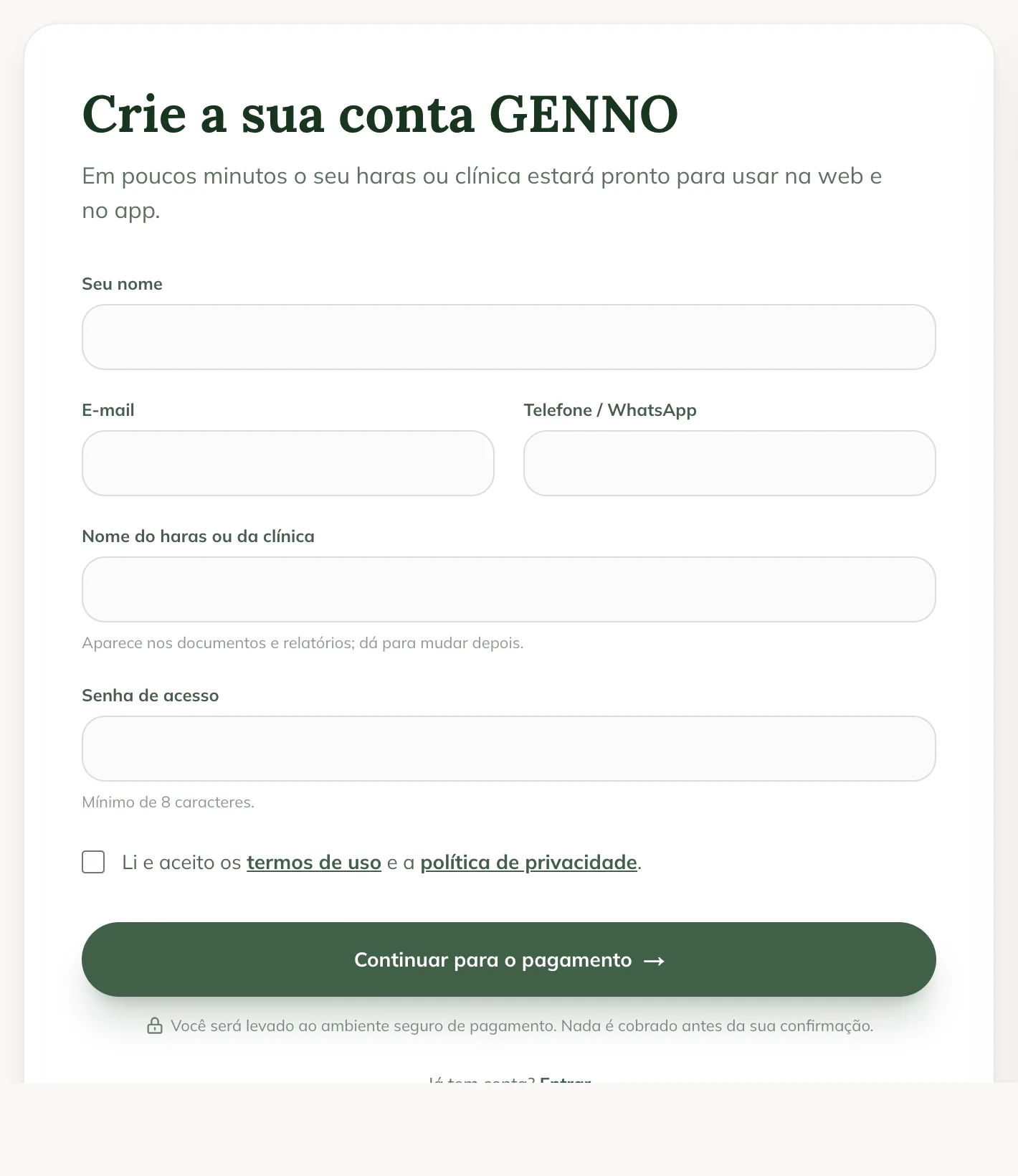
If the Continue with Apple or Google buttons appear at the top of the form, you can use that account instead of a password. The website shows Google account connected (or Apple) with its email, and you don't need to create a password. To go back to email and password, tap Use e-mail and password.
Pay for the subscription
- You are taken to the secure payment environment. Nothing is charged before you confirm.
- Complete the payment.
- At the end, you return to the website, on the confirmation screen.
The confirmation shows one of three situations:
| Message | What to do |
|---|---|
| Payment confirmed! | Tap Sign in to GENNO and complete the farm setup on the web. |
| Waiting for payment | As soon as the payment is confirmed, the account is unlocked. Keep track by signing in to GENNO. |
| Payment not approved | Tap Try another payment, or sign in to GENNO with the email and password you created to try again. |
The next steps are signing in on the web, registering the first property and the preferences, and downloading the app. See how to complete the initial setup.
Anyone who arrives through a GENNO customer's link sees the referral notice during sign-up, and the discount comes on the first charge. See Refer and earn.
Common problems
"Online subscription is unavailable right now. Please talk to our team on WhatsApp." appeared. Online payment is down. Tap the WhatsApp link in the message and the team completes the subscription with you.
"Choose a plan to continue." appeared. No plan is selected. Choose one in the Your plan box and tap Continue to payment again.
My country doesn't show a price. Outside Brazil, Europe and the United States, the contract is arranged with a consultant, with a proposal in your currency. Tap Talk to a consultant.
"We could not complete your sign-up. Please try again." appeared. Check the details and try again. If the email already has a GENNO account, sign in on the web with it instead of creating another one.
Next steps

Didn’t this article solve it?
Talk to the GENNO team. Tell us what you were doing and, if you can, send a screenshot.