How to accept the GENNO terms of use
Before using GENNO, each person on the team accepts the Terms of Use and the Privacy Policy. When they change in a relevant way, the notice appears again.
Before you start
- Acceptance is per person: each team user accepts with their own access.
- The acceptance is recorded in your account, with the document version and the date.
- Owner portal accounts do not go through this window.
- You need internet to accept.
Accept the terms
- Go to web.genno.app or open the app.
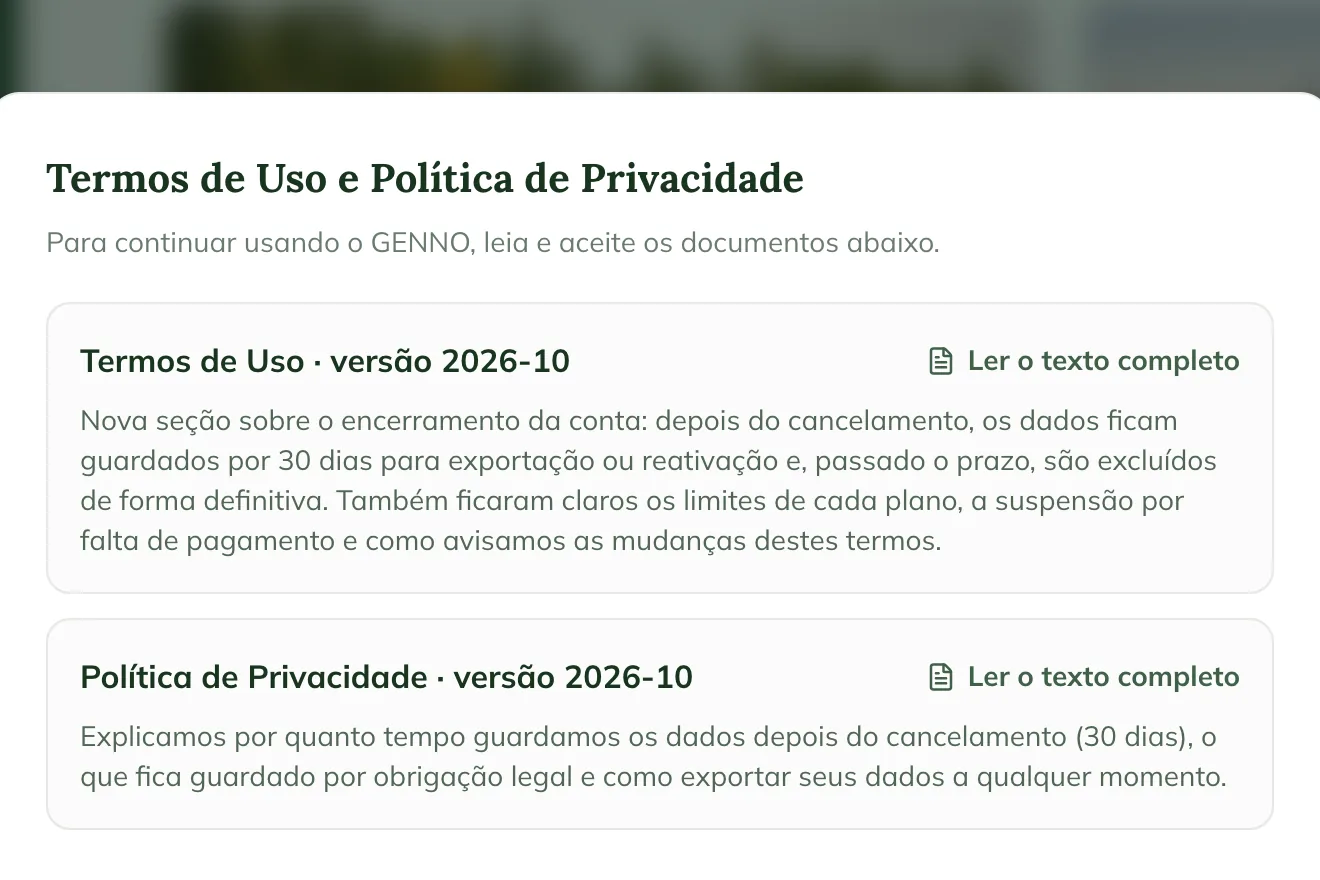
- The Terms of Use and Privacy Policy window opens. If you had already accepted an older version, the title is We have updated our terms.
- Read the summary of each document: Terms of Use and Privacy Policy, with the version.
- To read everything, tap Read the full text. To go back, tap Back to summary.
- Check I have read and accept the Terms of Use and the Privacy Policy.
- Tap Accept and continue.
If you don't want to accept now, tap Sign out. GENNO only lets you in after you accept.
The full texts are also on the website: Terms of Use and Privacy Policy.
When the notice appears again
GENNO asks for a new acceptance when the terms change in a relevant way. In that case, the window shows a summary of what changed. Wording-only changes don't require acceptance.
The acceptance is valid from the moment you tap Accept and continue and is recorded in your account.
Common problems
The app shows "No connection: open again when online." Acceptance needs internet. Connect your phone and open the app again.
The app shows "Could not record the acceptance. Check your internet and try again." The connection dropped during the acceptance. Check your internet and tap Accept and continue again.
The Accept and continue button doesn't work. Check the I have read and accept box first. The button only becomes active after it.
Next steps

Didn’t this article solve it?
Talk to the GENNO team. Tell us what you were doing and, if you can, send a screenshot.