How to organize the schedule and tasks
The schedule brings together what needs to be done on the farm: the tasks the team creates, the protocol steps, the visit follow-ups and the owners' requests.
Before you start
- Creating and completing tasks is for the Administrator, Veterinarian and Staff, by default. The Intern can only view.
- In the app, the schedule works offline.
- Tasks are also created automatically: from protocols, from a visit's next steps, from Portal requests and from the Create task button in Intelligence.
Create a task in the app
- Tap Schedule in the bottom bar and New Booking. Or tap Quick Actions and New Task.
- In Animal, choose the animal.
- Fill in the Task Title and, if you want, the Description.
- Choose the Scheduled Date and Time.
- If you want, choose the Responsible person and the Property. The team list needs internet; without it, the current responsible person stays.
- Tap Save Task.
See, complete and cancel in the app
The Schedule has the Day, Calendar and List tabs. With more than one property, filter by its name at the top.
- Tap the task.
- Tap Mark as Done. To correct it, tap Edit.
- If it will no longer happen, tap Cancel task and confirm. The task leaves the schedule and stays in the animal's history; nothing is deleted.
The Task List, in More, separates Pending, Overdue and Done tasks. Use Only mine to see only yours. Each task's menu has Complete, Edit, Call the owner, Owner's WhatsApp, Cancel task and, for follow-ups, Record follow-up visit.
The schedule on the web
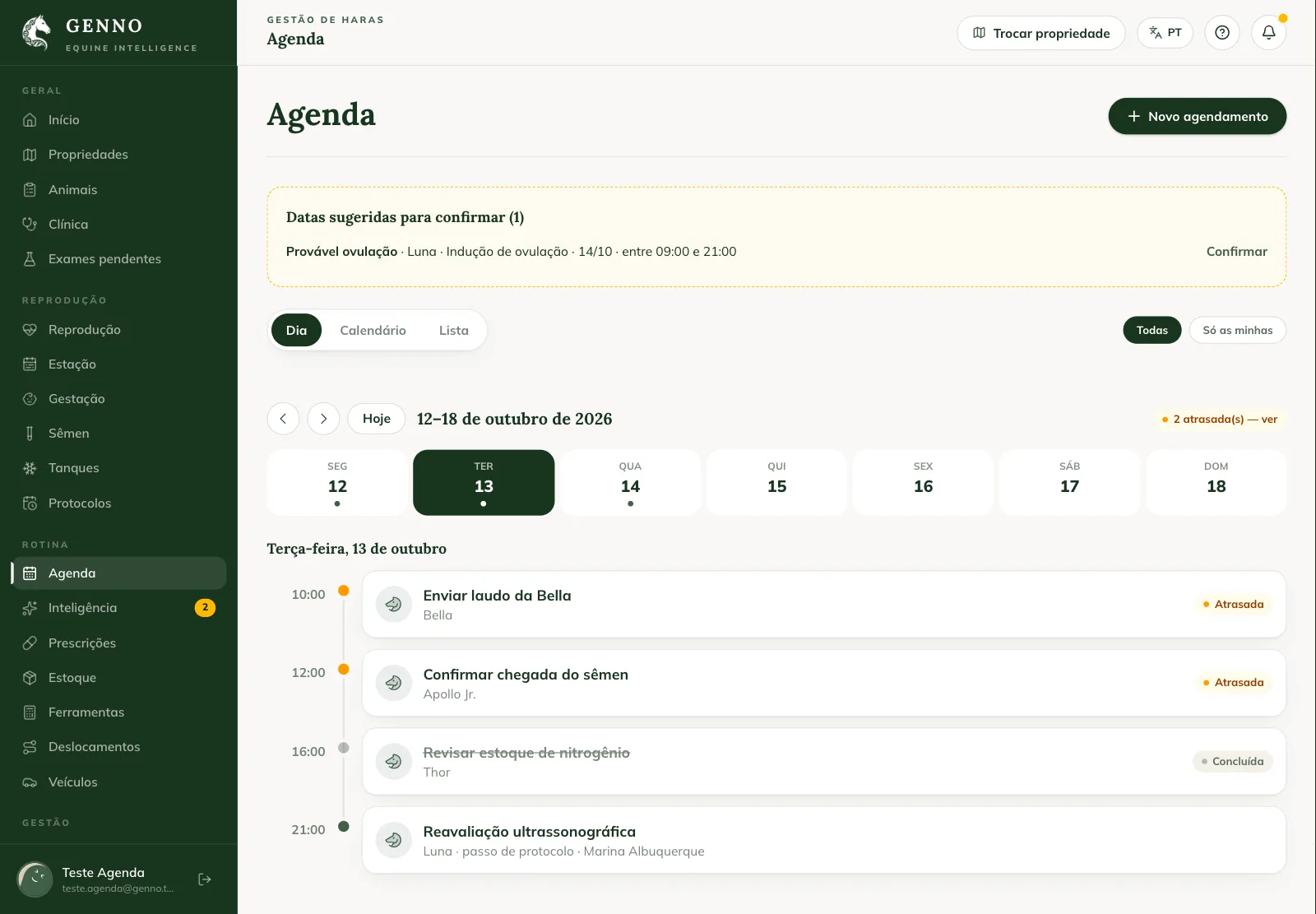
At web.genno.app, click Schedule in the menu. The web schedule has the same tabs as the app. Each property's Schedule tab shows the same schedule, already filtered by it, and the Home screen shows Today's schedule.
- Day: the week, with arrows and the Today button, and the timeline of the chosen day. Tasks without a time appear as All day.
- Calendar: the Month, Week and Day views. In the month, click a day to see its tasks on the side.
- List: Pending, Overdue, Done and Cancelled, grouped by day.
Use All or Only mine to filter.
Create and edit on the web
- Click New booking. In the calendar, clicking an empty time slot opens it with the date and time already filled in.
- Choose the Animal and fill in the Title, the Description, the Date and the Time. Without a time, the task is for the whole day.
- Choose the Responsible person and the Property.
- Click Save.
To change a task, click it and Edit. The same window has Complete (or Undo), Cancel task, Call, WhatsApp and, for follow-ups, Record follow-up visit. A cancelled task can be reopened with Reopen, in the Cancelled list.
Reschedule by dragging
In the Calendar, drag the task to another day (in the month) or to another time (in the week and day views) and confirm with Reschedule. In the month, the time stays the same.
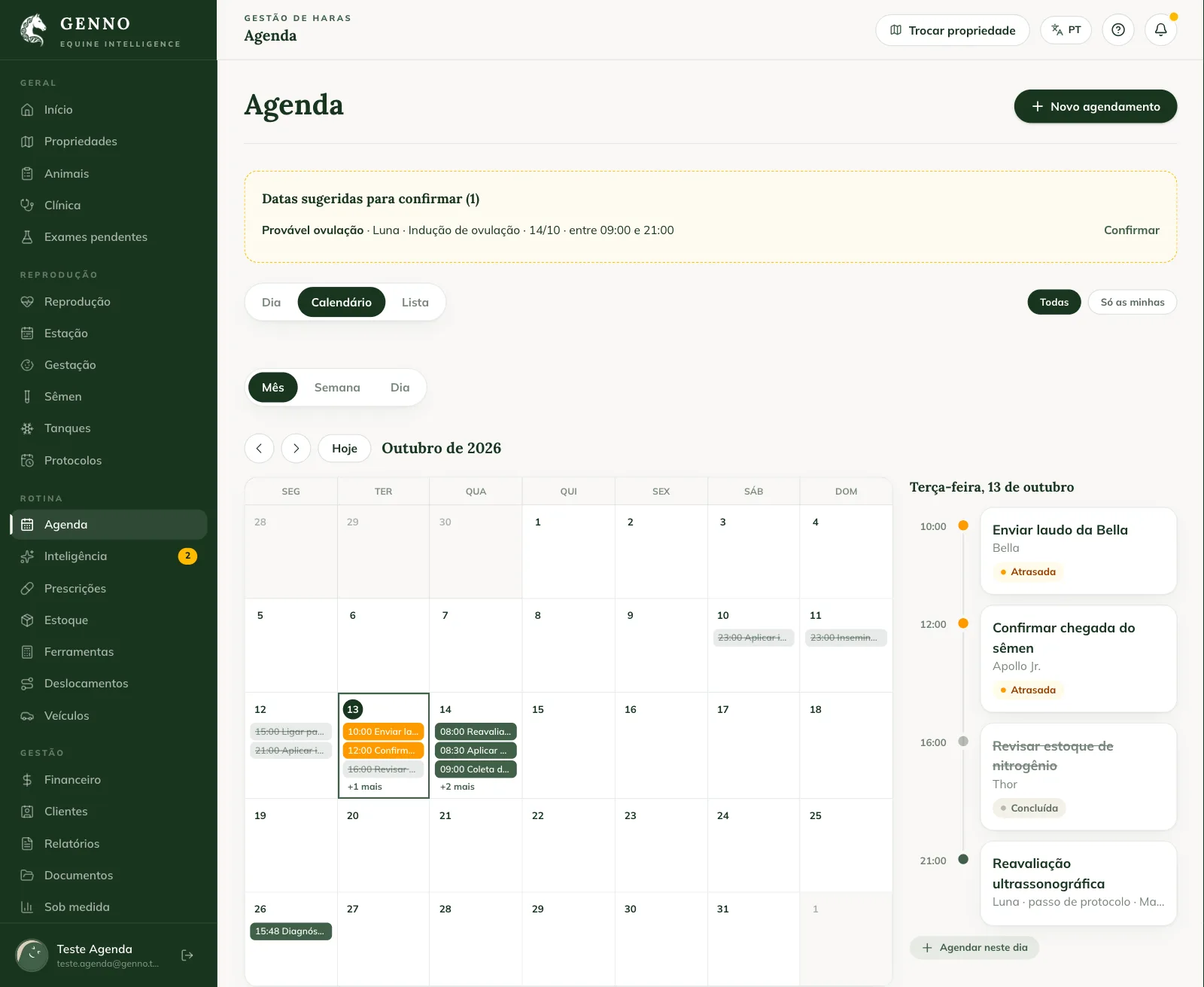
Protocol tasks show Protocol step: rescheduling also changes the step's confirmed date, and they can't be cancelled from the schedule (skip the step in the protocol). If the date was only suggested by the protocol, it appears with a dashed outline and in Suggested dates to confirm, with the Confirm link.
Reply to a Portal request
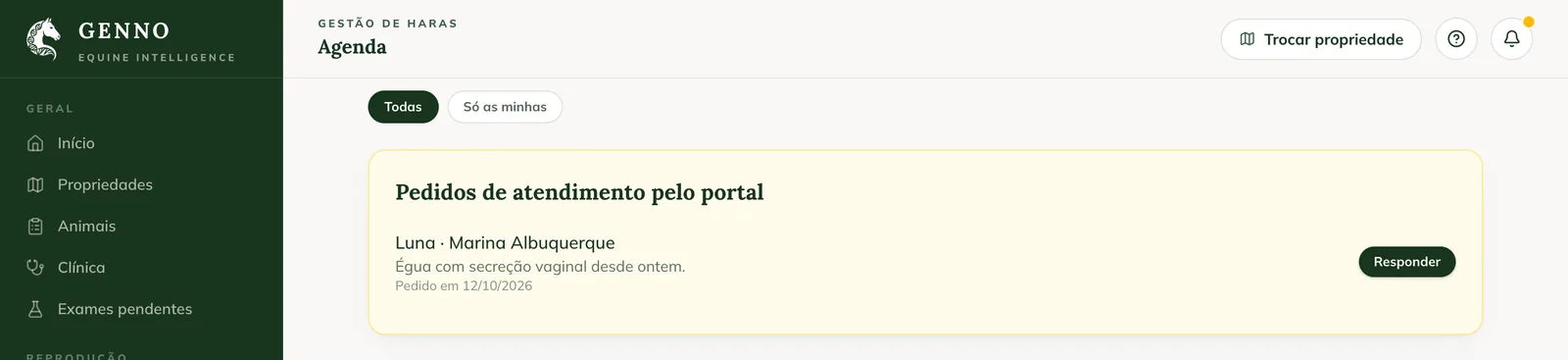
When an owner requests a visit through the Portal, the request appears at the top of the web schedule, in Visit requests through the portal.
- Click Reply.
- Choose the Responsible person and the Date.
- Write the Reply to the owner (optional).
- Click Accept and schedule to create the task, or Decline.
The owner sees the reply in the Portal, in Notices. See how the owner requests a visit.
Common problems
I don't see the New Booking button (New booking, on the web). Your profile can only view the schedule. Ask the administrator.
"Select an animal" appeared. Every app task is linked to an animal. Choose the animal before saving.
I completed it in the app and the web shows it as pending. Sync the app. The completion uploads on the next sync.
I can't cancel a task. Protocol tasks can't be cancelled from the schedule: open the protocol and skip the step. Tasks already done can't either: undo them first.
Next steps

Didn’t this article solve it?
Talk to the GENNO team. Tell us what you were doing and, if you can, send a screenshot.