How to generate PDF reports
Reports build a PDF with GENNO data: the animal record, the clinical history, the season, the inventory, finance. Saved as a document, the PDF gets a verification code.
Before you start
- The farm's plan must include reports. Each report also follows your profile: whoever can't see finance can't generate the finance report.
- To sign when saving, register your professional license in your profile. See how to edit the profile and professional details.
- In the app, most reports work offline, with the data on the device. The property report, the client statement and the invoice require a connection.
The reports
| Group | Reports |
|---|---|
| Clinical | Full animal record, Pedigree, Animal passport, Markings, Clinical history, Visit report and Test request. |
| Reproductive | Reproductive report, Reproductive exam report, Pregnancy report, Neonatal report, Semen report, Semen batch report and Season report. |
| Management | Inventory report, Finance report, Property report, Trip report, Client statement and Invoice. |
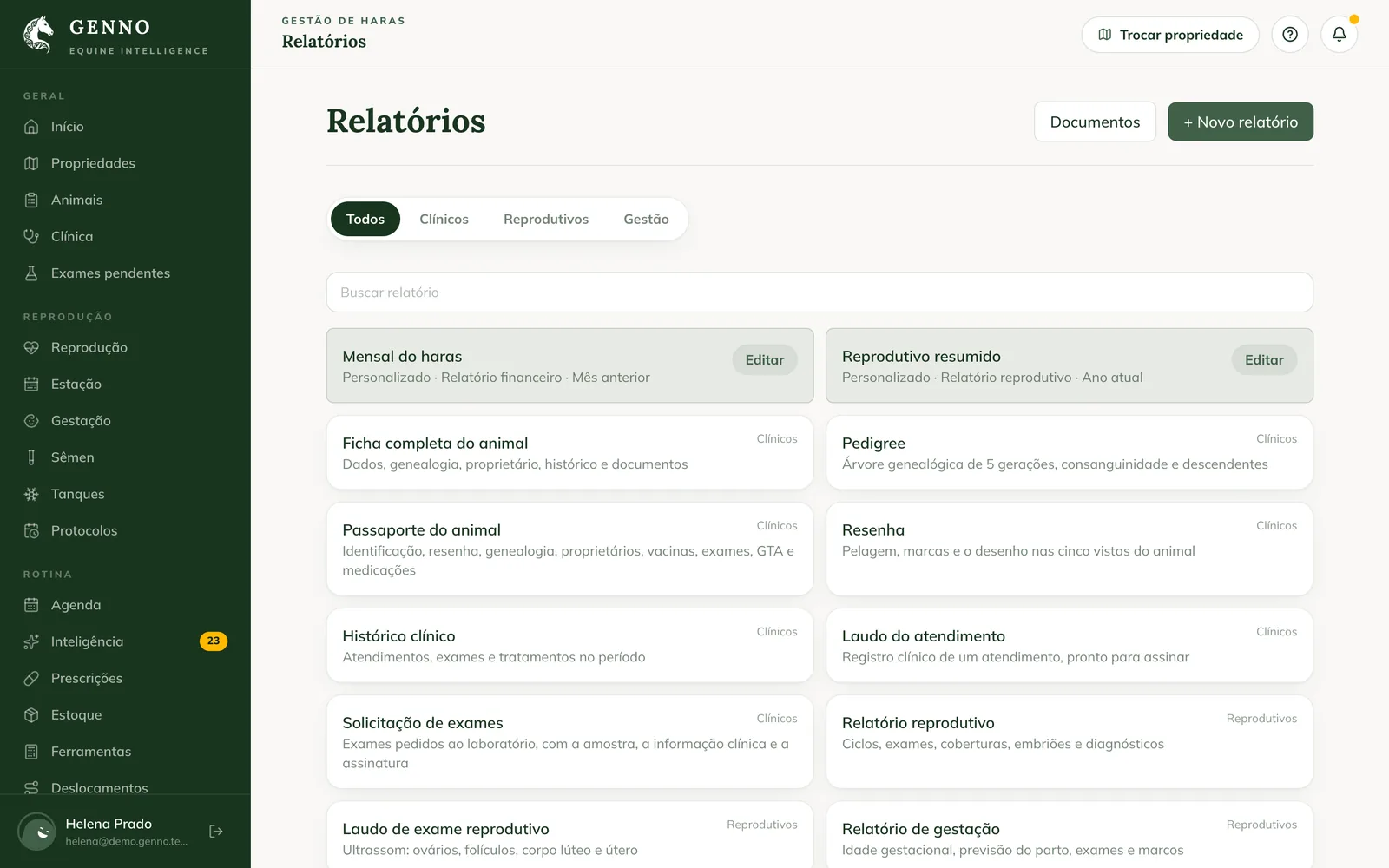
Many are also available as a button on the screen itself: Record (PDF) on the animal record, Generate PDF in inventory, Report on the reproductive exam.
Generate on the web
- At web.genno.app, click Reports in the menu.
- Filter by All, Clinical, Reproductive or Management, or use Search report.
- Click the report.
- Fill in the filters it asks for, such as the animal, the property or the period, and click Generate report. To change them later, click Filters.
- Click PDF preview, Print or Download PDF.
Save as a document
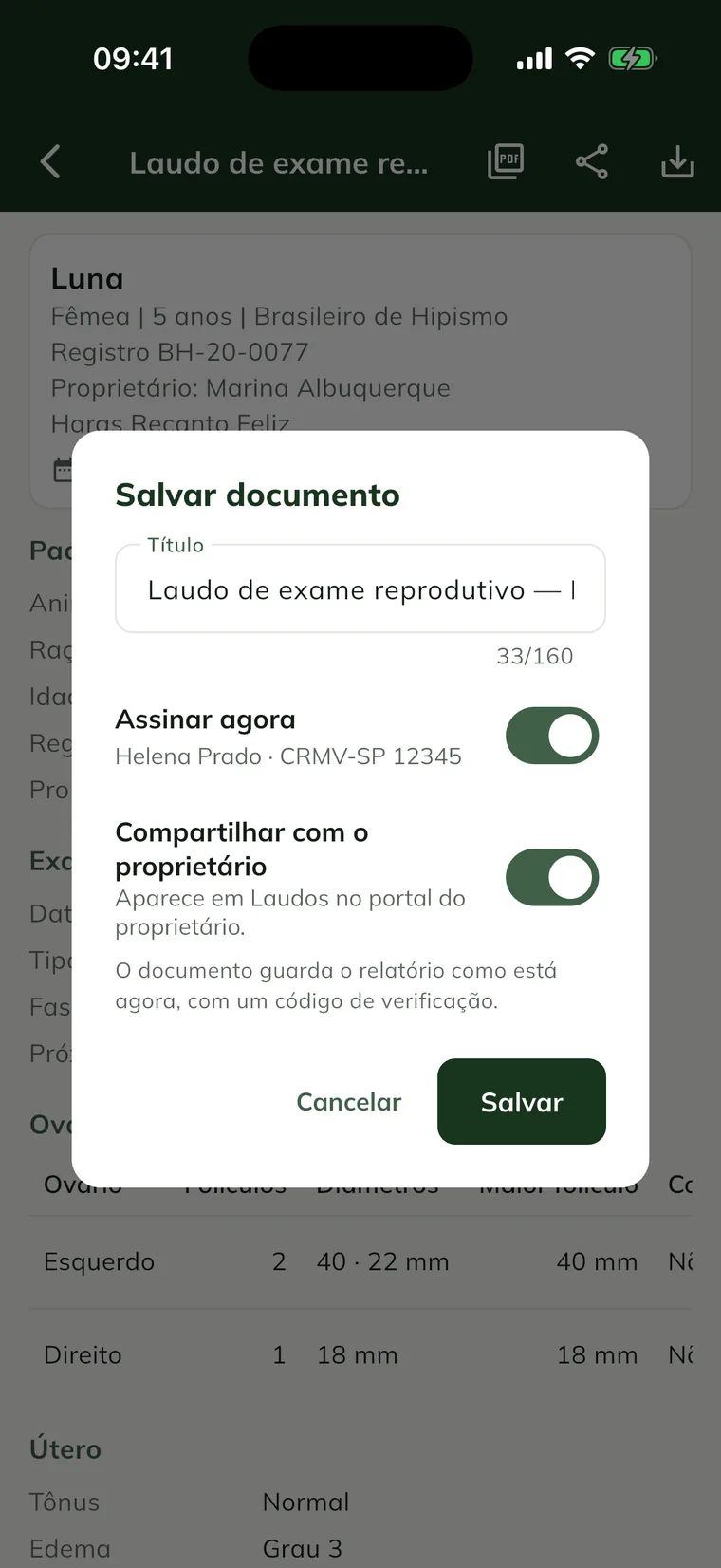
- On the generated report, click Save document.
- Check the Title.
- To sign right away, keep Sign now on. It appears on reports with a signature, for those who sign.
- If the report is about an animal, a property or a client, turn on Share with the owner so it appears under Reports in the Portal.
- Click Save.
The document keeps the report as it is now, with a verification code, and stays in Documents. See how to generate and sign a report.
Create a custom report
A custom report is a GENNO report with your choices: the sections, the order, the period and the property.
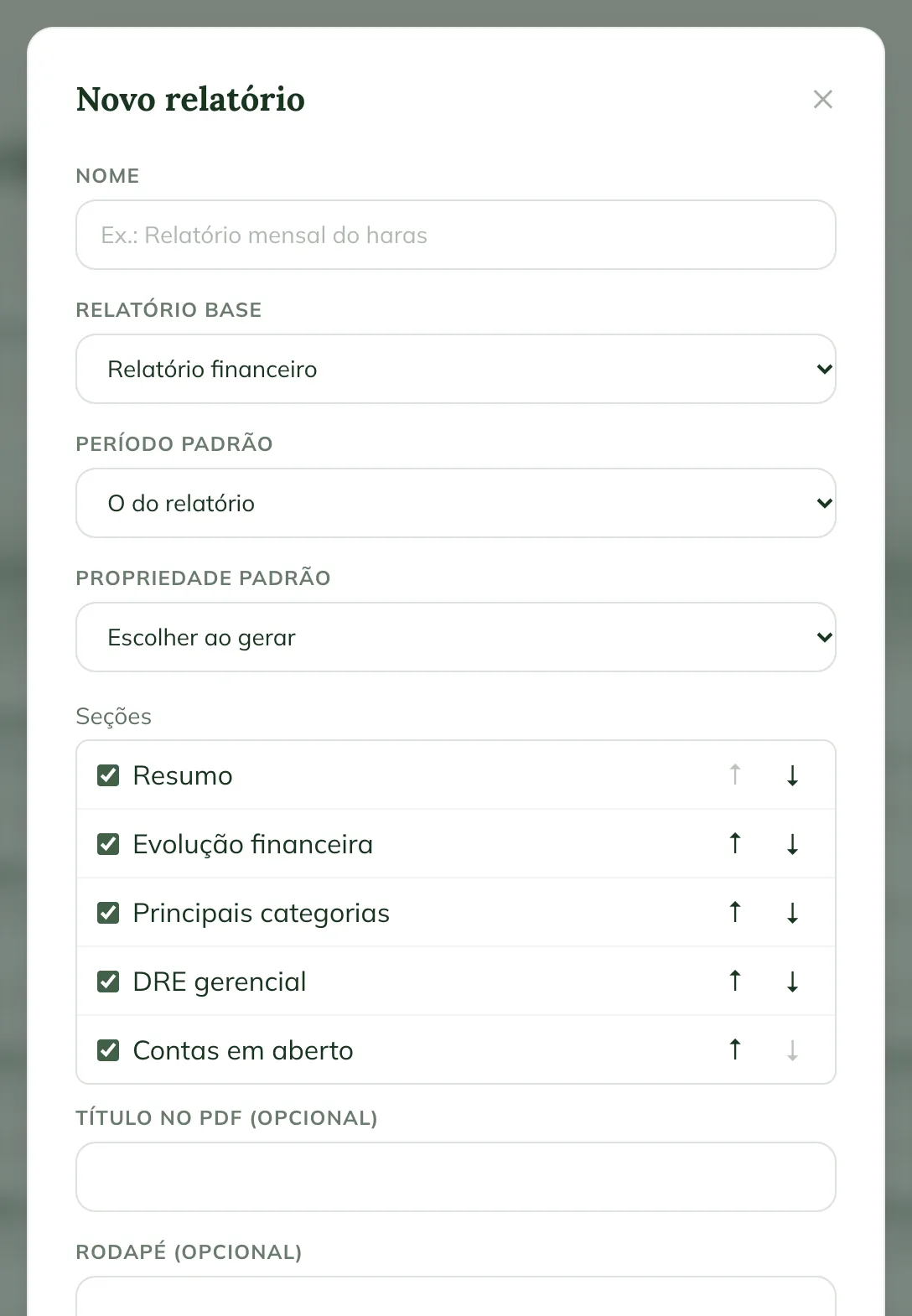
- In Reports, click + New report.
- Fill in the Name, for example "Monthly farm report".
- In Base report, choose the starting report.
- Choose the Default period and the Default property, when the report has these filters.
- Under Sections, uncheck the ones you don't want and use the arrows to change the order.
- If you want, fill in the PDF title (optional) and the Footer (optional).
- Click Save.
Custom reports appear at the top of the center. To change or remove one, click Edit on the report.
The logo on the PDFs
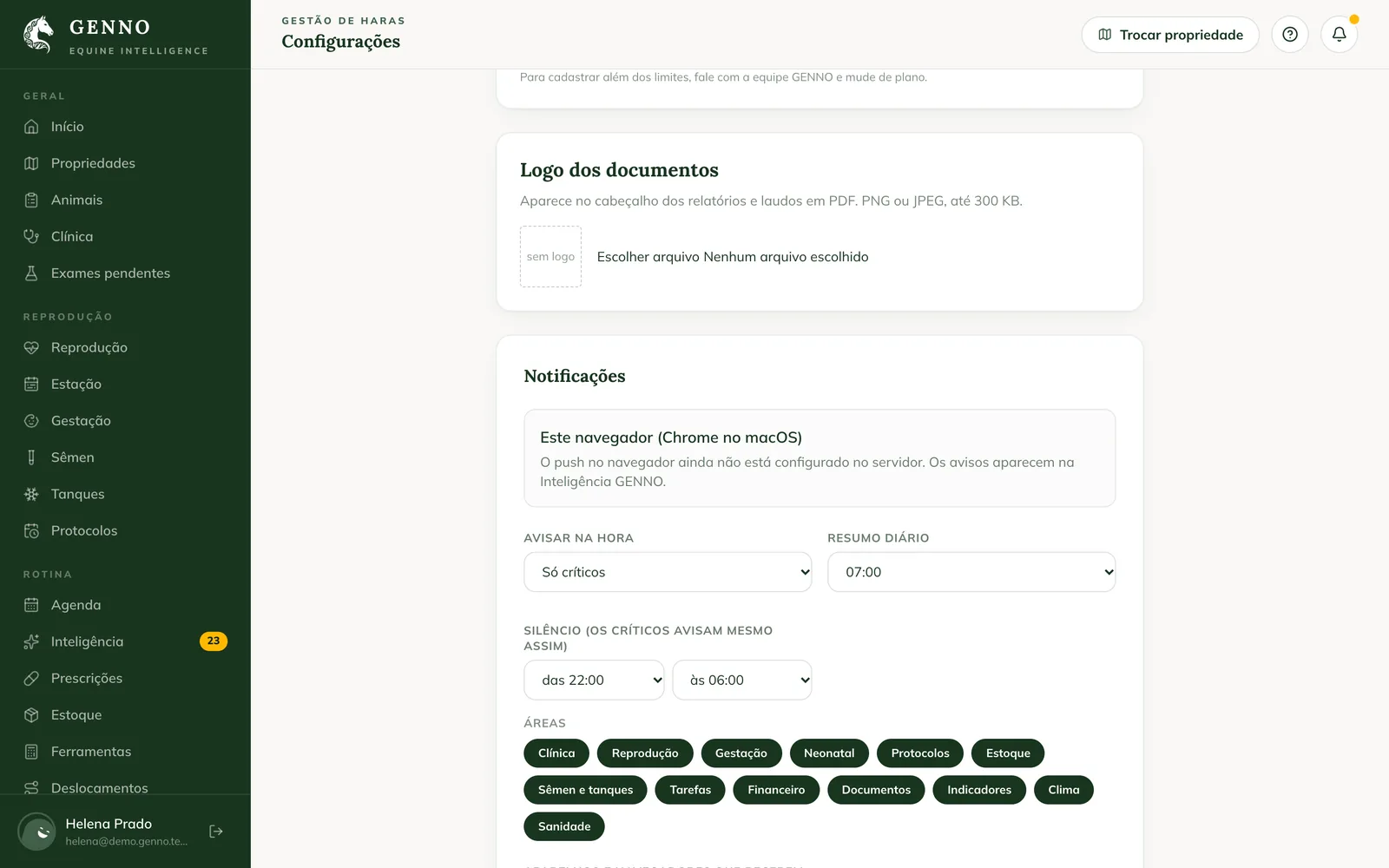
The administrator adds the farm's logo in Settings, on the Documents logo card. Use PNG or JPEG up to 300 KB. The logo appears in the header of reports.
In the app
- In More, tap Reports.
- Each report shows Works offline or Requires connection. Tap the report.
- Fill in the filters and tap Generate report.
- Tap Generate PDF to open the PDF, or Save document to keep it.
Offline, the PDF comes out with the data already on the device.
Common problems
I can't find a report in the center. Your profile or the plan doesn't include that area. For example: without finance, the finance report, the statement and the invoice don't appear.
"Add your professional registration in the profile to sign." appeared. Register your license in your profile and generate it again.
"The logo must be up to 300 KB." appeared. Make the logo image smaller and upload it again.
Next steps

Didn’t this article solve it?
Talk to the GENNO team. Tell us what you were doing and, if you can, send a screenshot.