How to manage the farm inventory
Each property has its own inventory of medications, supplies, materials and semen. With the batch and the expiry, GENNO warns you about what is running out and what is about to expire.
Before you start
- Register the products and suppliers first. See how to register products and suppliers.
- Recording stock-in and stock-out is for the Administrator, Veterinarian and Staff, by default. Adjusting the balance is only for the Administrator.
- The inventory belongs to the property in use. Choose the property first, in Switch property.
- In the app, it works offline. Movements upload on the next sync.
Record stock-in (web)
- At web.genno.app, click Inventory in the menu.
- Click New inflow.
- Choose the Product and the Supplier.
- Fill in the Batch, the Expiry, the Quantity and the Unit price.
- Fill in the Location (for example, the cabinet) and the Notes, if you want.
- To post the purchase to finance, check Record the purchase as an expense. Enter the Due date and the Document (invoice no.), or check Already paid and the payment method.
- Click Save entry.
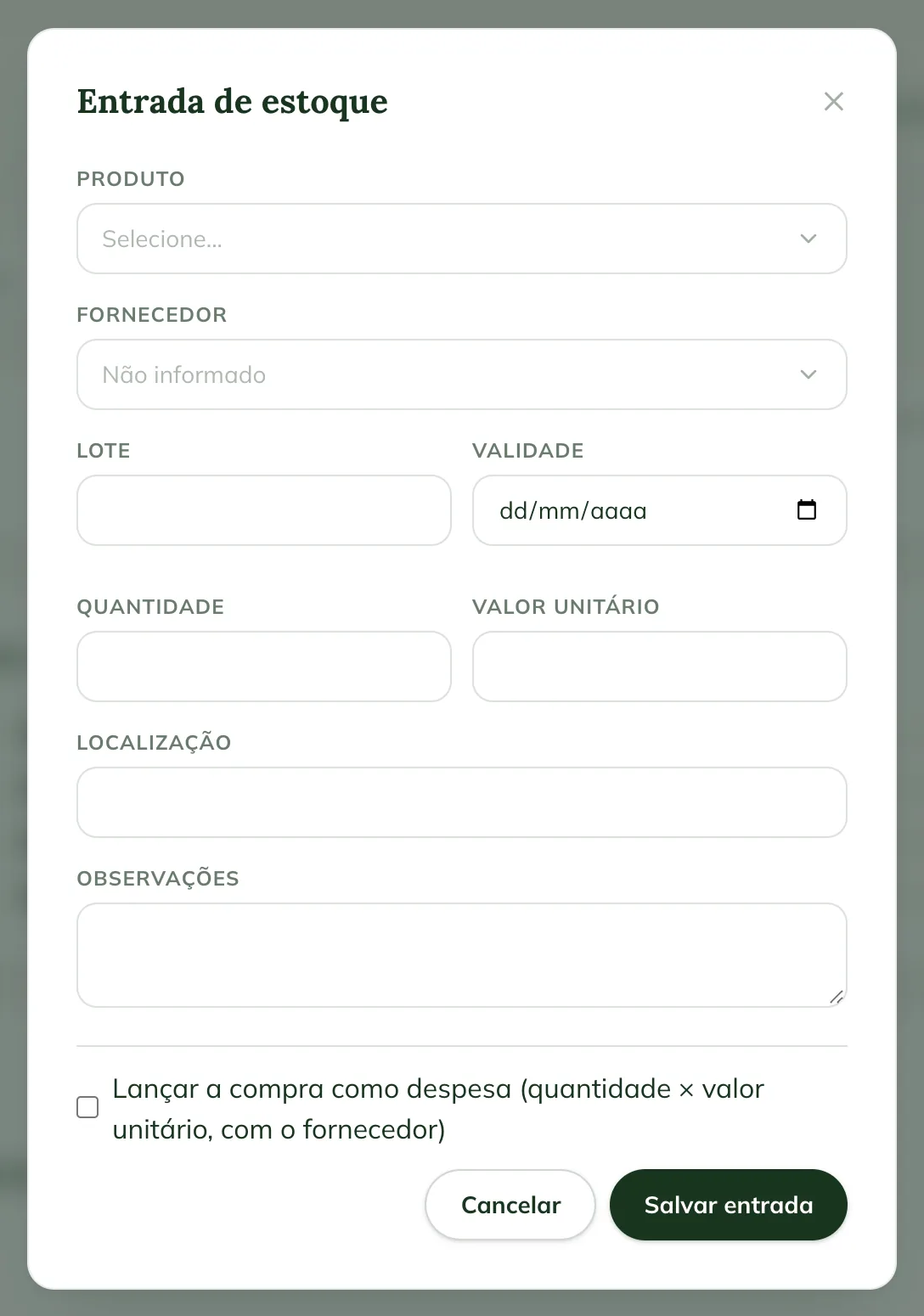
Record the purchase as an expense appears for users who post to finance. The expense is the quantity times the unit price, with the supplier.
Record stock-out (web)
- Click New outflow.
- Choose the Product and the Quantity.
- In Destination, choose Animal (and the animal), Procedure or Other.
- In Lot (optional), leave Automatic (expires first) or choose the batch.
- Write the Reason and click Record exit.
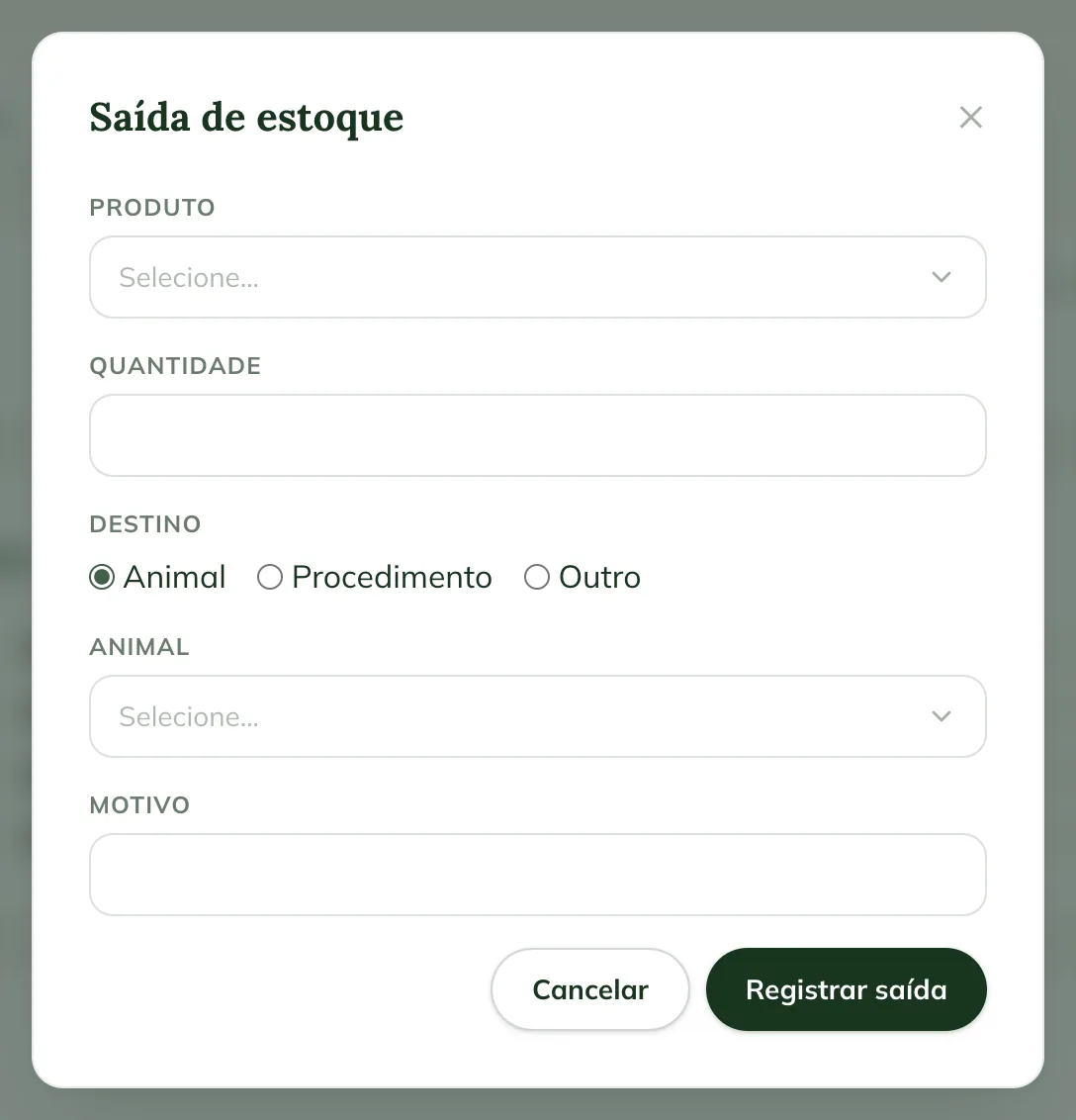
Doses given in treatments and vaccines recorded from inventory are deducted automatically. See how to give the doses.
Follow the inventory
The Inventory page has the tabs:
- Overview: Items in stock, Low stock, Expiring in 30 days and Expired, the Distribution by category and the Alerts.
- Items: each product's balance, with Low stock or OK.
- Batches: each batch with expiry, location, cost and balance.
- Movements: the stock-ins, stock-outs and adjustments, with the reason.
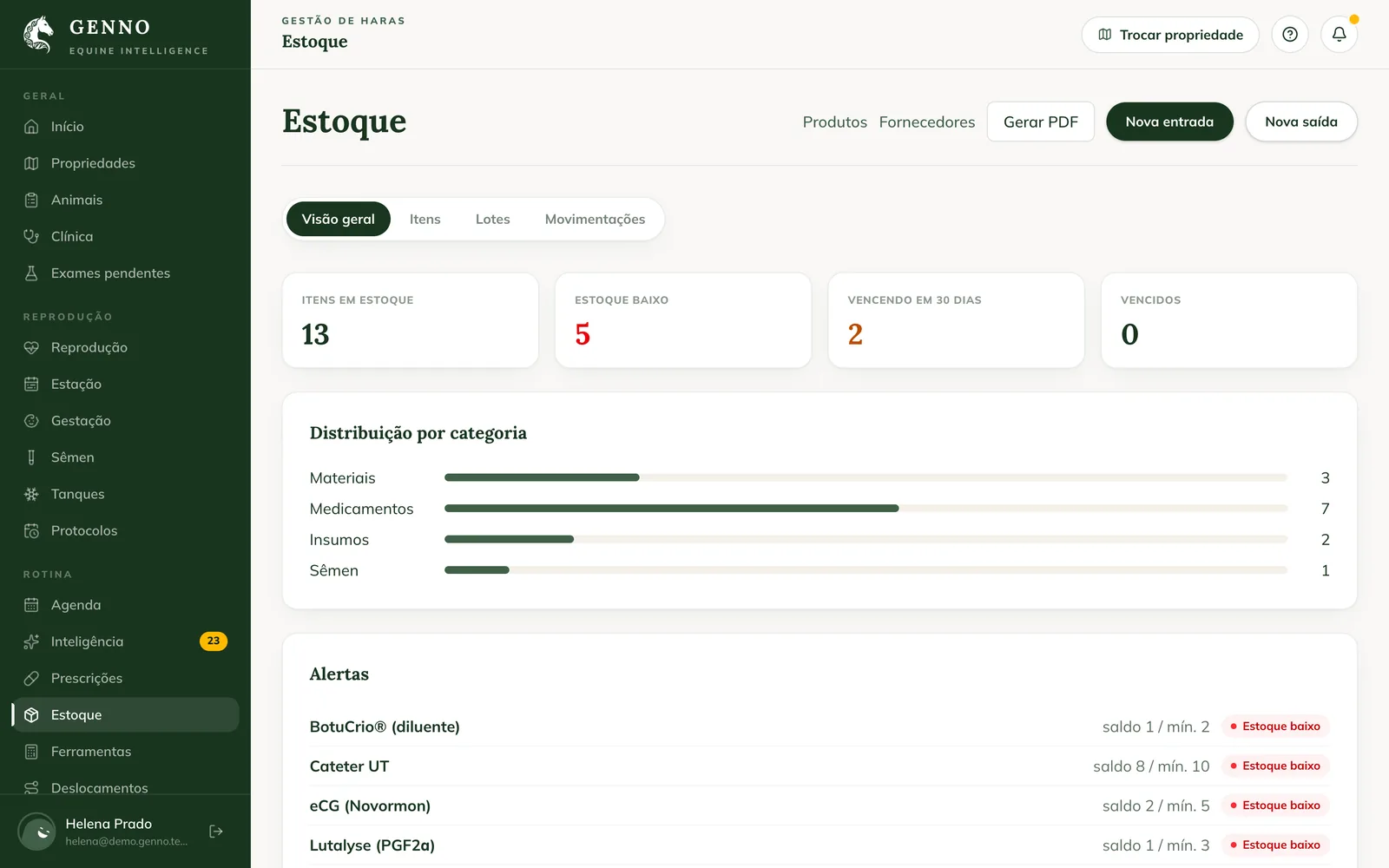
Low stock and expiring batches also become alerts in Intelligence. For the PDF report, click Generate PDF.
Adjust the balance after a stock count
- On the Items tab, click Adjust on the product.
- In Difference, enter how much to add or take away: positive adds, negative subtracts (for example, -2).
- Write the Reason and click Adjust.
In the app
- In More, tap Inventory.
- Tap New movement and choose Stock entry or Stock exit.
- Fill in the same fields as on the web and tap Save entry or Record exit.
The app has the Overview and Items tabs. Tap a product to see the batches (the first to expire goes out first) and the movements. The Administrator sees Adjust balance (stock count). The app balance includes movements not yet sent to the server.
Common problems
The app shows "Select a property to see the inventory." Choose the property in Switch Property, in the app's side menu.
"More than the available balance" appeared. The stock-out is larger than the product's balance, or the chosen batch's. Check the quantity or record a stock-in first.
The app balance is different from the web. The app adds the movements that haven't uploaded yet. Sync to match them.
Next steps

Didn’t this article solve it?
Talk to the GENNO team. Tell us what you were doing and, if you can, send a screenshot.