How to invite the owner to the Portal
You'll give the owner access to what is theirs at the farm: animals, reproduction, reports and invoices, in a read-only portal.
Before you start
- The farm's plan must include the Owner portal. Without it, the client record shows The farm's plan does not include the owner portal.
- Only the farm administrator invites and revokes access.
- The invitation requires internet, on the web and in the app.
- Register the owner in Clients, with their email.
- Link their animals and properties to the client, on the same record, in Link animal and Link property. The portal only shows what is linked.
Invite on the web
- Go to web.genno.app and open Clients.
- Click the client to open the record.
- On the Owner portal card, click Invite to the portal.
- Check the Owner's email. It comes filled in with the email from the registration.
- Click Create invitation.
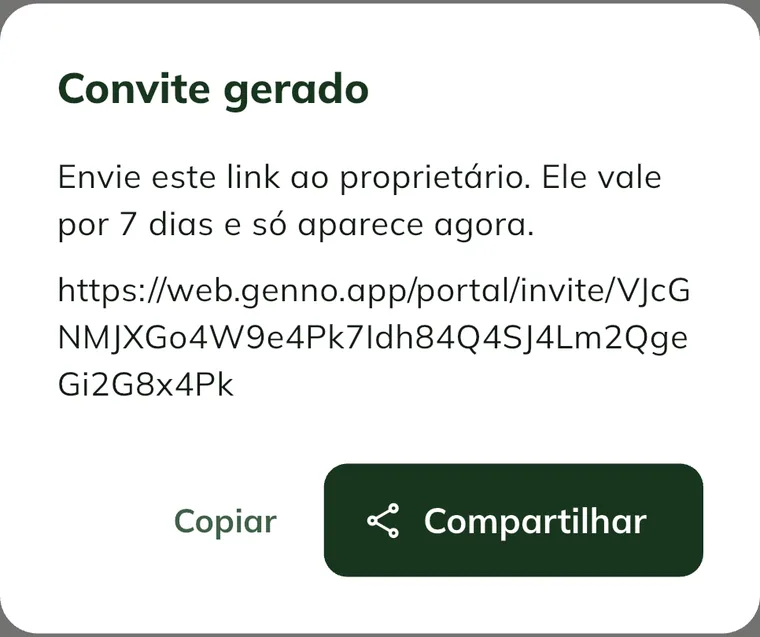
- In the Invitation created window, click Copy or Share.
- Send the link to the owner via WhatsApp or email.
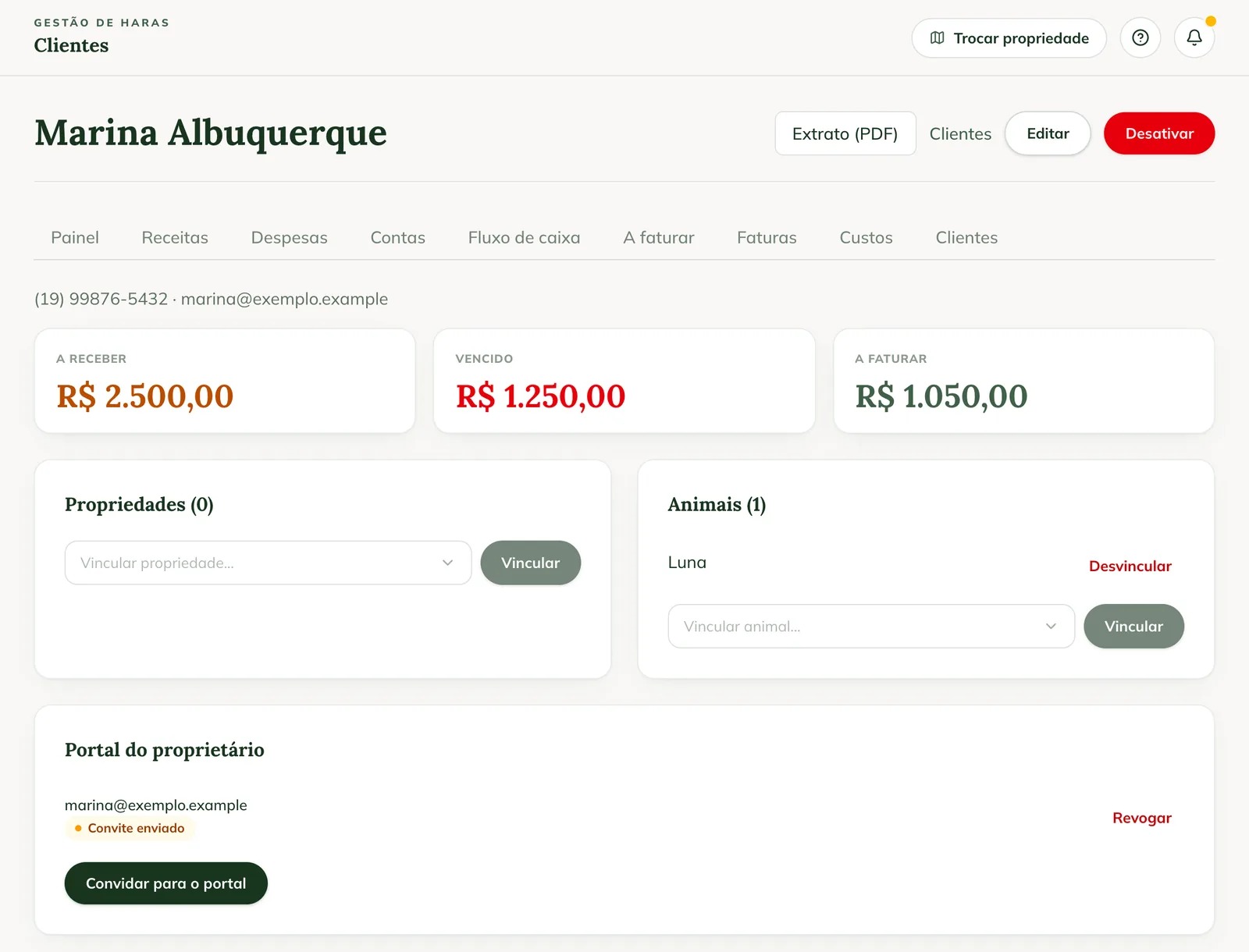
The link is valid for 7 days and only appears at that moment. If you lose the link, create another invitation: the previous one stops working.
Invite from the app
- Tap More > Clients.
- Tap the client.
- Scroll to the Owner portal section.
- Tap Invite to the portal.
- Check the Owner's email and tap Create invitation.
- Tap Share to send the link via WhatsApp, or Copy.
What the owner does
- Opens the link you sent.
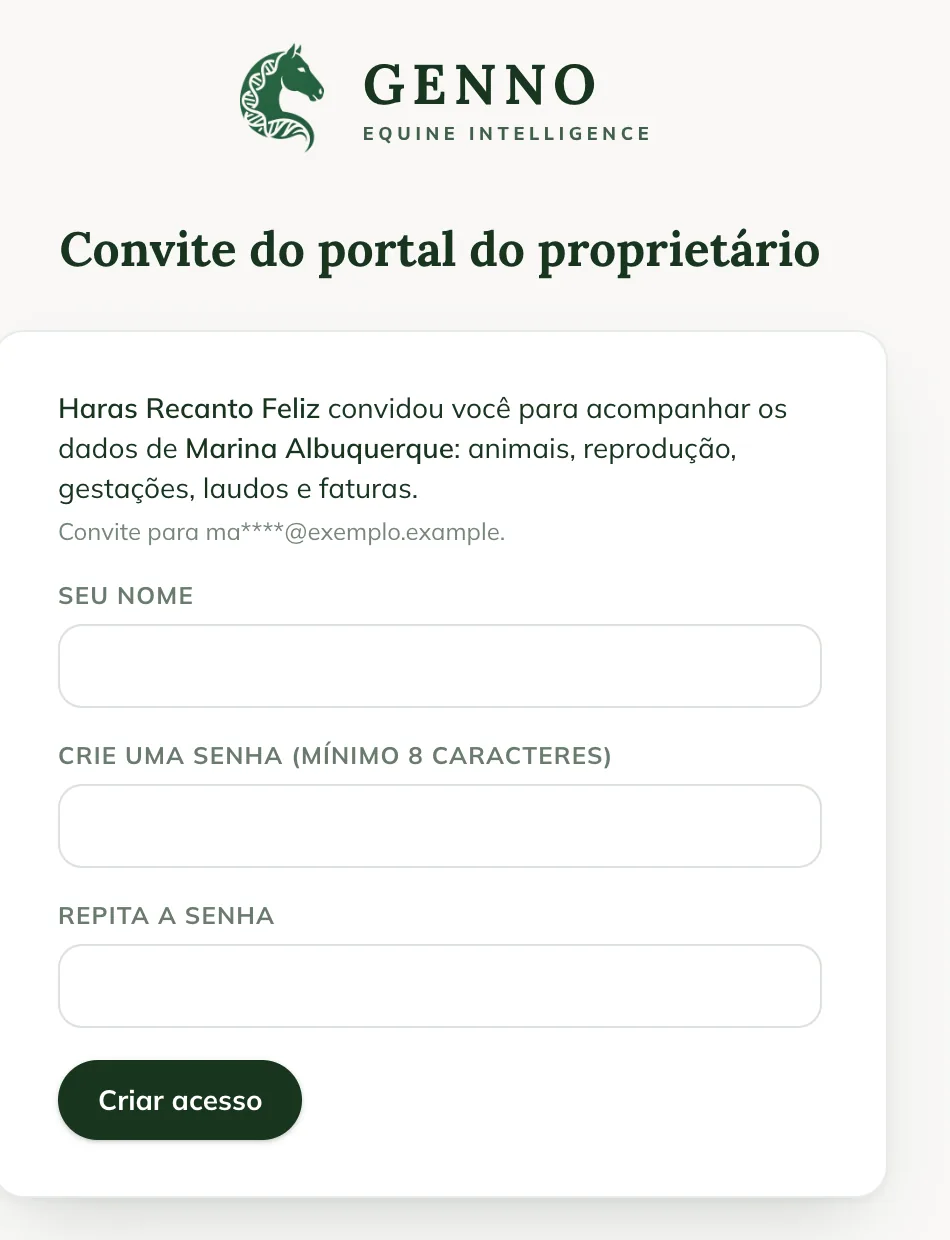
- If they don't have a GENNO account yet, fills in Your name, Create a password (at least 8 characters) and Repeat the password, and clicks Create access.
- If they already have an account with the same email, signs in with Email and Password and clicks Sign in and accept.
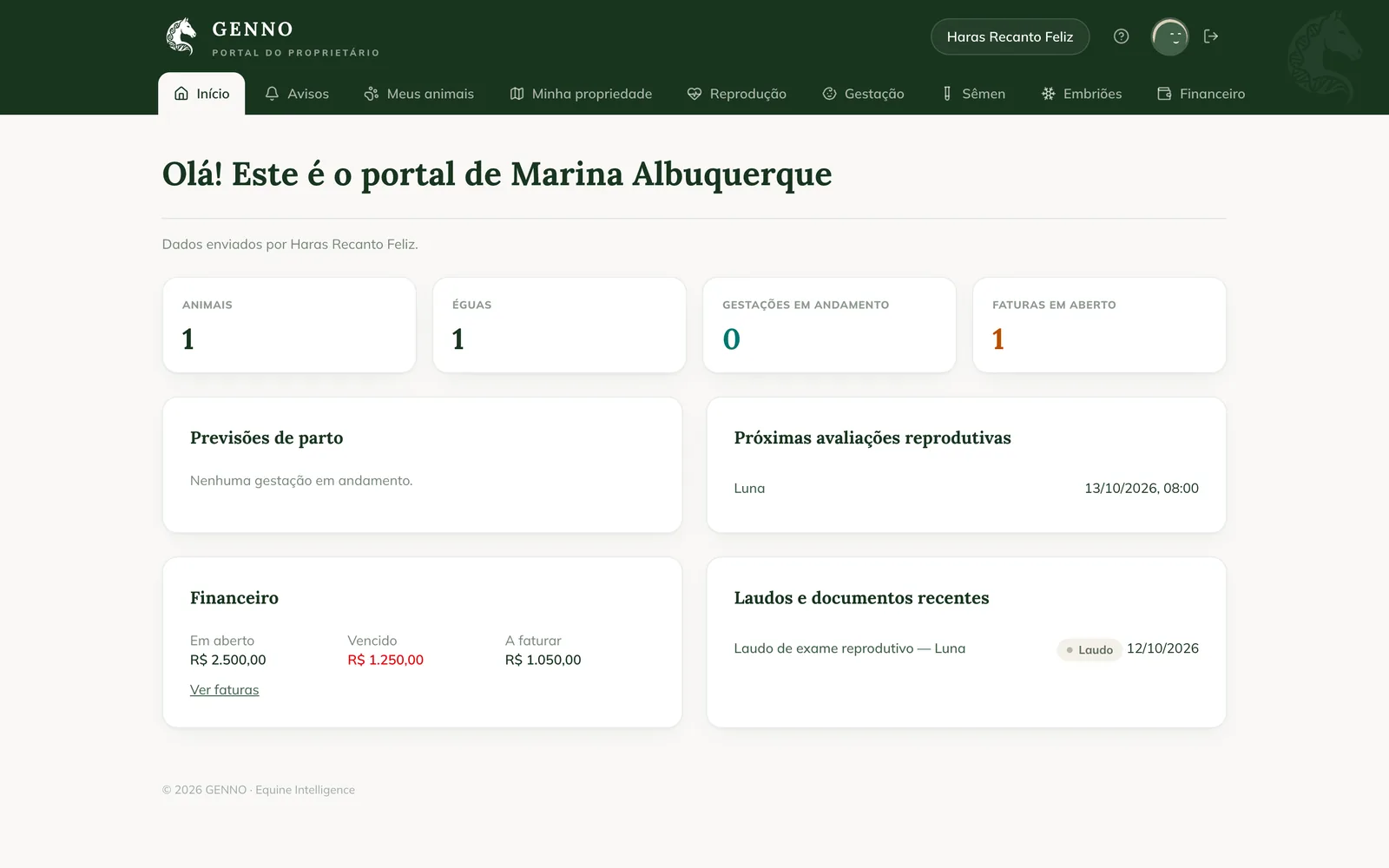
- Lands straight on the portal home page.
From then on, they sign in at web.genno.app with their email and password. The portal is web-only, not in the app.
The account email must be the same as the invitation's. An owner with animals at more than one farm uses a single account and switches farms with the Farm selector at the top of the portal.
What the owner sees in the portal
The menu, at the top of the portal, has:
- Home: animals, open invoices, foaling forecasts, upcoming assessments and recent reports.
- Notices: the reminders and summaries the farm sent them.
- My animals and My property.
- Reproduction, Pregnancy, Semen and Embryos.
- Finance and Invoices: open, overdue, to invoice, the status of each invoice and the PDF.
- Reports and Documents: only what you shared.
- Reports: animal record, reproductive, pregnancy and statement.
The step by step for the owner is in Understand the Owner portal.
Everything is read-only, except requesting a visit, choosing notices and signing what the farm requests. The owner doesn't see the team, the schedule, the inventory, the costs, internal notes or other clients. For visits, they see the date, the type and the diagnosis.
The owner sees the invoices and downloads the PDF, but doesn't pay through the portal. Payment continues as you agreed, and the farm records it in GENNO. See From visit to invoice.
Share reports and documents
The portal doesn't receive documents on its own. You choose what goes there.
- When signing a report, keep Share with the owner on.
- For a document already saved, open it in Documents and tap Share with the owner.
- To remove it from the portal, tap Stop sharing.
Signed reports appear under Reports. Contracts, exams and other uploaded files appear under Documents. The document must be linked to an animal, a property or the client.
The step by step for reports is in How to generate and sign a PDF report.
Follow and revoke access
On the Owner portal card you see each access with its status: Invitation sent, Active or Invitation expired, and the last access.
To cut off access, tap Revoke and confirm. The person stops seeing this client's data right away.
Common problems
The owner saw "This invitation has expired. Ask the farm for a new link." The link is more than 7 days old. Create a new invitation on the client record.
The owner saw "This invitation does not exist, was already used or was cancelled." The link was already used or was replaced by a new one. Create another invitation and send the new link.
The app shows "Owner portal unavailable offline." The invitation requires internet. Connect and tap Try again.
"Sync the client before inviting them to the portal." appeared. The client was registered offline and hasn't uploaded yet. Sync the app and try again.
I can't find the Owner portal card. It only appears for the administrator, on an active client and with the portal in the farm's plan.
The owner doesn't see an animal. Link the animal to the client on the client record, in Link animal.
The owner doesn't see a report. Check that the report is signed and shared with the owner.
Next steps

Didn’t this article solve it?
Talk to the GENNO team. Tell us what you were doing and, if you can, send a screenshot.