How to make the horse's markings chart
The markings chart identifies the horse through the drawing of its markings and the description. GENNO writes the markings text from what you draw and fill in.
Before you start
- Creating and editing the markings chart is for the Administrator and Veterinarian, by default. So is signing it.
- In the app, it works offline. The markings chart uploads on the next sync.
Draw the markings
- Open the animal record. On the web, scroll to Markings. In the app, open the Markings tab.
- Click Create markings.
- Choose the view: Left side, Right side, Head, Forelegs or Hind legs.
- Choose the tool and mark the drawing:
- White mark: paint the area. Choose the Brush: Thin, Medium or Wide.
- Whorl, Scar, Brand and Freeze brand: tap the spot. For brands and freeze brands, write the text, for example the letters or the number.
- Eraser removes a mark. Undo reverts the last one.
- Repeat in the other views. The number next to each view shows how many markings it has.
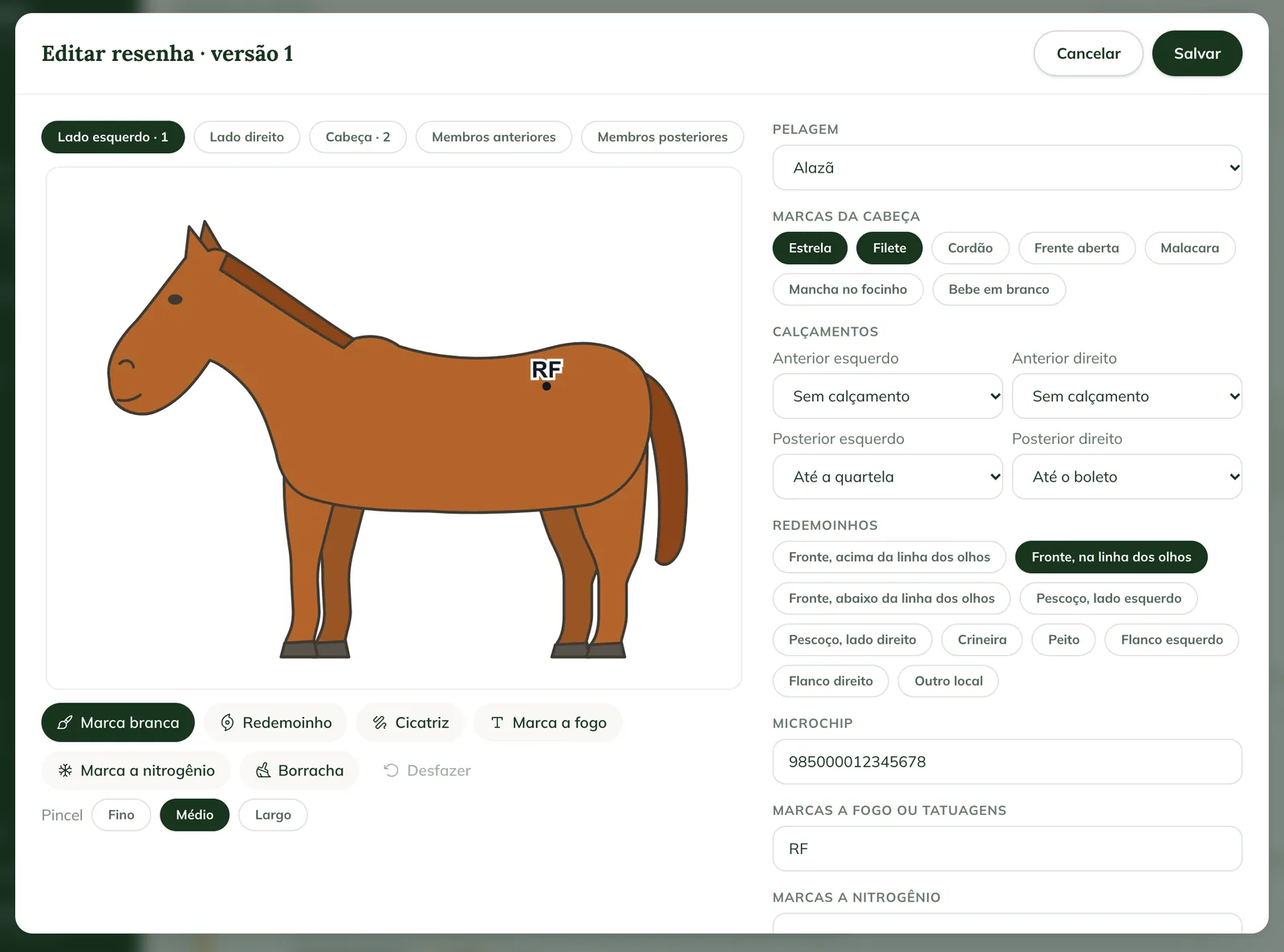
In the app, the drawing is on the Drawing tab and the fields on the Details and text tab.
Fill in the description
- In Coat color, choose the coat color.
- In Head markings, select the ones the horse has, such as Star, Narrow stripe, Stripe, Blaze or Bald face.
- In Leg markings, choose the one for each leg (Left fore, Right fore, Left hind and Right hind), from None to High stocking.
- In Whorls, mark where they are.
- Fill in the Microchip, the Brands or tattoos, the Freeze brands and the Notes.
- Check the Markings text. It is generated from the fields and the drawing.
- Click Save.
Sign the markings chart
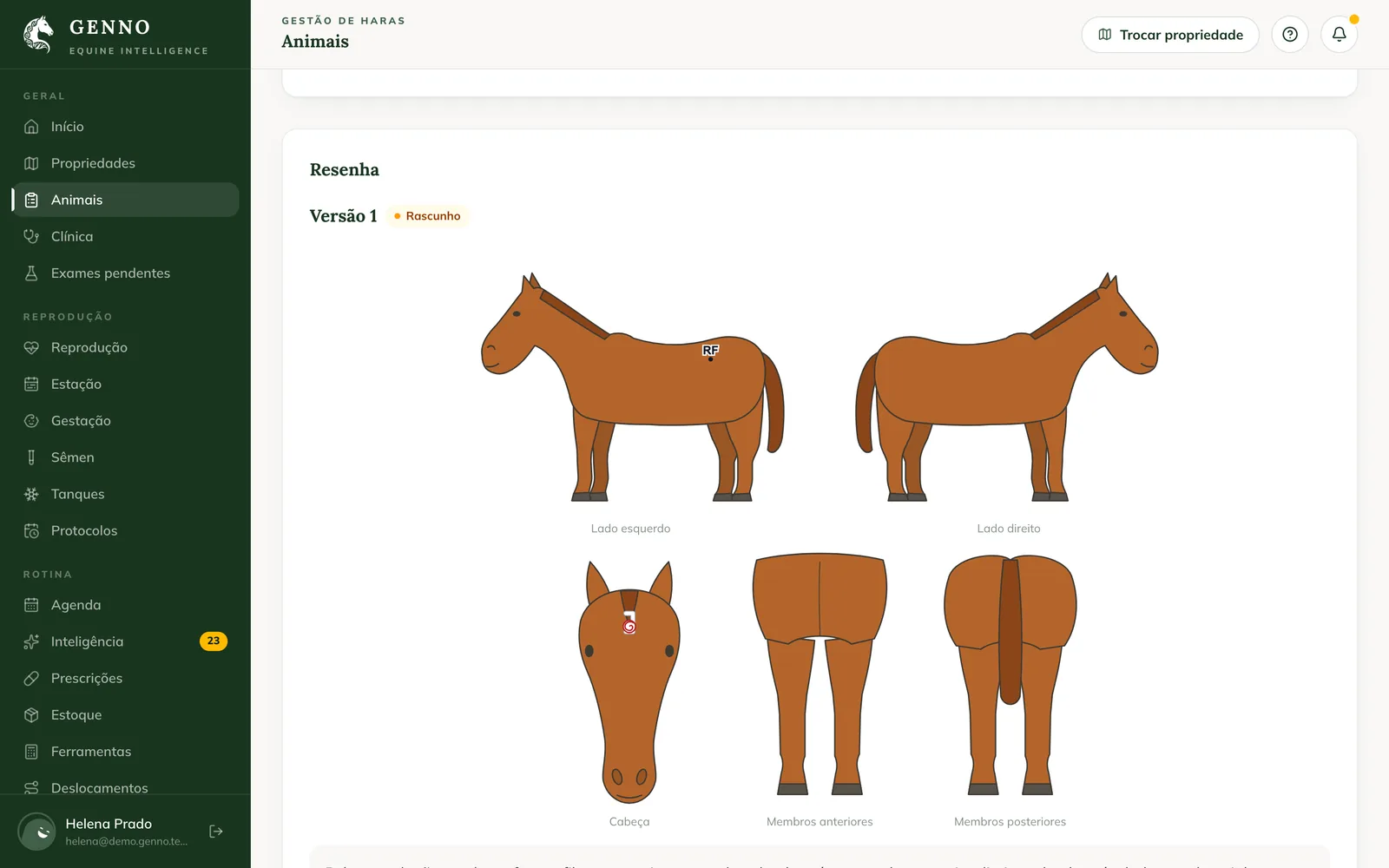
The saved markings chart stays as a Draft. While it is a draft, you can click Edit or Delete draft.
- Check the drawing and the details.
- Click Sign and confirm.
Once signed, the version no longer changes. To correct it, click New version: GENNO copies the latest one and you edit it. Older versions stay under Versions.
Generate the PDF
Click Markings (PDF) (in the app, PDF) to generate the document with the drawing and the text. To store and sign the PDF, see how to generate reports.
Make the drawing with the horse in front of you, one view at a time. Start with the head and finish with the hind legs, so you don't forget any leg.
Common problems
I don't see Create markings. Your profile doesn't edit animals. Ask the administrator.
I can't change a signed markings chart. The signed version doesn't change. Click New version.
The app markings chart shows "Waiting to send". It was made offline. Sync the app when you have a connection.
Next steps

Didn’t this article solve it?
Talk to the GENNO team. Tell us what you were doing and, if you can, send a screenshot.