Understand the animal record
The record brings together everything about a horse: identification, visits, reproduction, health, documents and the timeline. On the web it is one long page; in the app, it is split into tabs.
In the app
Tap Animals in the bottom bar and then the animal. At the top are the photo, name, sex, age and breed. The icons at the top open the PDF Reports, Edit and Delete.
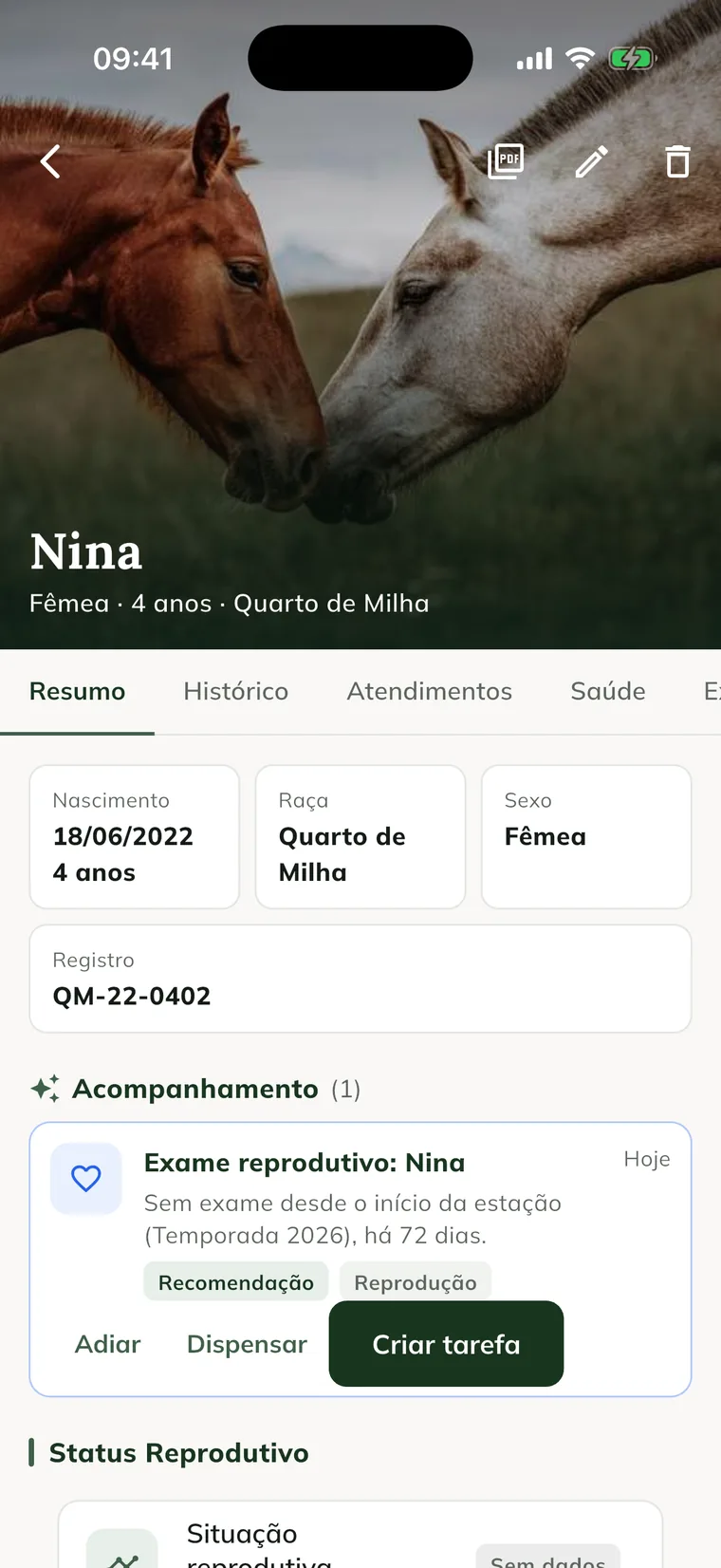
| Tab | What it shows |
|---|---|
| Summary | Birth, breed, sex and registration, the Follow-up with the animal's alerts, the Reproductive Status, the Next Actions and the New Visit and See Timeline buttons. |
| History | The animal's timeline, from newest to oldest. |
| Visits | Full visits, with vital signs, history, physical exam, diagnosis and plan, and the Report / PDF for each one. |
| Health | Simple clinical records, with New Clinical Record. |
| Exams | The exams requested and the results. |
| Treatments | The treatments and the doses. |
| Finance | The services and amounts linked to the animal. |
| Reproduction | The reproductive events, with New Reproductive Event. |
| Documents | The attachments: photos, exams and other files. |
| Markings, Pedigree and Passport | The horse's official identification. See the article for each one below. |
If a tab appears as Module Locked, the farm's plan doesn't include that area. Offline, the record shows the data from the last sync.
On the web
Click Animals and View 360° on the animal. The page has, from top to bottom:
- The header, with the photo, breed, sex, coat color, birth, dam and sire, and the Edit, Record (PDF), Pedigree, Passport, Clinical history, Reproductive and Pregnancy buttons (the last two only for females).
- Follow-up: the alerts, recommendations and tasks for this animal, with Mark as seen and Snooze.
- Pedigree: the 5-generation tree and the inbreeding.
- Markings: the drawing and description of the markings.
- Passport: the health status, vaccinations, health tests, movement permits, owners and medications from the last 90 days.
- Exams: the animal's exam requests.
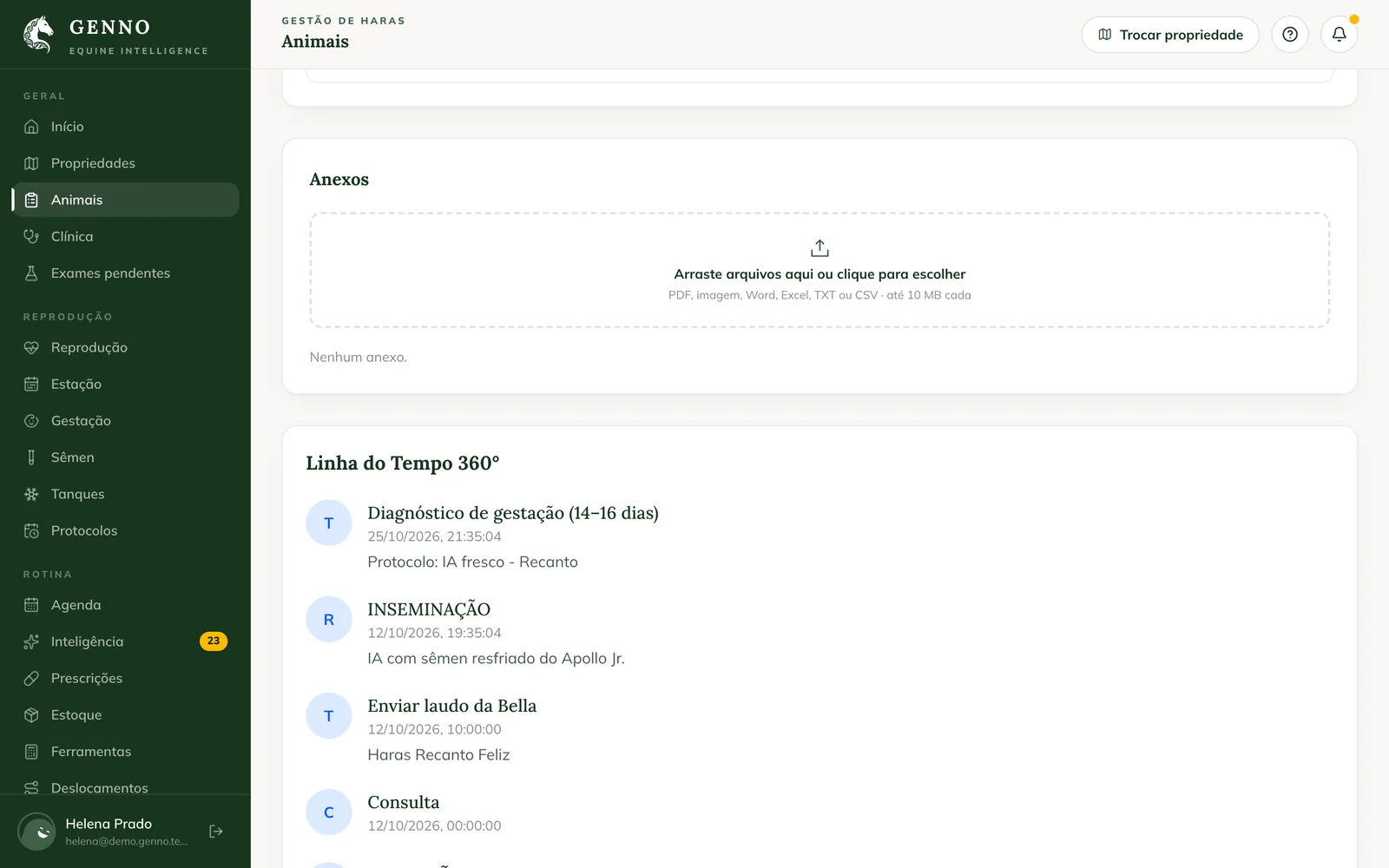
- Attachments: the animal's files.
- 360° Timeline: everything that happened, in order.
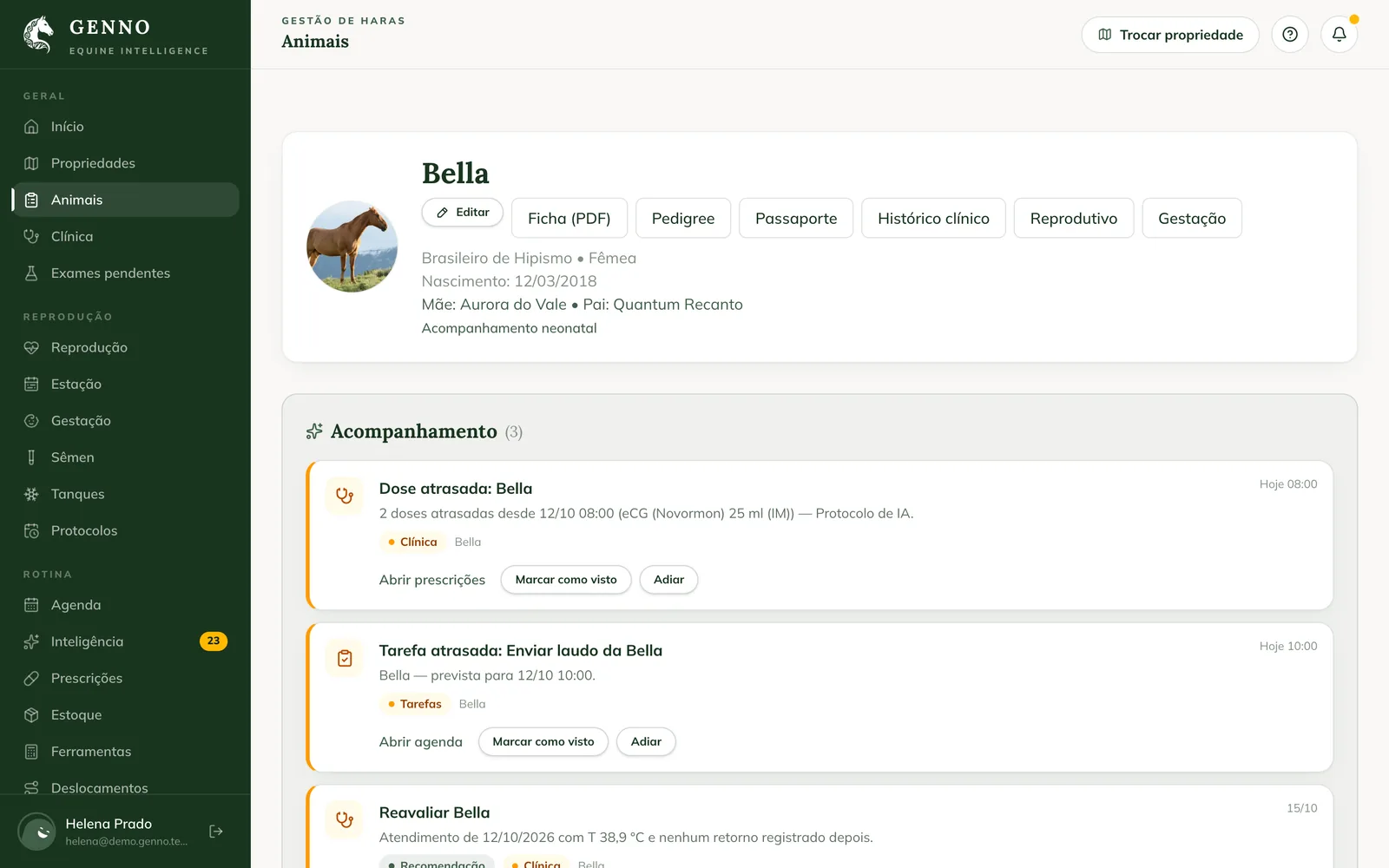
The Neonatal follow-up link opens the foal's page. See how to record the foaling and follow the foal.
Attach files
Under Attachments, drag the files or click to choose them. PDF, image, Word, Excel, TXT or CSV are accepted, up to 10 MB each. Choose the Category and write the Description (optional). In the app, use the Documents tab. The step by step is in how to attach files to the animal.
Ancestor from outside the herd
An animal registered only in the pedigree shows Ancestor from outside the herd: shows only in the pedigree tree. It has no passport, visits or schedule.
Common problems
I don't see the Reproductive and Pregnancy buttons. They only appear on females' records.
An app tab shows "Module Locked". The farm's plan doesn't include that area. See how to see the plan and the limits.
The app record doesn't show a visit made on the web. Sync the app. It shows what came in the last sync.
Next steps

Didn’t this article solve it?
Talk to the GENNO team. Tell us what you were doing and, if you can, send a screenshot.