How to recover or change your GENNO password
Forgot your password? You choose a new password through a link. Today, your organization's administrator generates that link; once GENNO's email sending is on, the link also arrives in your email. If you only want to change a password you know, do it in your profile.
Before you start
- Use the same email as your GENNO account.
- Accounts created with Google or Apple sign in with the provider's button and don't use a GENNO password.
- The new password link works only once. A link generated later makes the previous one stop working.
Ask the administrator for the link
While email sending is not on, this is the way:
- Ask your organization's administrator for a new password link.
- On the web, they open Settings › Users and click Generate password link on your row (see how).
- They copy the link and send it to you. The link is valid for 24 hours.
- Open the link. On the Choose a new password screen, type the New password and repeat it in Repeat the new password. Use at least 10 characters, and no common password.
- Click Save new password.
- Sign in again with your email and the new password, on every device.
If you are the administrator and there is no other, contact support with your account email.
Ask for the link by email
Once GENNO's email sending is on:
- On the sign-in screen, click (or tap, in the app) Forgot my password.
- Type your Email and click Send link (in the app, Send).
- Open the GENNO email and click the link. It is valid for 30 minutes and opens in the browser.
- Choose the new password as in steps 4 to 6 above.
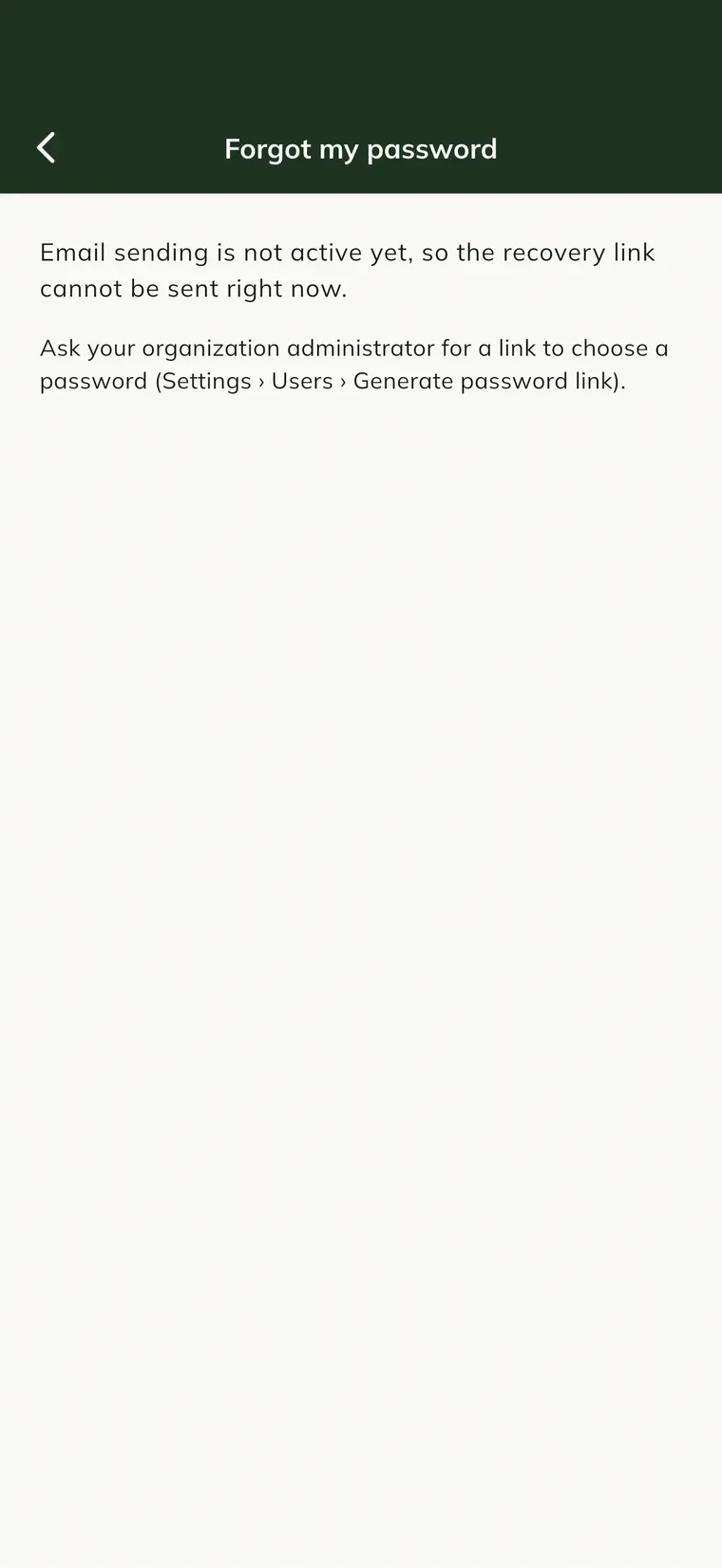
If sending is not on yet, the screen says Email sending is not active yet, so the recovery link cannot be sent right now. In that case, ask the administrator for the link.
Change your password
If you know the current password and want to change it:
In the app
- Tap More and, in the Account section, My Profile.
- In New Password, type the new password.
- In Current password, type the password you use today.
- Tap Save Changes.
- You see Password changed. Sign in again. Sign in with the new password.
On the web
- In the side menu, under Account, click Settings and, under My account, Security.
- In Password, fill in Current password, New password and Repeat the new password.
- Click Change password.
After the change, you sign in again on every device. Changing the password needs internet.
Common problems
"This link is no longer valid" appeared. The link was already used, expired or a newer link was generated. Ask the administrator for a new link (or use Forgot my password, once email is on).
"That password is too common. Choose another one." appeared. The password is on the list of the most used ones. Choose another one, with at least 10 characters.
"The confirmation does not match the new password." appeared. The repeated password is different. Type both again.
The recovery email didn't arrive. Look in spam and in "Promotions". If it isn't there, ask the administrator for the link.
Next steps

Didn’t this article solve it?
Talk to the GENNO team. Tell us what you were doing and, if you can, send a screenshot.