How to invite the farm team to GENNO
Each team member has their own login. You send the invitation, choose what they can do, and they create their own password through the invitation link. Nobody needs to know anyone else's password.
Before you start
- Only people with user permission (the administrator, by default) can invite the team.
- Invitations are sent on the web, at web.genno.app.
- Read what each access profile can do before choosing.
- The plan includes a number of users, and each pending invitation already takes a seat. See how many you use in Settings › Plan and data › Subscription and limits.
Invite a person
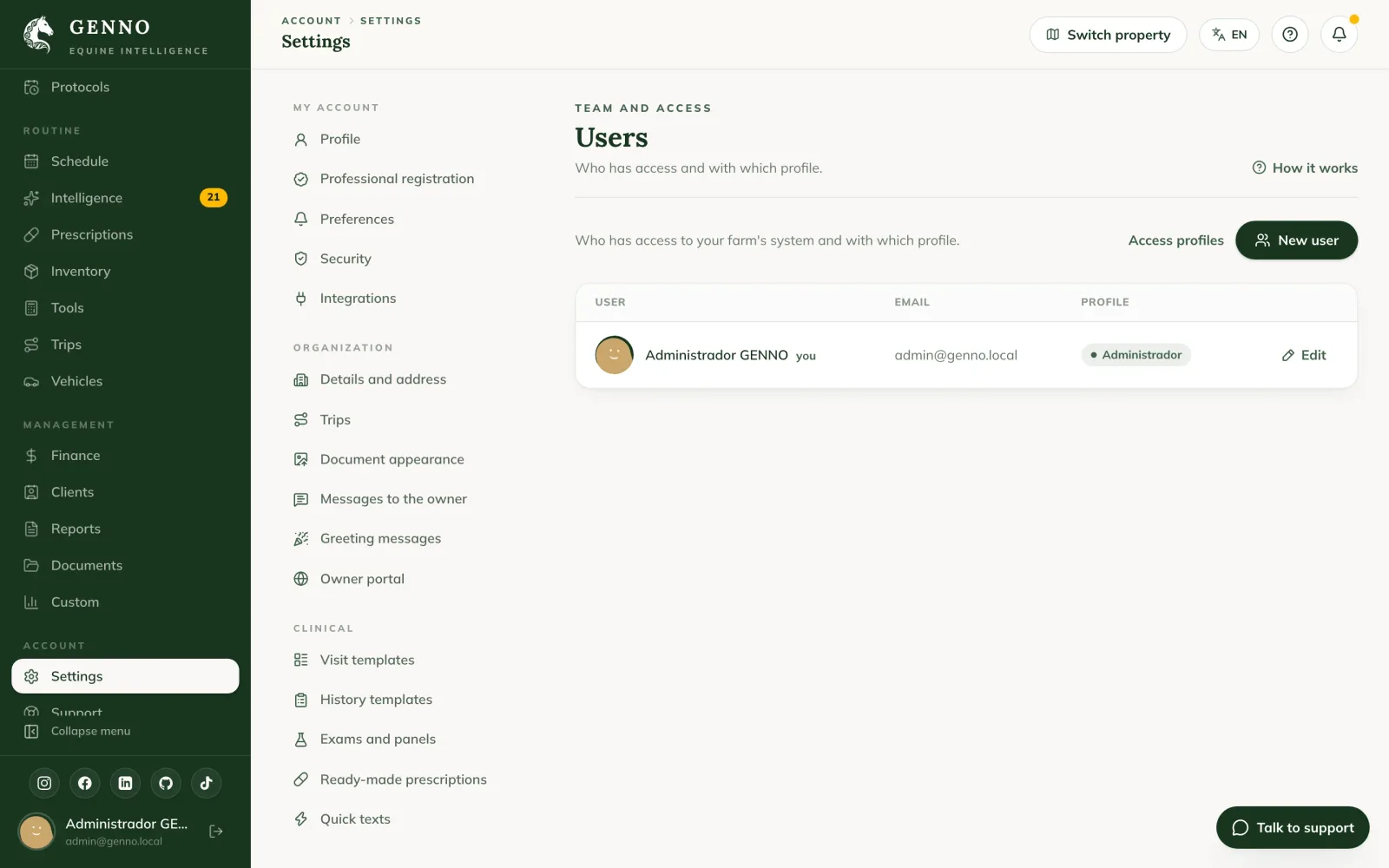
- In the side menu, under Account, click Settings and, under Team and access, Users.
- Click Invite.
- Fill in Name and Email. The email will be their login.
- In Access profile, choose Administrator, Veterinarian, Staff, Intern or a profile created by the organization.
- In Invitation language, choose the language the person will receive the invitation in.
- Click Create invitation.
- In the Invitation created window, click Copy link and send the link to the person. The Send via WhatsApp button opens WhatsApp with the message ready.
The link is valid for 7 days and works only once. When GENNO's email sending is turned on, the person also receives the invitation by email.
What the invited person does
- Opens the invitation link. With the GENNO app installed on the phone, the link opens straight in the app; otherwise, it opens on the web.
- Checks the name, creates a password (at least 10 characters, no common passwords) and repeats it.
- Ticks I have read and accept the Terms of Use and the Privacy Policy.
- Taps Join the team.
Done: they are signed in to GENNO with the profile you chose. If they accepted on the web, they just install the app and sign in with the same email and password.
Follow pending invitations
Below the user list is Pending invitations, with the name, email, profile and how long the link is valid.
- New link: creates another link (the previous one stops working) and counts 7 more days. Use it when the person lost the link or it expired.
- Cancel: the link stops working and the seat in the plan is freed.
When the person accepts, they leave the pending list and appear in Users and permissions.
Create access with a password (no invitation)
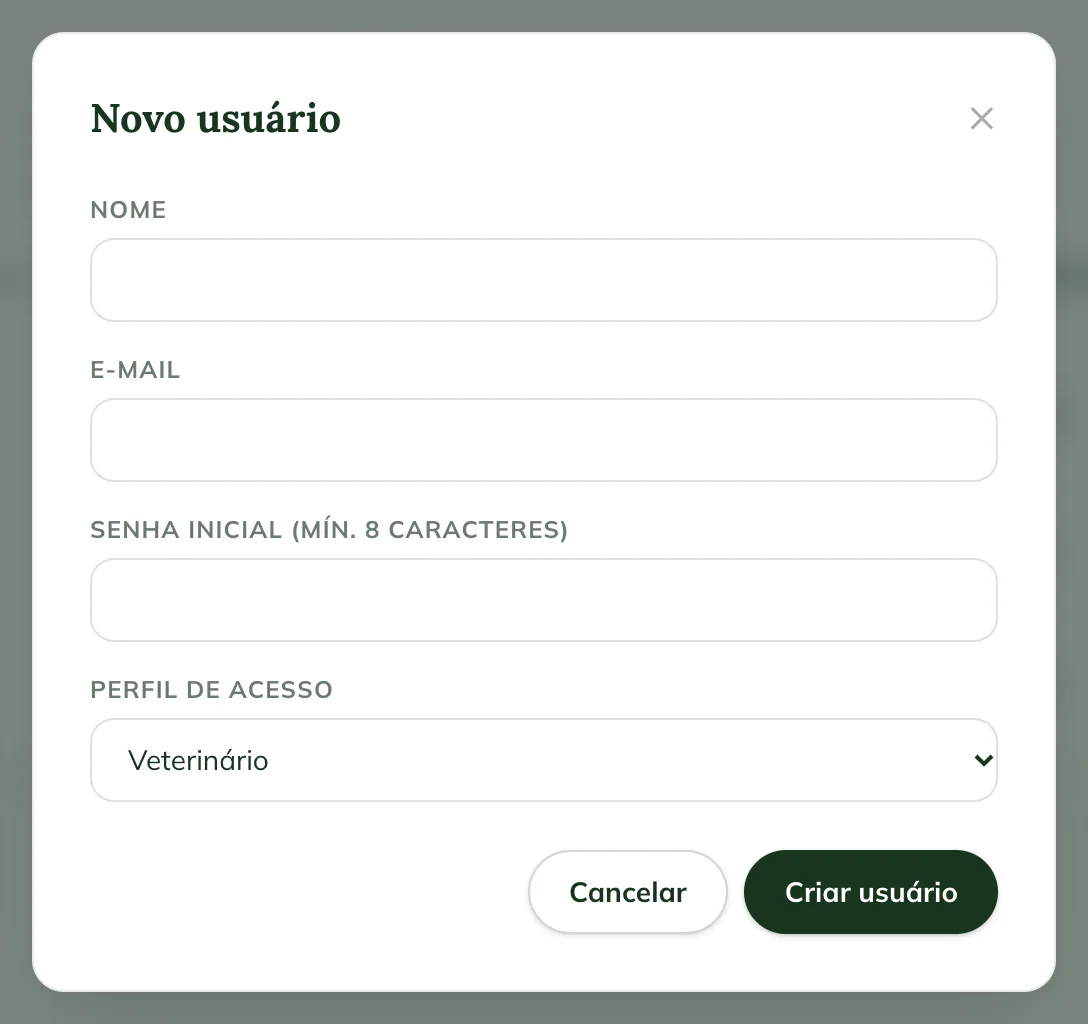
If you prefer, you can still create access with an initial password:
- In Users, click Create with password.
- Fill in Name, Email, the Initial password (min. 10 characters, no common passwords) and the Access profile.
- Click Create user and give the email and password to the person through a private channel.
Prefer the invitation: that way only the person knows the password. The GENNO team never asks for passwords.
Someone forgot their password
While email sending is not turned on, Forgot my password does not send the link. The administrator generates the link:
- In Users, click Generate password link on the person's row.
- Copy the link and send it to them. It is valid for 24 hours and works only once; any link generated before stops working.
- The person opens the link, chooses a new password and signs in again.
Change someone's profile
- In Users, click Edit on the person's row.
- Change the Name, Email or Access profile.
- Click Save.
You can't change your own profile. Ask another administrator.
Common problems
"There is already an account with this email in GENNO" appeared. That email already has an account. Use another email for the person or contact support.
"Your plan allows up to ... users." appeared. The team, counting pending invitations, reached the plan limit. Cancel an invitation that won't be used or see your plan and limits.
The person says the invitation expired or doesn't exist. The link is valid for 7 days and only once. In Pending invitations, click New link and send the new link.
I don't see the Invite button. Your profile doesn't have permission to add users. Ask the administrator.
Next steps

Didn’t this article solve it?
Talk to the GENNO team. Tell us what you were doing and, if you can, send a screenshot.