How to complete GENNO's initial setup
The first time you sign in on the web, GENNO asks for four quick steps. After them, you (and your team, if you have one) can use the web and the app.
Before you start
- The setup is done on the web only, at web.genno.app.
- Only the organization's administrator completes the steps. The rest of the team sees Setup in progress and waits.
- If you haven't created the account yet, see how to create the account and subscribe.
Sign in and see the steps
- Go to web.genno.app with the Email and Password you created when signing up.
- Accept the terms of use and the privacy policy, if GENNO asks. See how to accept the terms.
- The Welcome to GENNO screen opens, with four steps at the top: Subscription, Your details (or Organization), Property and Preferences.
A completed step shows a check mark. The current step is highlighted.
1. Subscription
If the payment has already been confirmed, GENNO jumps straight to the next step.
- Check the selected plan. You can switch plans and choose Monthly, Semiannual or Annual before paying.
- Check the Total.
- Tap Pay now and complete the payment.
- When you come back, tap Refresh if the screen still shows We're confirming your payment…
2. How you use GENNO
First, GENNO asks How do you use GENNO?. The answer only changes the wording and what is asked now. It doesn't change the plan, the price or the permissions, and you can change it later.
| Option | For whom |
|---|---|
| I'm an independent veterinarian | You serve clients' properties. |
| I run a stud farm, a clinic or a farm | You have your own team and properties. |
| Both | You work independently and also with a stud farm. Here you set up your independent practice account. Access to the stud farm comes through an invitation from the farm itself, using another email. |
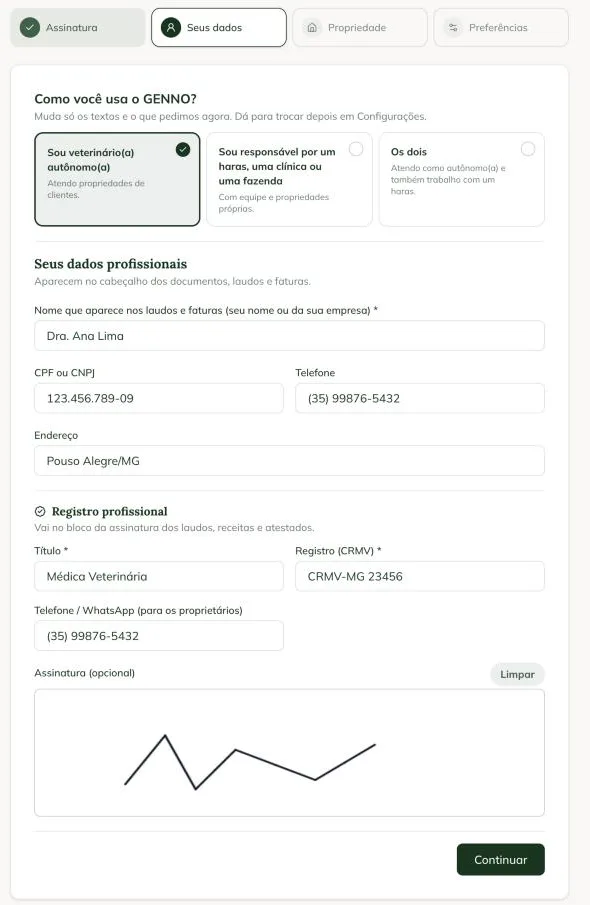
If you are independent (or both)
The step is called Your professional details.
- In Name shown on reports and invoices, enter your name or your company's. It is the name in the header of the documents.
- If you like, fill in Tax ID (CPF or CNPJ), Phone and Address.
- In Professional registration, fill in the Title (for example, Veterinarian) and the License (CRMV). Both are required for independent veterinarians, because they appear in the signature block of reports.
- If you like, fill in the Phone / WhatsApp for owner notices and draw your Signature.
- Tap Continue.
If you run a stud farm, a clinic or a farm
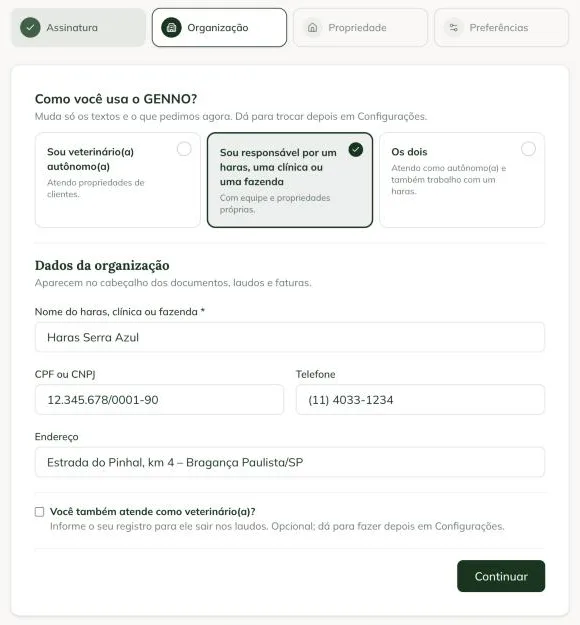
The step is called Organization details.
- In Name of the stud farm, clinic or farm, check the name. It is the only required field.
- Fill in Tax ID (CPF or CNPJ), Phone and Address.
- If you also work as a veterinarian, check Do you also work as a veterinarian? and fill in your license. It's optional.
- Tap Continue.
3. First property
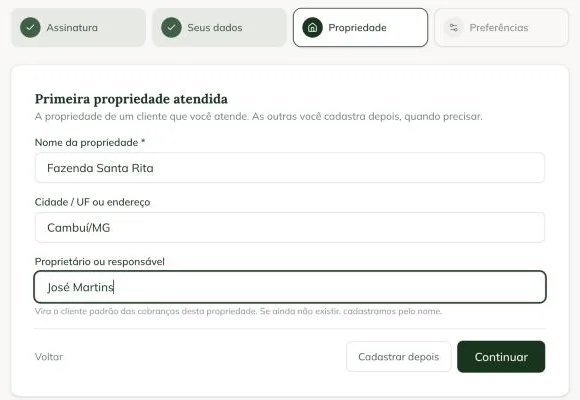
Independent: the step is called First property you serve. It is a client's property that you serve.
- Enter the Property name and, if you like, the City / state or address.
- In Owner or person in charge, type the client's name. If they are already registered, pick them from the list; if not, GENNO registers them by name. They become the default client for the property's charges. The field is optional.
- Tap Continue.
Don't want to register it yet? Tap Add later. You finish the setup without a property and register the first one when you need it.
Stud farm, clinic or farm: the step is called First property. It is the headquarters or farm where the animals are kept. Enter the Property name and the City / state or address and tap Continue. Other properties can be registered later.
4. Preferences
- In Currency, choose the currency for amounts (for example, Brazilian real (R$)).
- In Time zone, choose the time zone for the schedule and alerts.
- Tap Finish and enter GENNO.
If you tapped Add later, the currency and time zone become your account's defaults and apply to the first property you register.
Done: the web Home opens, already on the property you registered. If you left the property for later, the properties screen opens with the Register property button.

Before going to the field, add the team and the animals on the web. On the phone, the first sign-in brings everything.
Register the first property later
- On the web: on the properties screen, tap Register property. When you save, it becomes the current property and the Home opens.
- In the app: on the Select the Property screen, tap Add new property. When you save the first one, the app opens it right away.
See also how to register and edit properties.
Change the answer later
In Settings → Details and address, change How do you use GENNO?. The account's default Currency and Time zone are there too. The professional registration is in Settings → Professional registration.
Common problems
"The last payment was declined. Check the plan and try again." appears. The payment was not approved. Tap Pay now and use another payment method.
"Enter your title and your veterinary license number." appears. In the independent profile (and in both), the title and the CRMV are required. Fill in both and tap Continue.
The "Add later" button doesn't appear. It only exists for independent veterinarians and for those who chose both. For a stud farm, clinic or farm, the first property is required.
"Setup in progress" appears. Only the administrator completes the setup. Wait for them to finish and sign in again.
The app shows "Setup pending". The steps on the web are not finished yet. Tap Open the web app, finish the setup and sign in to the app again.
I got the name or the property wrong. You can change it later. See how to change the organization details and how to register and edit properties.
Next steps

Didn’t this article solve it?
Talk to the GENNO team. Tell us what you were doing and, if you can, send a screenshot.