How to record income and expenses
Everything that comes in and goes out of the farm's cash goes into an entry: boarding, sales, feed, salaries, taxes. With the due date, GENNO builds the accounts and the cash flow.
Before you start
- Recording entries is for the Administrator and Veterinarian. Recording the payment and cancelling is only for the Administrator.
- In the app, it works offline.
- Invoices, inventory purchases and field trip costs come in on their own. See the farm finances.
Record on the web
- At web.genno.app, click Finance and the Income or Expenses tab.
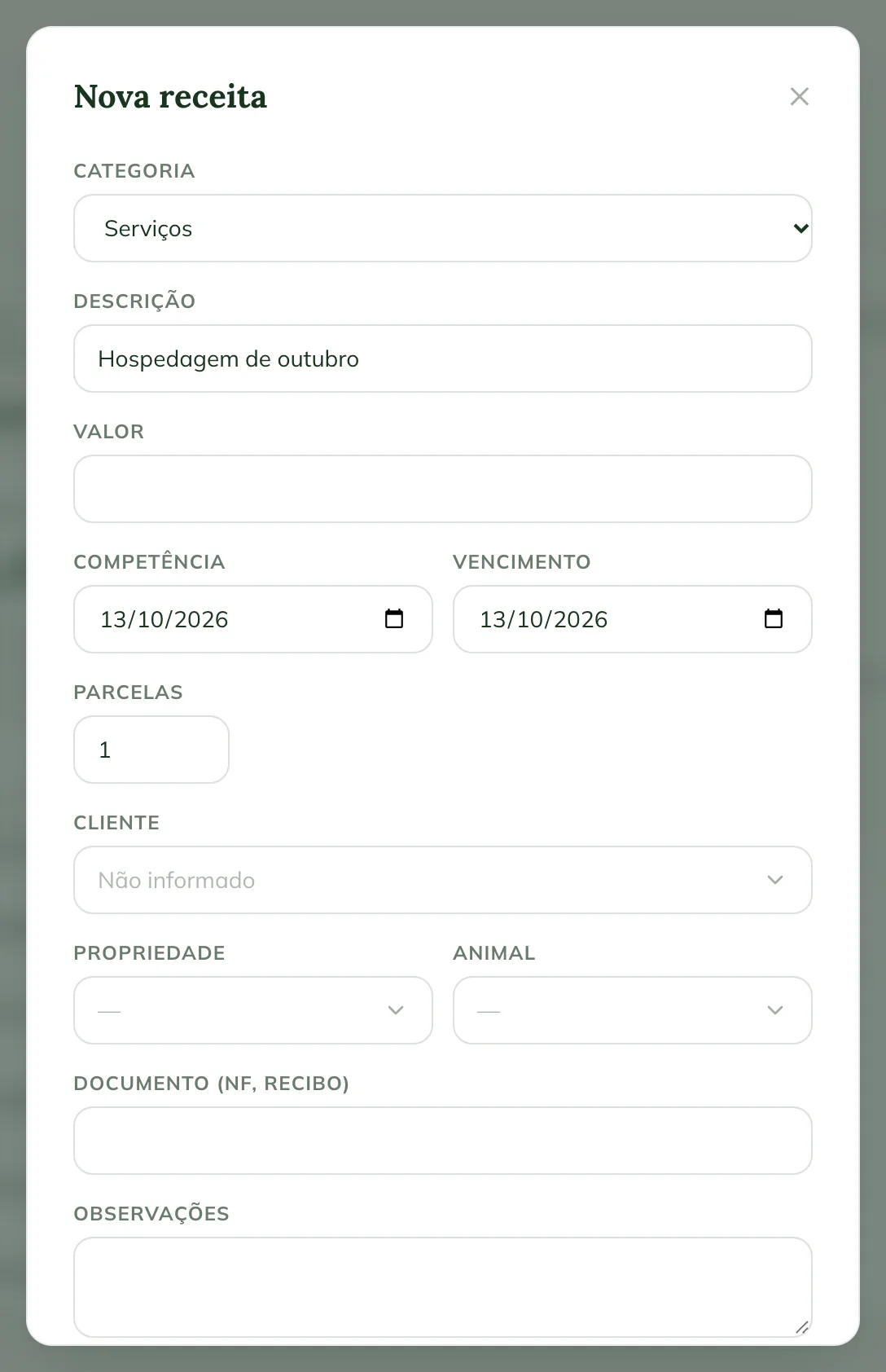
- Click New income or New expense.
- Choose the Category. For income: Services, Semen sales, Animal sales, Boarding, Products or Other income. For expenses: Medications, Supplies, Feed, Semen, Third-party services, Field Trip, Maintenance, Staff, Taxes or Other expenses.
- Fill in the Description and the Amount.
- Check the Accrual date (the month the entry belongs to) and the Due date.
- To split it, enter the Installments (1 to 36) and choose How: Split the amount into installments (cents on the 1st) or Repeat the amount every month, as for boarding.
- Choose the Client (income) or the Supplier (expense), the Property and the Animal, if any.
- Fill in the Document (invoice, receipt) and the Notes, if you want.
- If you have already received or paid, check Already received or Already paid and choose the Payment method. With installments, it applies to the 1st.
- Click Record income or Record expense.
See the month's entries
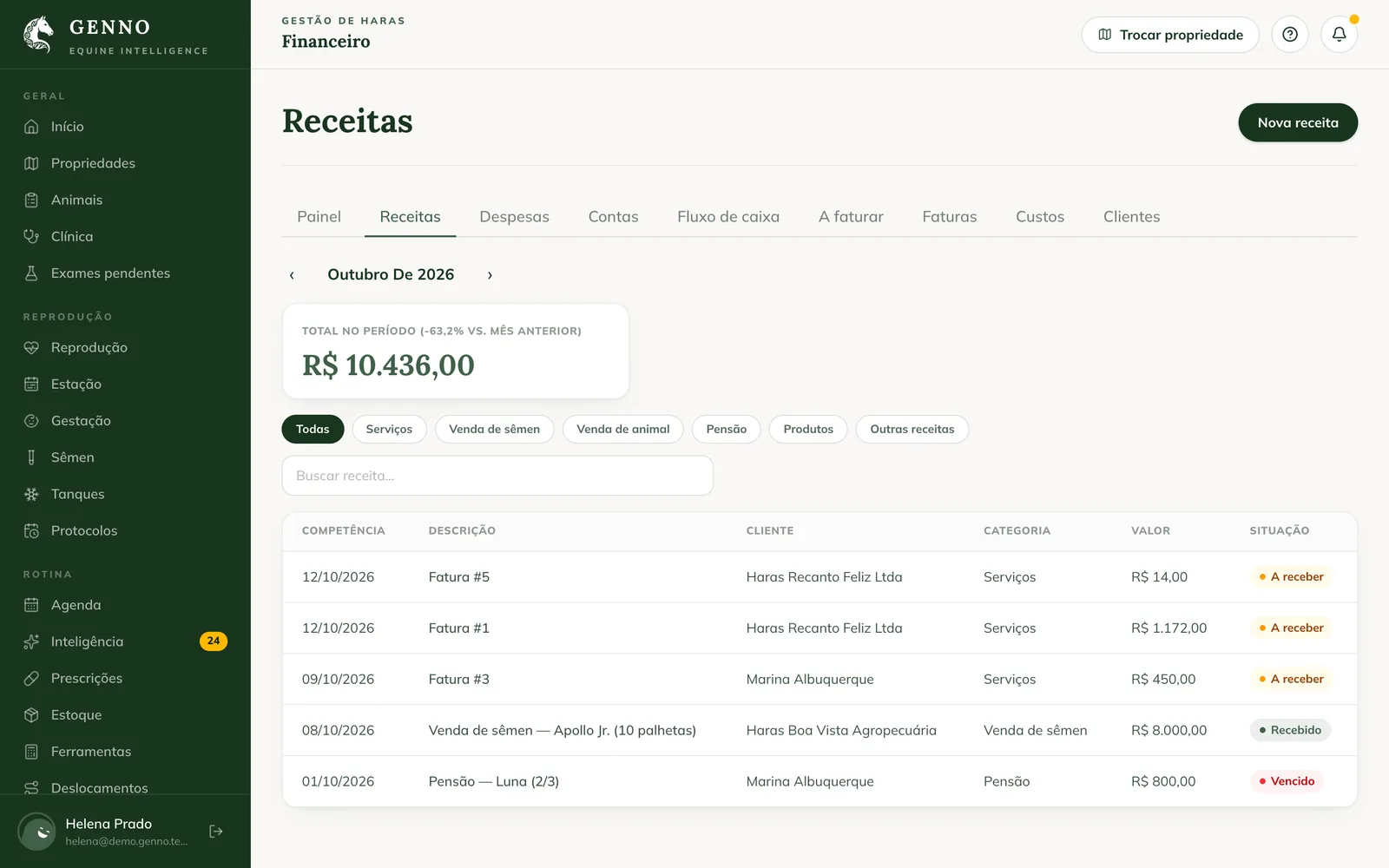
The Income (or Expenses) tab shows the month chosen with the arrows, the total for the period and the list with Accrual date, Description, client or supplier, Category, Amount and Status. Filter by category or use the search.
Receive, pay or cancel
Click the entry to open it.
- Record receipt (or Record payment): choose the Payment method and confirm.
- Edit: changes an entry made by hand.
- Cancel entry: write the Reason. The entry stays in the history as cancelled.
An entry that came from an invoice is received and cancelled through the invoice itself. See how to issue invoices and record the payment.
In the app
- In More, tap Finance and the Income or Expenses shortcut.
- Tap New income or New expense, fill it in and tap Record income or Record expense.
- Tap the entry to Record receipt, Record payment, Edit or Cancel entry.
Common problems
"Enter an amount greater than zero." appeared. Fill in the entry's amount.
"Installments from 1 to 36." appeared. GENNO splits into up to 36 installments. Adjust the number.
I can't cancel an income entry from an invoice. It is cancelled through the invoice, with Cancel invoice.
Next steps

Didn’t this article solve it?
Talk to the GENNO team. Tell us what you were doing and, if you can, send a screenshot.