How to issue invoices and record the payment
Most invoices come from To invoice, grouping the client's services. This article shows the one-off invoice and what to do after issuing: PDF, payment and cancellation.
Before you start
- Issuing invoices is for the Administrator and Veterinarian. Recording payments and cancelling is only for the Administrator.
- The farm's plan must include Finance.
- To invoice services already done, use To invoice. See from visit to invoice.
See the invoices
- At web.genno.app, click Finance and the Invoices tab.
- Choose the month with the arrows. At the top appear Invoiced, Received, Pending and Overdue.
- Filter by All, Pending, Overdue, Paid or Cancelled.
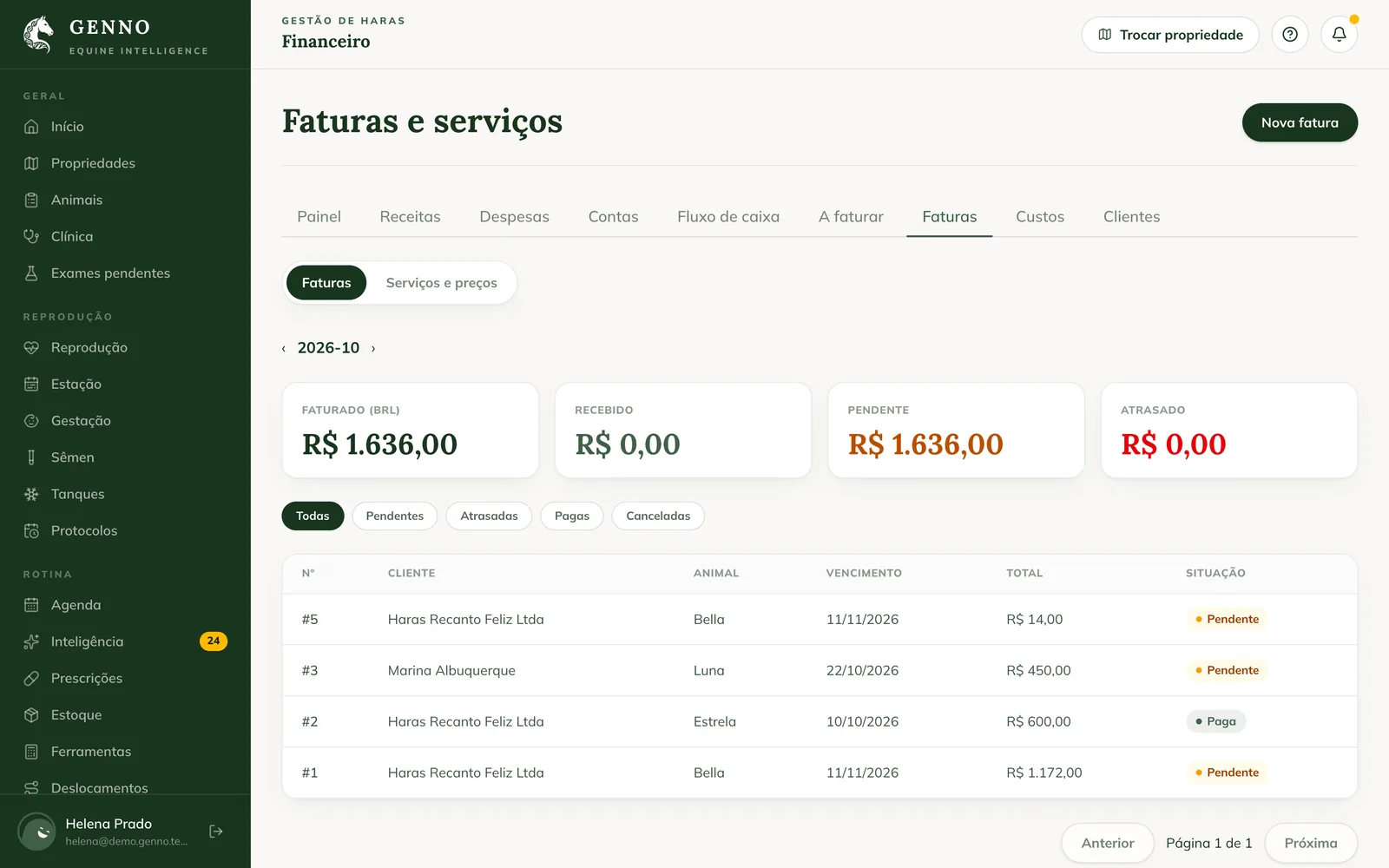
The list is for the property in use. With no property selected, Showing all properties. appears.
Issue a one-off invoice
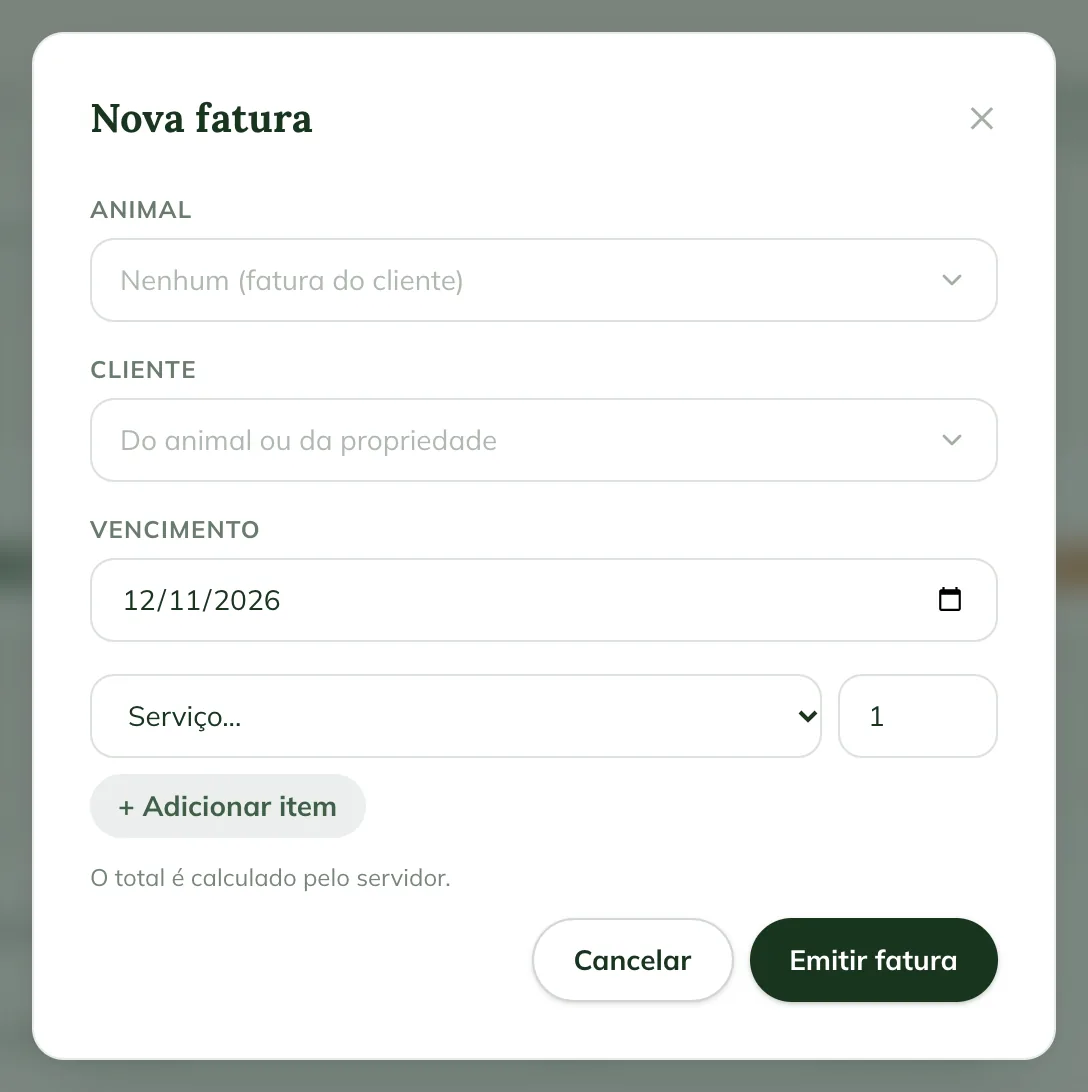
- Click New invoice.
- Choose the Animal, or leave None (client invoice) and choose the Client. Without a client, the owner of the animal or property applies.
- Check the Due date.
- Choose the service and the quantity. For more than one, click + Add item.
- Click Issue invoice. The total is calculated by the server.
PDF, payment and cancellation
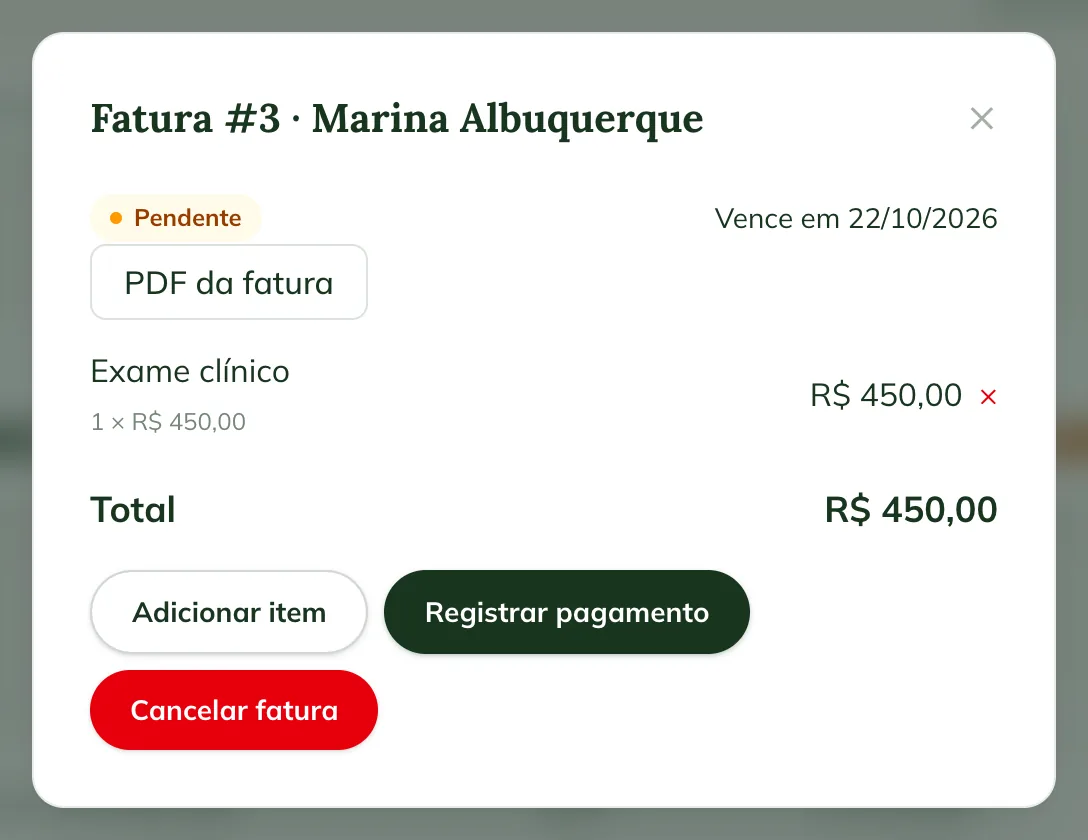
Click the invoice to open it.
- Invoice PDF: opens the invoice report. Click Download PDF and send it to the client.
- Add item: adds a service or a One-off item, with Description and Unit price, while the invoice is Pending.
- Record payment: choose the Payment method (PIX, Cash, Card, Transfer or Bank slip (boleto)) and click Confirm payment. The invoice becomes Paid.
- Cancel invoice: write the Reason and confirm. The services go back to To invoice.
If the owner has Portal access, they see the invoice in Invoices and download the PDF. Payment isn't made through the Portal: the client pays as you agreed, and the farm records it in GENNO.
In the app
- In More, tap Invoices (or Finance › Invoices).
- Filter by status and tap the invoice.
- Use Invoice PDF, Record payment or Cancel invoice.
- For a new invoice, tap New invoice, choose the animal and the items and tap Issue invoice.
Offline, the invoice shows Waiting to be sent to the server. The total is provisional. until the sync.
Common problems
"Choose the animal or the client." appeared. The invoice needs an animal or a client. Choose one of the two.
"The invoice must have at least one item." appeared. Choose at least one service.
I don't see Record payment. Recording payments and cancelling is only for the administrator.
The app shows "Select a property to see the invoices." App invoices are per property. Choose the property in Switch Property, in the side menu.
Next steps

Didn’t this article solve it?
Talk to the GENNO team. Tell us what you were doing and, if you can, send a screenshot.