How to manage payables and receivables
The Accounts tab shows entries by due date: what is already overdue, what is due soon and what has been settled.
Before you start
- Viewing and recording is for the Administrator and Veterinarian. Recording the payment is only for the Administrator.
- In the app, it works offline.
Follow the accounts on the web
- At web.genno.app, click Finance and the Accounts tab.
- Choose Receivable, Payable or All. The total and the Open bills appear at the top.
- Filter by All, Overdue, Upcoming or Settled.
- Use Search account... to find one by description.
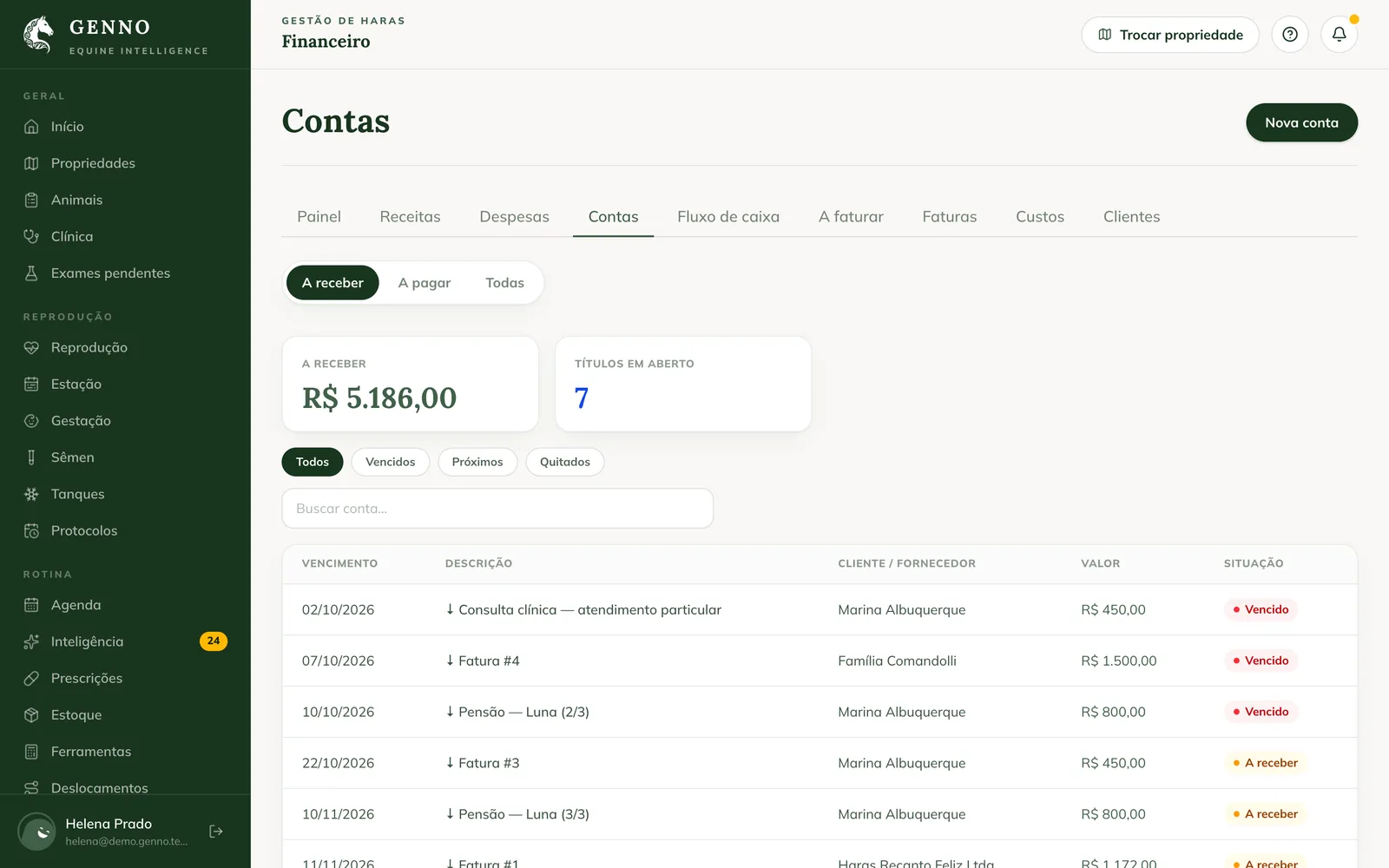
The list shows the Due date, the Description (with the installment, such as 2/3), the Client / supplier, the Amount and the Status.
Record the receipt or the payment
- Click the account.
- Click Record receipt (or Record payment).
- Choose the Payment method and confirm.
The account leaves the open ones and appears in Settled. An account that came from an invoice is received through the invoice.
Record a new account
Click New account. The window is the same as for income and expenses, with the title New receivable or New payable. See how to record income and expenses.
In the app
In More › Finance, tap the Accounts shortcut. Use Receivable, Payable and All, the Overdue, Upcoming and Settled filters and Search account…. Tap New account to record one.
Common problems
The overdue account doesn't appear in Overdue. Check the entry's due date. If it was recorded offline, sync.
I don't see Record payment. Recording payments is only for the administrator.
Next steps

Didn’t this article solve it?
Talk to the GENNO team. Tell us what you were doing and, if you can, send a screenshot.