How to customize the PDF appearance and document numbering
WebNeeds internet
The appearance applies to all of the organization's PDFs: reports, visit reports, records, contracts, consent forms and certificates, on the web and in the app.
Before you start
- Only those who can change the organization's details can change the appearance.
- The app uses the appearance from the last sync.
The logo
- At web.genno.app, click Settings and, under Organization, Document appearance.
- Upload the logo as PNG or JPEG, up to 300 KB.
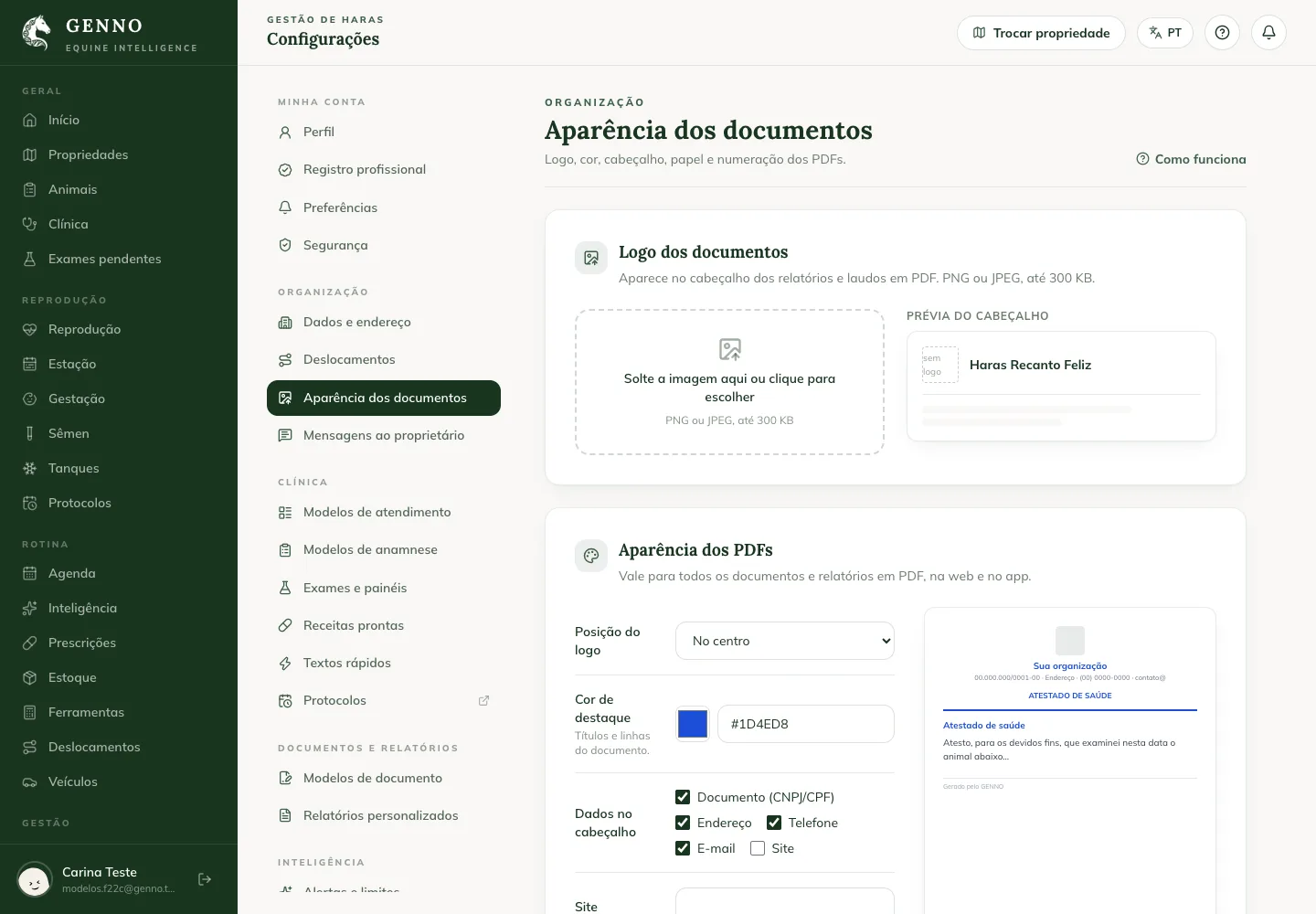
Color, header, paper and font
- Under Logo position, choose Left or Centered.
- Under Accent color, choose the color of the headings and lines. Colors that are too light are refused, because they become unreadable on white paper.
- Under Header details, check what appears: Tax ID (CNPJ/CPF), Address, Phone, Email and Website.
- Write the Default footer. A custom report's footer overrides this one.
- Choose the Paper (A4 or Letter) and the Font size (Normal or Larger).
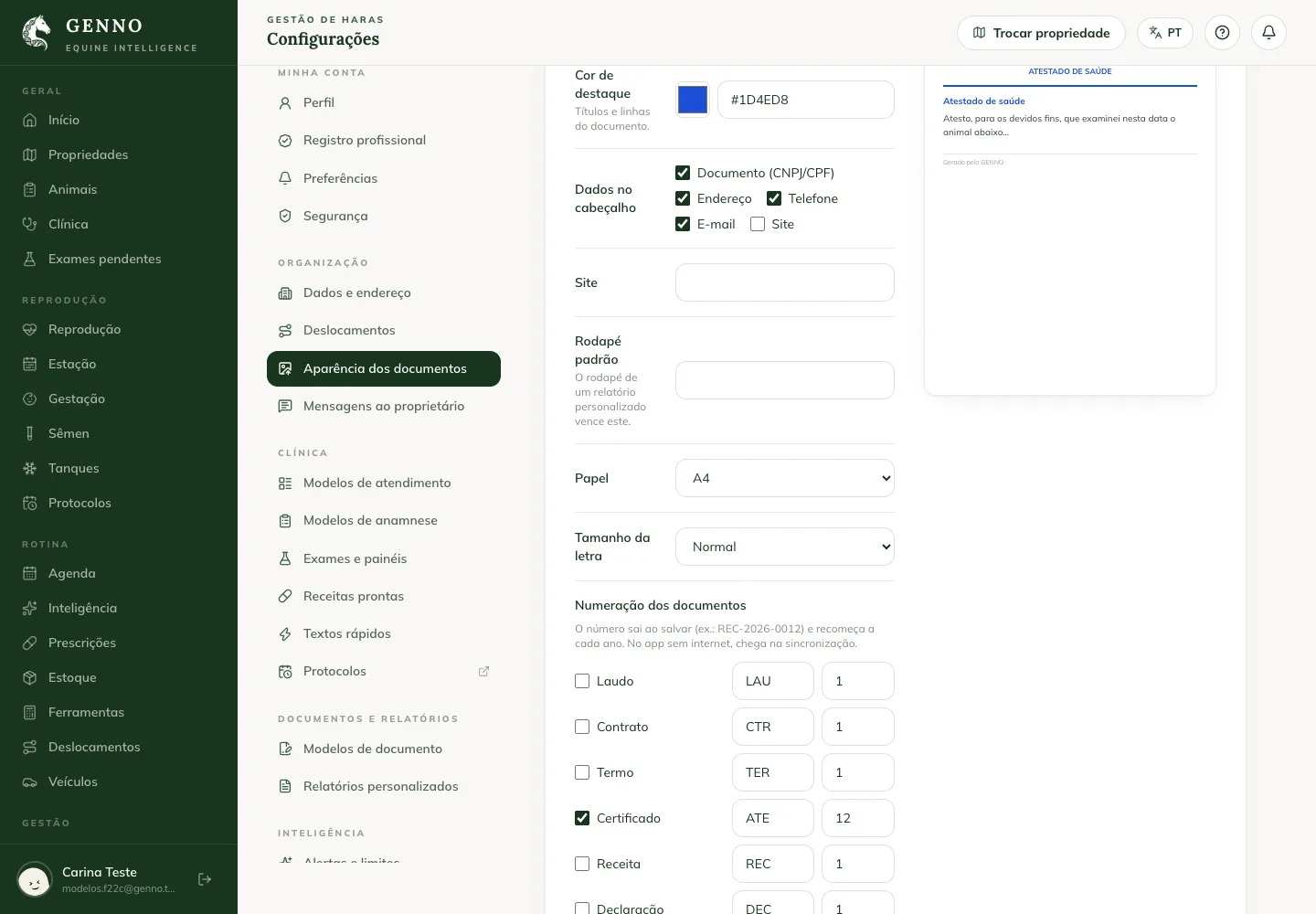
The preview next to it shows how the PDF looks.
Document numbering
- Under Document numbering, check the categories that get a number, such as Certificate or Contract.
- If you want, change the Prefix and the Next number.
- Click Save.
The number is given when the document is saved, as prefix, year and number (for example, ATE-2026-0012), and restarts every year. In the app without internet, the number arrives with the sync.
Next steps

Didn’t this article solve it?
Talk to the GENNO team. Tell us what you were doing and, if you can, send a screenshot.