How to set up the electronic signature
GENNO has three levels of electronic signature. The simple one comes ready. The advanced one requires terms accepted once. The qualified one uses your cloud digital certificate.
The three levels
| Level | How it is confirmed | What the PDF carries |
|---|---|---|
| Simple | Your login and professional license. | The professional license and the verification code. |
| Advanced (recommended) | A 6-digit code sent to the GENNO app, or the account password. | The audit trail and, when active, GENNO's digital seal. |
| Qualified | Your cloud digital certificate (ICP-Brasil, in Brazil), authorized at the provider. | The signature with the certificate. |
Accept the advanced signature terms
- At web.genno.app, click Profile and scroll to Electronic signature.
- In Consent terms for electronic signature, click Read the terms.
- After reading, click Accept. Accepted on and the date appear.
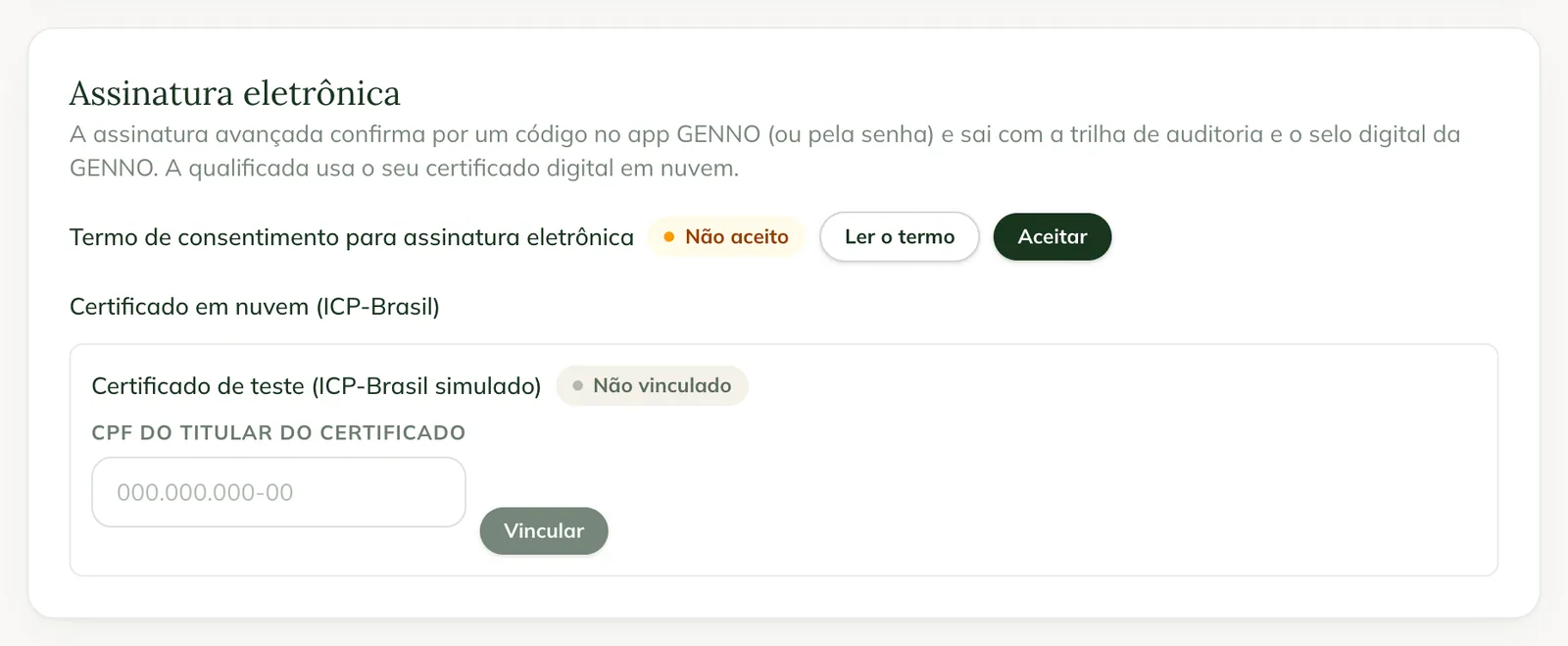
If you haven't accepted yet, the terms appear at your first advanced signature. To withdraw, click Withdraw consent.
Link the cloud certificate
For the qualified signature:
- On the same card, under Cloud certificate, find your certificate's provider.
- In Certificate holder's CPF, type your CPF (Brazilian tax ID).
- Click Link. The provider appears as Linked, with the CPF.
To change it, click Unlink and link it again.
Sign with the chosen level
When you sign a report from the document page, the Sign document window asks for the level: Simple, Advanced (recommended) or Qualified.
- Advanced: click Continue, type the Code that arrived in the GENNO app (or the Password) and click Sign. If the code didn't arrive, use Send another code.
- Qualified: choose the Provider and click Continue. The provider opens in a new window: authorize it there, and the GENNO screen updates on its own.
A report already signed with the simple level can be upgraded in Advanced signature, on the document page. See how to generate and sign a report.
In the app
In More › My Profile › Professional details, the Electronic signature card shows whether the terms were accepted and the cloud certificate, with Link and Unlink. The 6-digit code for the advanced signature arrives as an app notification.
Common problems
The code doesn't arrive in the app. Check that app notifications are on and that you signed in with the same account. Click Send another code. Without a device with notifications, GENNO asks for the account password.
"The signature was not completed at the provider." appeared. The authorization at the provider didn't finish. Try again and complete it in the provider's window.
I don't see the Qualified option. It appears when there is a cloud certificate provider available for your country.
Next steps

Didn’t this article solve it?
Talk to the GENNO team. Tell us what you were doing and, if you can, send a screenshot.