How to turn on two-factor authentication (authenticator app)
With two-factor authentication, signing in to GENNO asks for your password and also for a six-digit code that changes every 30 seconds, generated by an app on your phone. Even if someone finds out your password, they cannot sign in without your phone.
Before you start
- Install an authenticator app on your phone: Google Authenticator, Microsoft Authenticator, Authy or the password manager you already use.
- Two-factor authentication is personal: each person turns on their own.
- For GENNO back-office operators, it is mandatory.
Turn it on on the web
- At web.genno.app, click Settings and, under My account, Security.
- On the Two-factor authentication card, click Turn on two-factor authentication.
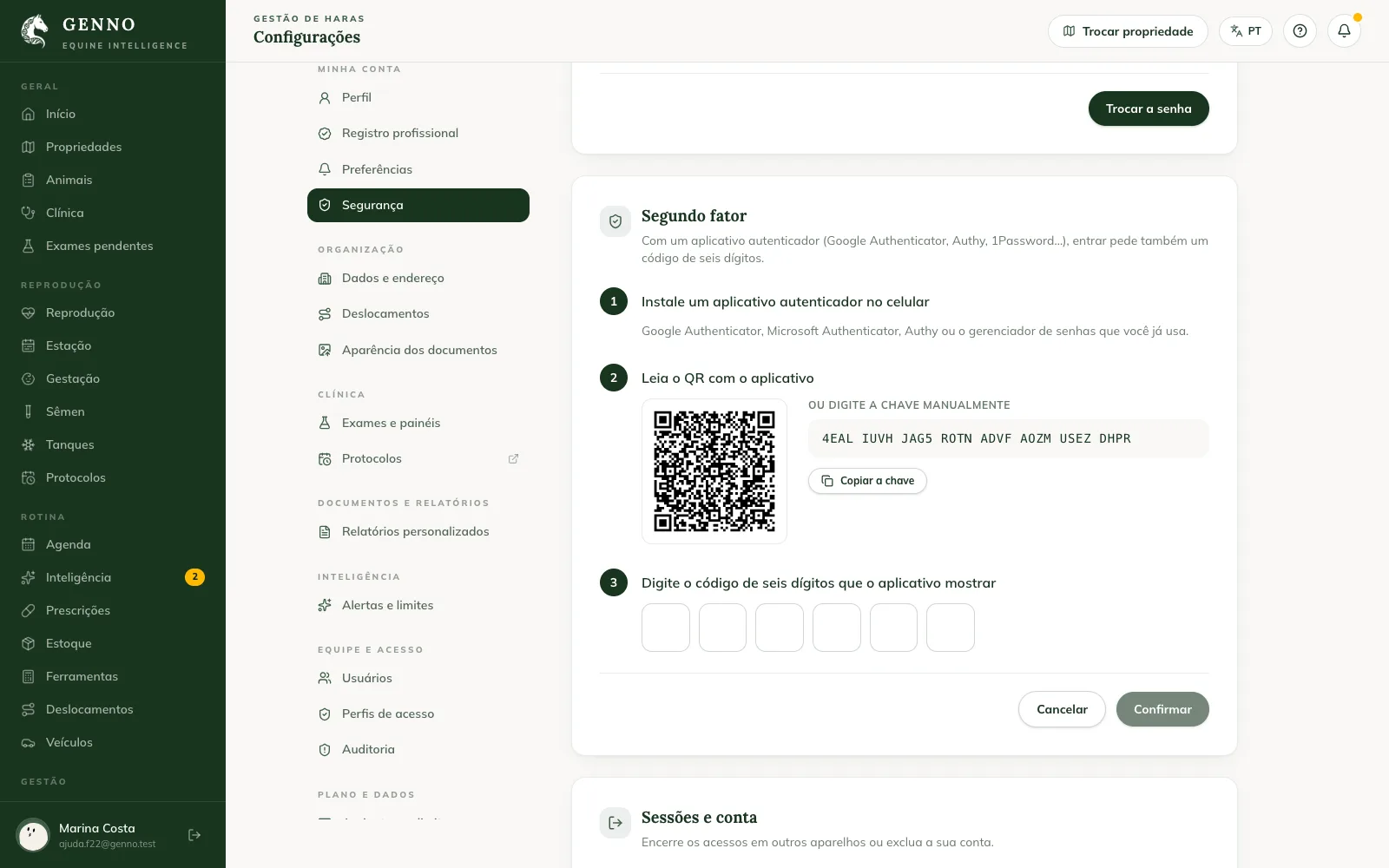
- In the authenticator app, scan the QR code. If you prefer, click Copy the key and paste it into the app.
- Enter the code the app shows in the six boxes. GENNO checks it as soon as the sixth box is filled.
- Save the recovery codes: click Copy, Download (.txt) or Print, check I saved the codes in a safe place. and click Complete.
Once active, the card shows Active since the date and how many recovery codes are left.
Turn it on in the app
- Tap More, Settings and Security.
- Tap Turn on two-factor authentication.
- Tap Open in the authenticator app: the app on the same phone opens with the account ready. If none opens, tap Copy the key and paste it into the app.
- Enter the six-digit code.
- Save the codes: tap Copy or Share (for example, to your password manager), check I saved the codes in a safe place. and tap Complete.
Sign in with two-factor authentication
- Sign in with your email and password, as usual.
- On the Authenticator code screen, enter the code the app shows. When you fill in the sixth box, you are in.

The screen shows the beginning of your email (for example, p***@genno.app), so you know which account the code is for. If it is not you, click Not you? Go back.
Without your phone: recovery code
- On the code screen, click Use a recovery code.
- Enter one of the codes you saved, in the xxxxx-xxxxx format.
- Click Sign in.
Each code works once. When only a few are left, generate new ones in Security, with the New recovery codes button: the old ones stop working.
Turn it off
- In Security, click Deactivate.
- Confirm with your Current password and a code from the app (or a recovery code).
Common problems
"Invalid code" appeared. Check that the phone clock is set to automatic time and enter the code on screen right now. Each code works once.
"Try again in" appeared with a countdown. After five wrong codes in a row, GENNO waits 15 minutes before accepting another one.
"The verification expired. Sign in again with your e-mail and password." appeared. The code step lasts 5 minutes. Sign in again.
I changed phones. Sign in with a recovery code and, in Security, turn it off and on again on the new phone. Without recovery codes, contact support.
Next steps

Didn’t this article solve it?
Talk to the GENNO team. Tell us what you were doing and, if you can, send a screenshot.